
...
| id | 139714890 |
|---|
...
| id | 139714892 |
|---|
...
| id | 139714891 |
|---|
Information about links between elements is arranged in a tabular form in the DH Links panel. This tab shows the detail of all the links you have added to items from the DataHub Operation drop-down list.
DHLink maintains synchronization between source and target elements, either bidirectional or unidirectional.
To open the DH Links panel in MagicDraw®
...
- From the MagicDraw main menu, click Tools > DataHub > DHLink Panel. The DH Links panel opens.
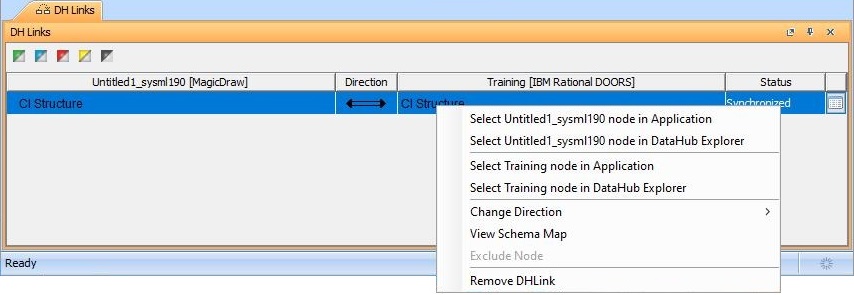
The DH Links panel contains icons and a table. Each node in the table has a shortcut menu called the Actions menu that helps you manage the node and its relations.
The following table provides the description of each column in the table in the DH Links panel.
Value | Description |
|---|---|
| Data Source and its driver name (MagicDraw) | The name of the Data Source in MagicDraw. |
| Direction | The direction of DHLink synchronization. |
| Data Source and its driver name (other drivers) | The name and the driver of the Data Source. |
| Status | The status of the node (Modified, Moved, Deleted or Synchronized). |
| Property button | Contains the Property |

| Tip | ||
|---|---|---|
| ||
You can click the Property Content block | | id | 139714889
Related page
| Children Display |
|---|