
...
| id | 1325969200 |
|---|
...
| id | 1325969221 |
|---|
...
| id | 1325969199 |
|---|
On this page
...
| Table of Contents | ||
|---|---|---|
|
...
In My account, you can manage your account data - add or remove your name, phone number, email address, and department, you can also change your password.
Opening My account
To open My account
...
- In
...
- the upper right corner click
 button and select My
...
- account application.
| Note |
|---|
The user without assigned roles or resources will be automatically redirected to thethe My account page afterpage after signing in. |
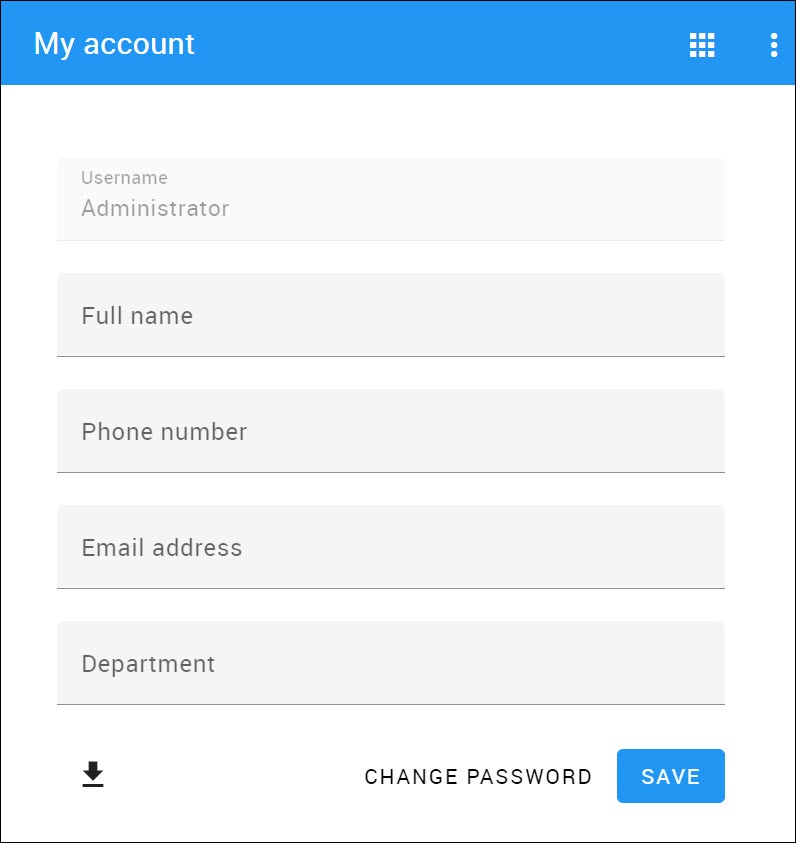
Viewing My account application.
Changing password
To change the password
...
- Open My account application.
- Choose Change Password.
- Enter your old and new passwords, then select Save.
| Tip |
|---|
You can also change your password in thethe User detailsdetails pane by clicking Change password option. Your new password cannot be the same as your previous password. |
To change the Administrator’s password
...
- Change the password using My account.
- Update the properties file at <Magic Collaboration Studio install folder>/WebAppPlatform/shared/conf/webappplatform.properties
...
- with the new Magic Collaboration Studio Admin password.
- Restart the Web App service.
Generating permissions report
In the My account application, you can generate your permissions report. Click at the bottom left corner to download the report in Excel format.