
Using categories and grouping projects into them, you can organize the structure of your server projects' repository according to your needsyour needs.
By default, there is a single category category Uncategorized, but you can create as many categories as you need. A project can be created directly in a selected category and later easily moved to another one. The category can be created in advance or while while adding the project to the server. Categories can be renamed and removed. HoweverAlso, they cannot can have sub-categories.
| Note |
|---|
The TWCloud project categories in the modeling tool dialogs will be hidden if a user does not have the Manage Categories or Read-Only permission to at least one project inside of these categories. |
Read the following to learn how
...
| Warning |
|---|
You need to have the Categorize Resources Manage categories permission assigned to the Global scope to be able to create categories. |
| Anchor | ||||
|---|---|---|---|---|
|
...
- From the the Collaborate menu menu, choose choose Projects. The The Manage Projects dialog dialog opens.
- Be sure the Categorized View is turned on in the dialog. If it is not, click
on click
 on the toolbar of the dialog.
 - Choose one of the following:
- Click
 on the toolbar of the open dialog.
 - Right-click anywhere in the project list area and then select Create Category.
- Click
After
thethe Create Category
dialogdialog opens, select a Parent category and type a new category name.
Note - Select an existing category as a Parent category to nest a new category within.
- Select a Root node as a Parent category to create a new top-level category.
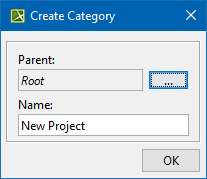
- Click OK to Click OK to confirm the creation.
The category is created. You can find it in the project list ordered alphabetically.
...
| Anchor | ||||
|---|---|---|---|---|
|
...
- From the the Collaborate menu menu, choose choose Projects. The The Manage Projects dialogs dialogs opens.
- Select a category or a project that belongs to the category you want to rename and then do either:
- Click
 on the toolbar of the open dialog.
 Right-click the selection and then select
Rename Category.Note The Uncategorized category cannot be renamed.
- Click
- When the the Rename Category dialog dialog opens, type a new category name.
- Click Click OK.
The category is renamed.
...
| Anchor | ||||
|---|---|---|---|---|
|
...
- From the the Collaborate menu menu, choose choose Projects. The The Manage Projects dialogs dialogs opens.
- Select the project you want to move and do one of the following:
- Click
 on the toolbar of the open dialog.
 - Right-click the selection and then select Move to Category.
- Click
When the Move Move to Category dialog dialog opens, select the category to which you want to move the project.
- Click Click OK.
The project appears in the selected category.
...
| Anchor | ||||
|---|---|---|---|---|
|
...
- From the the Collaborate menu menu, choose choose Projects. The The Manage Projects dialogs dialogs opens.
- Select the category or the project that belongs to the category you want to remove and then do either:
- Click
 on the toolbar of the open dialog.
 Right-click the selection and then select
Remove Category.Note The Uncategorized category cannot be removed.
- Click
- Click Click Yes to to confirm your decision.
The category is removed from the server repository repository together with all the resources in it.
...
Empty categories are by default shown in the the Manage Projects and and Open Server Project dialogs dialogs, but you can simply hide them.
| Anchor | ||||
|---|---|---|---|---|
|
...
- Click
 on the toolbar of the open dialog. Click the button once more to show the empty categories again.