You can clone the latest version of your server project as a separate project . The project being cloned can or the latest version of a project branch as a separate branch. The cloned project can be used as a "template" to create a new project or as an independent base for new development. IDs of a cloned project and elements are reset automatically. Project permissions are reset as well; the project is available only for a the user who has cloned the project. All references to used projects (if there are any) are maintained. | Note |
|---|
You can only clone either the latest version of a project or the latest version of a project branch. |
| Note |
|---|
You need at least double the amount of memory to clone a project in comparison to opening a project. |
To clone a project or a branch
On the main menu, click Collaborate Collaborate > Projects. The The Manage Projects dialog opens. dialog opens. To clone a project, select the project you want to clone. | Tip |
|---|
You can use the search bar to filter used projects faster by name.
|
- (Optional) To clone a branch of a chosen project, select the project and do one of the following:
- Click the Select Branch
 Image Added button. Image Added button. - Click the three dots
 Image Added button in the Branch section. Image Added button in the Branch section. - Right-click the project and select Select Branch.
Select the branch you want to clone in the Select Branch dialog and click OK.
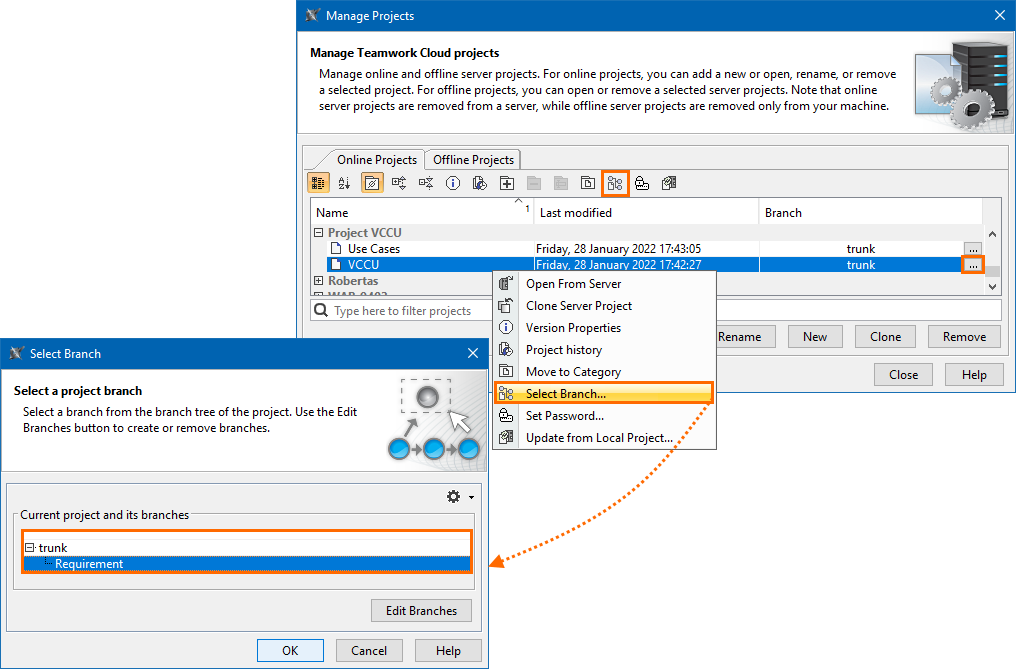 Image Added Image Added - To clone the selected project or branch, Select a project version you want to clone and do one of the following:
- Click the Clone button.
- Right-click the project and select Clone Server Project.
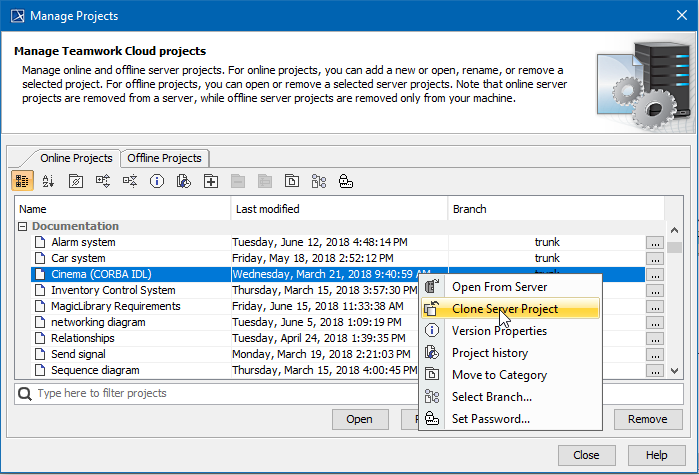 Image Removed Image Removed
| Tip |
|---|
You can use the search bar to faster filter used projects by name.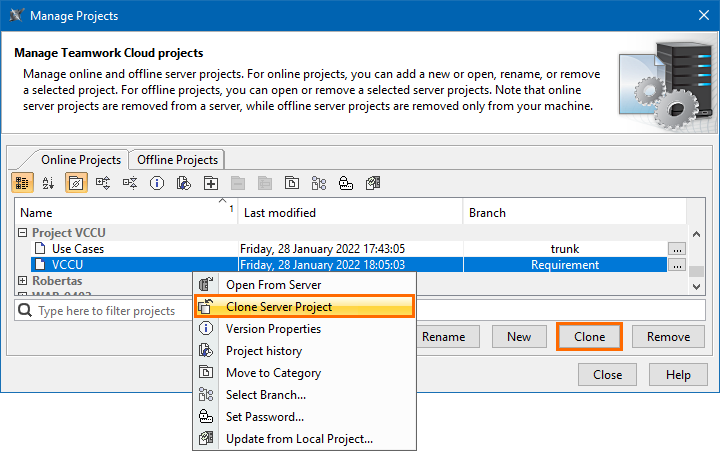 Image Added Image Added - The Clone Server Project dialog dialog opens, wherein you need to type a the name of the cloned project, select a category to save the project and/or add a comment. Click More, if you want to add a tag for the project.
Click Clone when when you are done. - Close the the Manage Projects dialog.
| 