
...
- Select File > Import From > Server Project File.
- Select the .szip file you want to use and click Open. This opens the Import Project to the Server dialog:
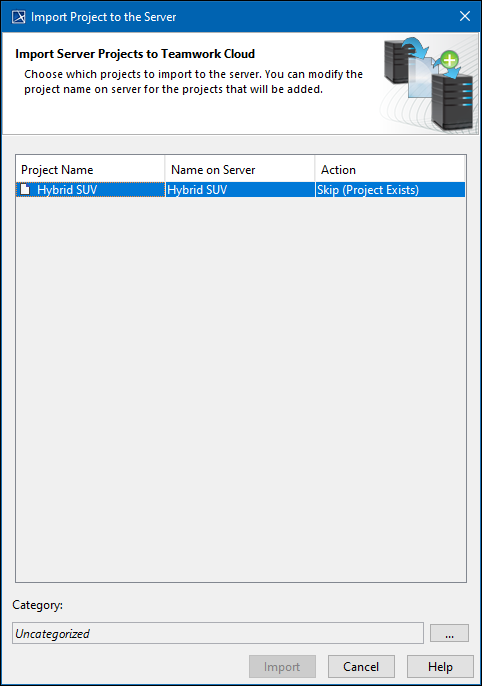
- In the Action column, you see the action that is performed with the project once you click Import. Possible actions include:
- Add to Server – the project is added to the server.
- If the action is Add to Server, you can modify the Name on Server column to choose a new name for the imported project.
- If you want to skip certain projects, you can change the Add to Server action to Skip.
- Skip – the server project is skipped.
- Skip (Project Removed) – the project is removed. You must use Data Manager to either delete it completely from the server or restore the deleted version.
- Skip (Project Exists) – the project already exists on the server and cannot be imported. If you still need to upload the .szip version of the project to Teamwork Cloud, use the Update from Local Project functionality.
- Add to Server – the project is added to the server.
- To choose the dialog that opens, select the category for the newly added project, select
 at the bottom of the dialog. This opens the Select Category dialog: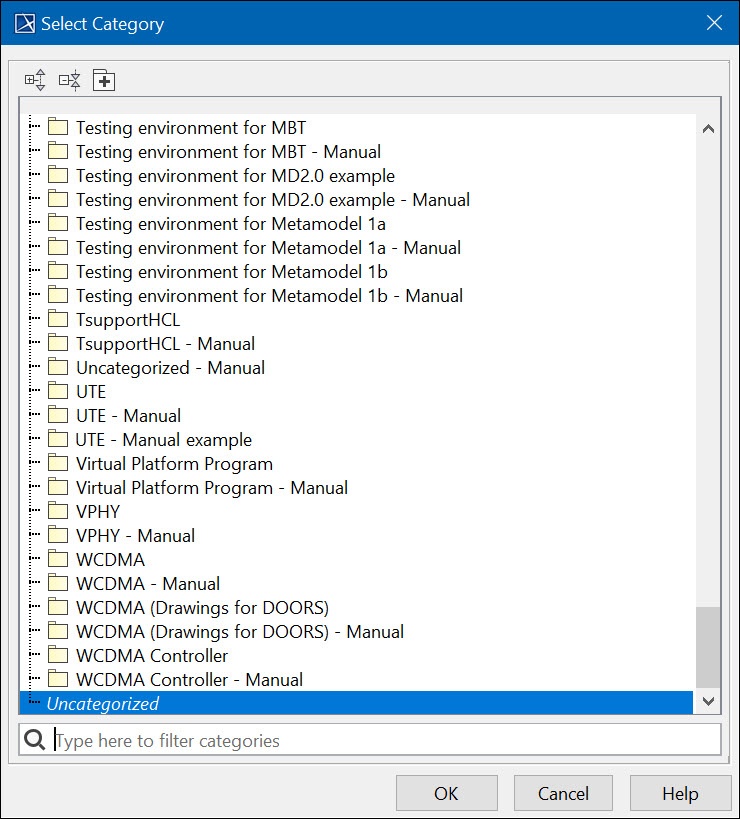
- Choose the category and click OK to return to the Import Project to the Server dialog.
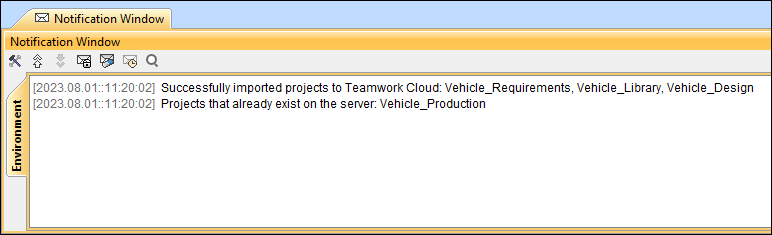
- Click Import.Click OK. The project will be added as a new server project.
| Note |
|---|
Please note:
|
...