
...
| id | 222209597 |
|---|
...
| id | 222209599 |
|---|
| Content block | ||||||
|---|---|---|---|---|---|---|
| ||||||
On this page
|
...
| id | 222209598 |
|---|
In addition to property-to-property mapping, you can apply a conversion rule to convert an original property value to another value when importing or synchronizing the data. You can set the conversion rule by clicking the Edit rule button at the end of each property mapping in the Cameo DataHub Schema Map Manager dialog or DataHub operation dialogs.
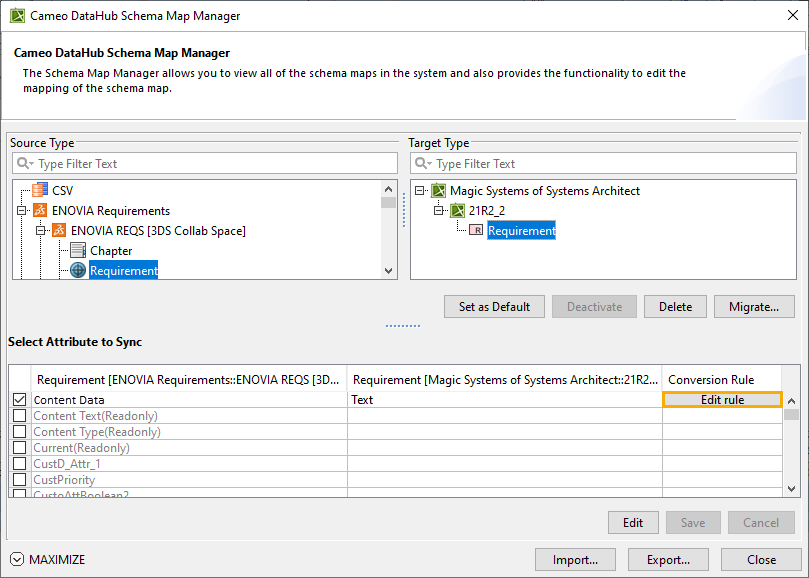
The Edit rule button in the Cameo DataHub Schema Map Manager dialog to set the conversion rules.
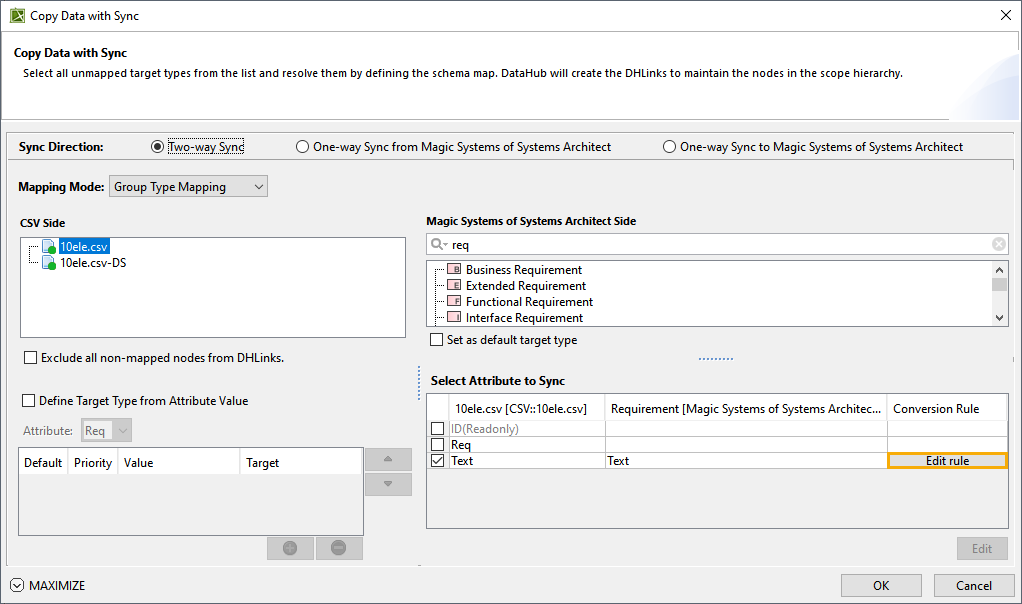
The Edit rule button in the Copy Data with Sync dialog to set the conversion rules.
Converting Rule Editor has two converting rule schemes as follows
Converting rules from an Enumeration to another Enumeration.
- Converting rules between source attribute values and target values as String.
Converting rules from an Enumeration to another Enumeration
The Converting Rule Editor dialog converts all the mapped Enumeration values on the left table and converts the Enumeration values from the left table back to the right table and vice versa. In the first table, the first column will list the Enumeration values of the source property, and the second column automatically shows the values that match the values of the Elements to synchronize. In the right table, the Enumeration values will be in relation to the selected mapping values in the left table.
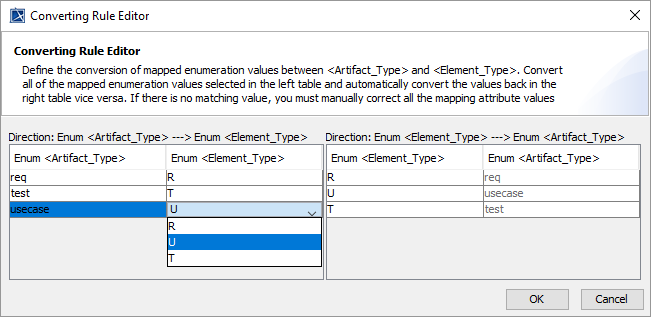 Selecting Enumeration values for conversion in the Converting Rule Editor dialog.
| Warning | ||
|---|---|---|
| ||
If there is no matching value, you must manually correct all the mapping attribute values shown in red. |
Converting rules between source attribute values and target values as String
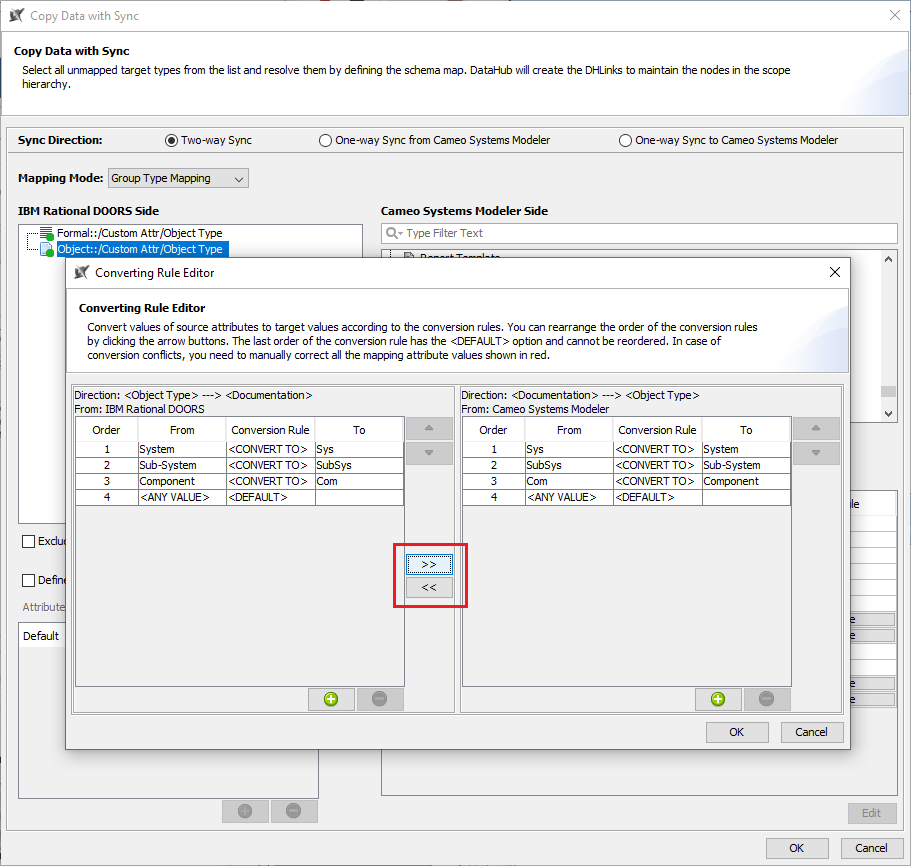
In the Converting Rule Editor dialog, the left table allows specifying the values of source attributes in String to be converted to target values according to the selected conversion rules. The table on the right allows the user to select the rules to convert the values of target attributes to source values.
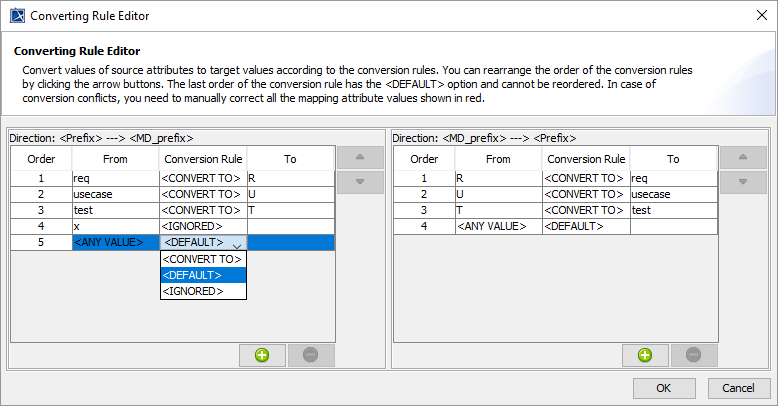
Selecting the rules to convert the values of source attributes to target values in the Converting Rule Editor dialog.
| Tip | ||
|---|---|---|
| ||
Using the >> button for left-to-right reflection of the conversion rules for round-trip synchronization. |


| Warning | ||
|---|---|---|
| ||
In case of conversion conflicts, you need to manually correct all the mapping attribute values shown in red. |
| Note | ||
|---|---|---|
| ||
You must specify a conversion rule for the <ANY VALUE> source attribute to ensure that the selected conversion rule applies to other unspecified values of source attributes. |
The Converting Rule Editor dialog has the following conversion rules
- <CONVERT TO>
Synchronize the converted value if the source value matches the value in the From column.
- <DEFAULT>
Synchronize the original value if the source value matches the value in the From column.
- <IGNORED>
Do not perform any synchronization if the source value matches the value in the From column.