
...
| id | 1018174666 |
|---|
...
| id | 1018174669 |
|---|
| Content block | ||
|---|---|---|
| ||
On this page
|
...
| id | 1018174667 |
|---|
You can link your model elements to the OSLC resources through the hyperlinks.
There are two ways you can link a model element to an OSLC resource:
- Selecting an existing resource
- Creating a new resource
Selecting an existing OSLC resource
To link an element to an OSLC resource
...
- Do one of the following:
- In the Model Browser, select an element, open its Specification window and go to Documentation / Hyperlinks property group. Click Add.
- On the diagram pane, select an element, click the Hyperlinks / Go To button at the bottom left corner of the element shape. Select Add Hyperlink.
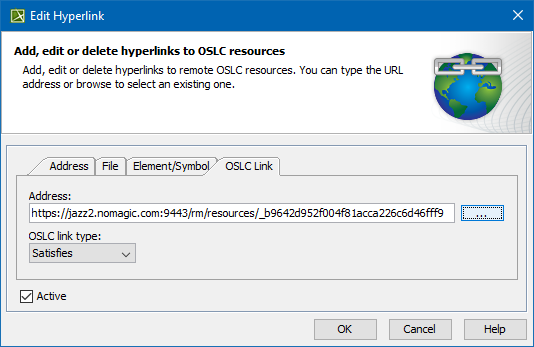
- In the Edit Hyperlink dialog, open the OSLC Link tab.
- From the OSLC link type drop-down list, select a link type.
- Click the ... button. The Select OSLC Resource dialog opens.
- In the Select OSLC Resource dialog, select the Choose Existing option.
- Select an artifact and click OK.
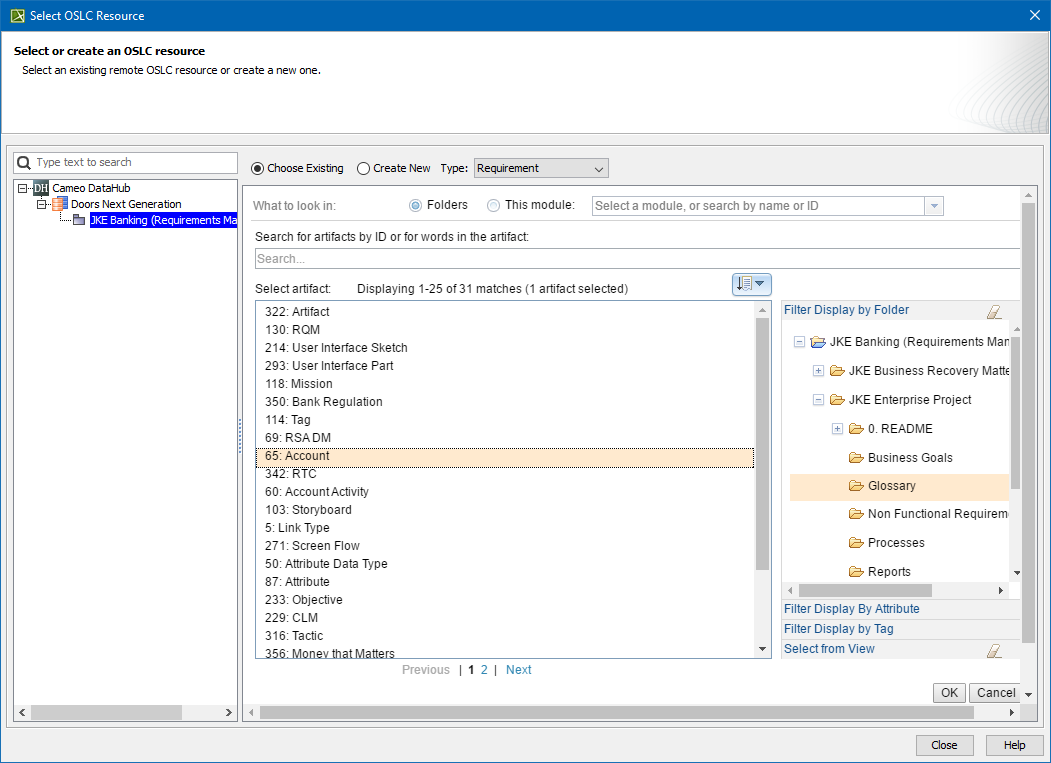
- Click Close.
- Close the Edit Hyperlink dialog.
Creating a new OSLC resource
To create a new OSLC resource
...
- Do one of the following:
- In the Model Browser, select an element, open its Specification window and go to Documentation / Hyperlinks property group. Click Add.
- On the diagram pane, select an element, click the Hyperlinks / Go To button at the bottom left corner of the element shape. Select Add Hyperlink.
- In the Edit Hyperlink dialog, open the OSLC Link tab.
- From the OSLC link type drop-down list, select a link type.
- Click the ... button. The Select OSLC Resource dialog opens.
- In the Select OSLC Resource dialog, select the Create New option.
- Fill out the data for the new element.
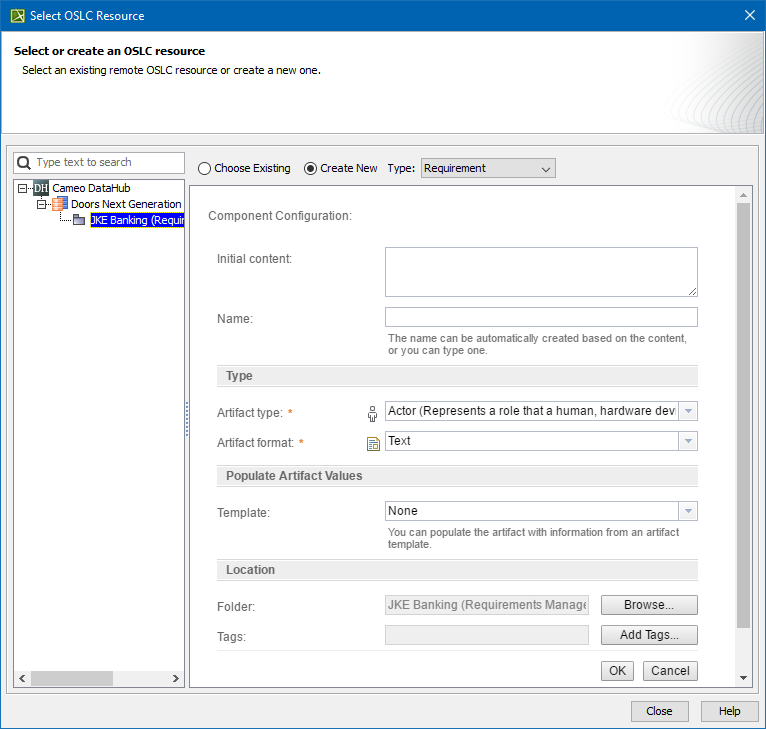
- Click OK.
- Close the Edit Hyperlink dialog.
The created element is now linked to your selected model element.