
...
| id | 839556070 |
|---|
...
| id | 839556072 |
|---|
...
| id | 839556071 |
|---|
You can view a Cameo Collaborator
...
document in
...
several different view modes:
- Model view
...
- : In this view mode,
...
- the content pane
...
- of a document portal shows only the content of the item selected in
...
- the navigation pane.
...
- In addition, the Model view shows model information and is the default mode of a Cameo Collaborator document.
- Document view
...
- : This mode hides model details and allows you to browse a Cameo Collaborator document continuously.
...
- You can scroll through the entire content of the selected model view, or select an item in the navigation pane to load the related content.
- Wiki view: Similar to the Document view, The Wiki view hides model details while displaying the content of just one section, like the Model view.
To change the view mode of a Cameo Collaborator
...
document
...
- In the app bar of a Cameo Collaborator
...
- document, click
 and select the model view whose view mode you want to change.
...
- On the right side of the app bar
...
- , click
 .
. - In the open menu, click Active view and select the desired view mode
...
- .
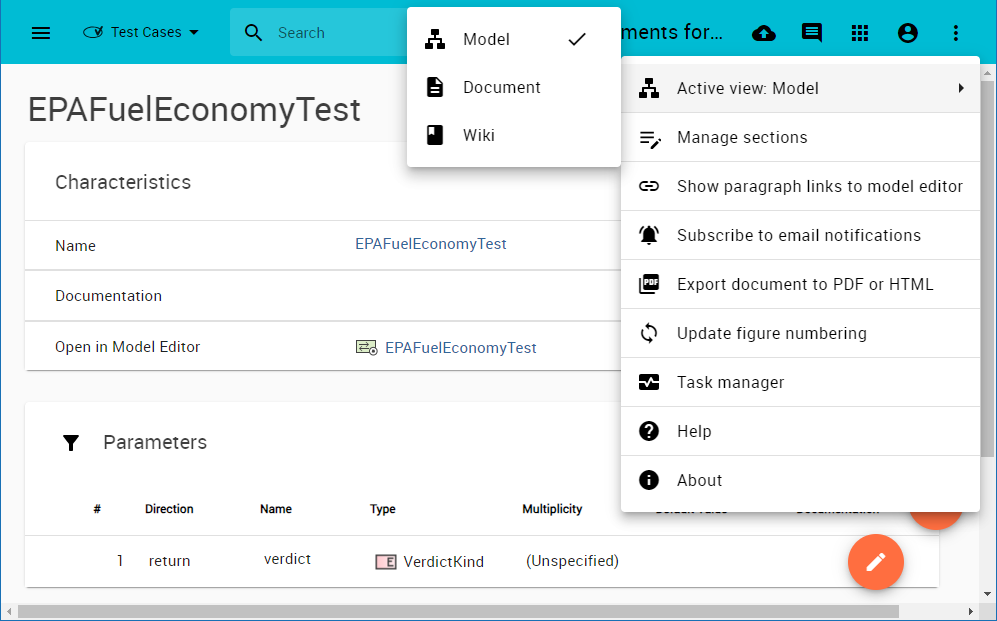
After changing the document view mode, the selected model view
...
is reloaded and displayed in a new mode.
...
| id | 839614806 |
|---|
Related pages
...