The The CATIA Software Producer allows you to generate and build code from a UML or SysML model. You You can generate code, for example, from the SysML UML Class structure, UML State Machine, or SysML Internal Block Definition diagramsBlocks. The code generation and building are executed via the the 3DEXPERIENCE platform. Key concepts and capabilitiesCATIA Software Producer offers the following generation capabilities: - Generating C++ classes from UML structured classes
- Generating C and C++ code from UML behaviors
- Generating target dependent middleware code including AUTOSAR classic and adaptive
- Generating and compiling code for FMU
- Generating code from a model persisted as a file, or in TeamWorkCloud or in the 3DEXPERIENCE Platform.
- Generate code containing traceability information establishing the relation from the model items to the code.
CATIA Software Producer uses the concept of target configuration to guide the user in configuring the code generation process. PrerequisitesWorking with the code generatorBefore starting to work on code generation, first, you have to connect to 3DEXPERIENCE by entering the URL of the Software Producer cloud server. After that, you will be able to log in with your regular identifiers. If you start working with CATIA Software Producer for the first time in your project, a dialog will open to configure the local workspace path which will host generated resources. 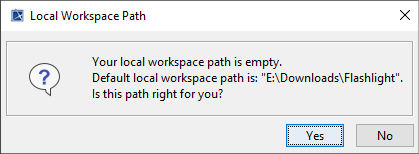 Image Added Image Added
Configuring the code generatorThe principle The generated code is composed of a behavior part and a middleware part. It is identified as a target. The behavior part is relative to the behavior of your application (such as State Machine) whereas the middleware part is target-specific and is generated from the architecture of your application (such as IBD). 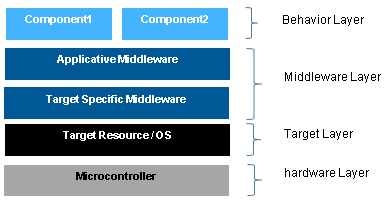 Image Added Image Added
As the code is composed of multiple entities, multiple configurations are required. You will be guided in the configuration through multiple dialogs to create the target configuration.
| Anchor |
|---|
| code_generation |
|---|
| code_generation |
|---|
|
To generate configure the code in the SysML diagramgenerator
- Do one of the following:
- In the open SysML diagram
, select - :
- Select the element you want to generate.
| Note |
|---|
- If you do not select any particular element in the diagram, the entire diagram view is selected as the generation input.
Do one of the following:- In the diagram toolbar, click the
Code Generation  Image Removed Image Removed- Configure Target
 Image Addedbutton. Image Addedbutton.
- In the Containment tree:
- Select the element you want to generate.
- From the selected element's shortcut menu, select Software Code Generation and click
Run Code Generator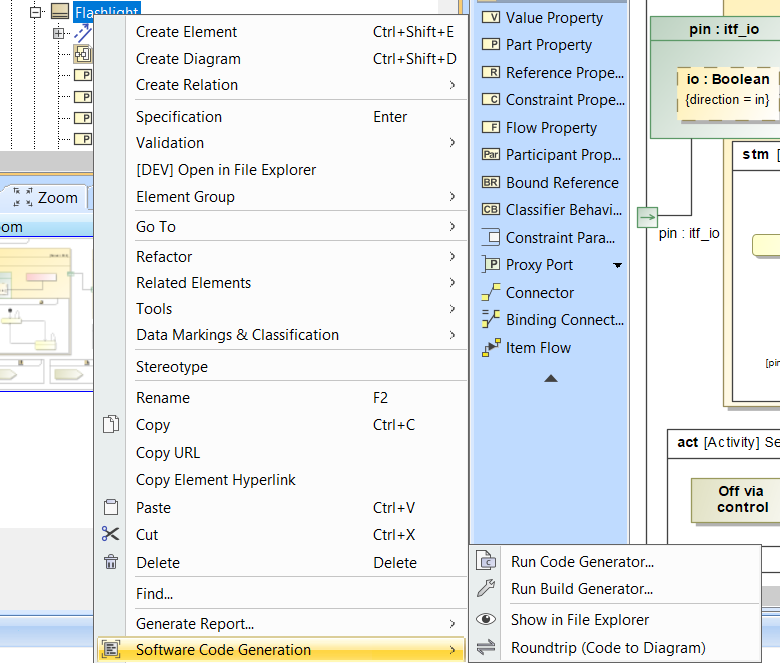 Image Removed Image Removed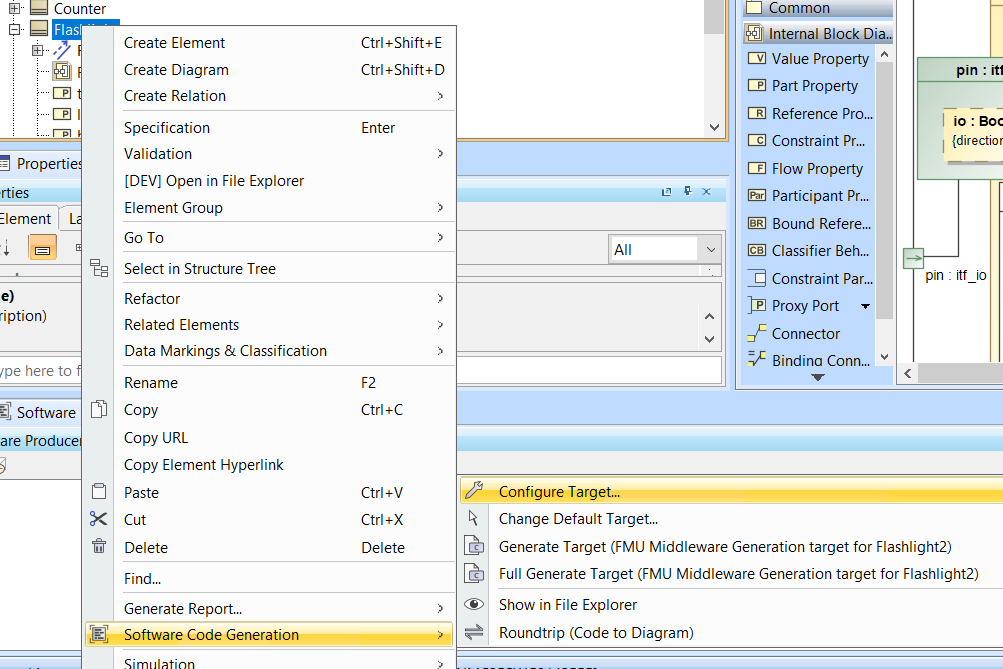 Image Added Image Added
In the open Operation Generator Details dialog, specify the needed SPO configurations.
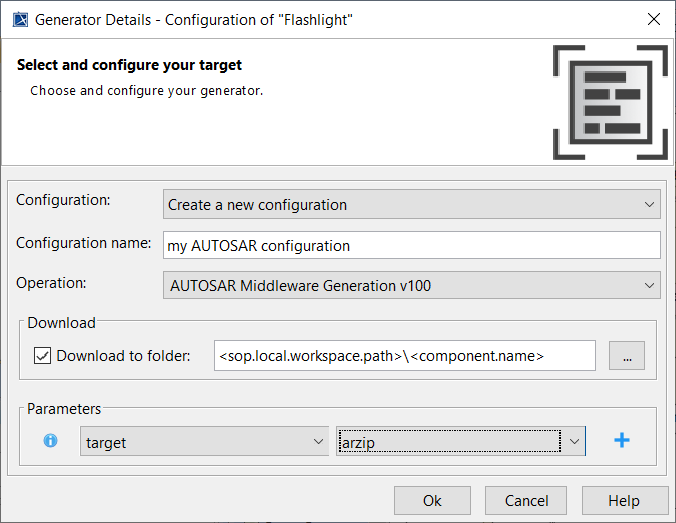 Image Removed Image Removed
| Note |
|---|
Use the Commit section to commit the code to the branch associated with the input element. |
configure the target of your generation: Select the operation in charge of the target you expect. For example, the target can be C code, C++ code or an FMU.
Image Added
- (optional) Check and specify
(optional) Specify - the download location if you want the results saved on your local file system. The generated files will be downloaded under this location, in a folder named after the configuration name.
- Click the OK button.
If the operation you selected (for example FMU Target Build) requires additional operations to be executed, additional dialogs open to configure them. Once the end of the configuration process is reached, i.e. you have fully configured your target, To save the specified properties, click the Apply button. under the Configuration package you will find: - The Generator Configurations package1: this is where classes are created to save common properties of generators (parameters especially).
- The Target Configurations package1: this is where packages are created to save the flow of a target. Within this package, classes are created to save specific properties for each SPO (download options, input, and generator mapping).
1You can change the default name of those packages in the Environment Options > CATIA Software Producer Client General Properties > Configuration section
| Info |
|---|
The properties are saved in the model via the “CATIA – Embedded Software Profile” (EmbeddedSoftwareProfile.mdzip) profile |
:- some properties are attached to the input element (commit and download options);
- other properties are attached to the configuration Class element (SPO–related options). The Class elements are created to save the SPO configurations in the model.
Executing the code generatorTo execute the code generator
- Do one of the following:
- In the open SysML diagram:
- Select the element you want to generate. If you do not select any particular element in the diagram, the entire diagram view is selected as the generation input.
- In the diagram toolbar, click the
 Image AddedGenerate Target button and choose Generate Target. Image AddedGenerate Target button and choose Generate Target.
 Image Added Image Added
- In the Containment tree:
- Select the element you want to generate.
- From the selected element's shortcut menu, select Software Code Generation and click Generate Target.
The target will be generated based on your configuration: - If you click Generate Target, the generation will be performed for the modified elements in the model.
- If you click Full Generate Target, the generation will be fully performed.
Edit or change your configurationTo edit generator To save the specified properties and initiate the code generation, click the Run button.All the configuration properties are stored in a Class element, which is created when you click the Apply button in the Generation Details dialog. You can edit the configuration properties when needed. To edit configuration properties
- In the Containment tree, right-click a Class element of the needed generator configuration.
- In the shortcut menu, click Software Code Generation and select Edit Configuration.
- In the open Generation Configuration dialog, make your changes.
- Click OK Apply and then Close.
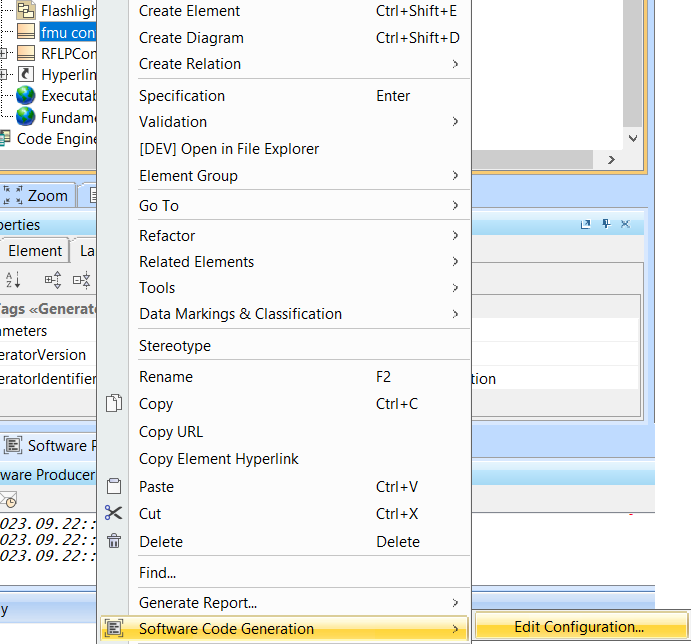 Image Removed Image Removed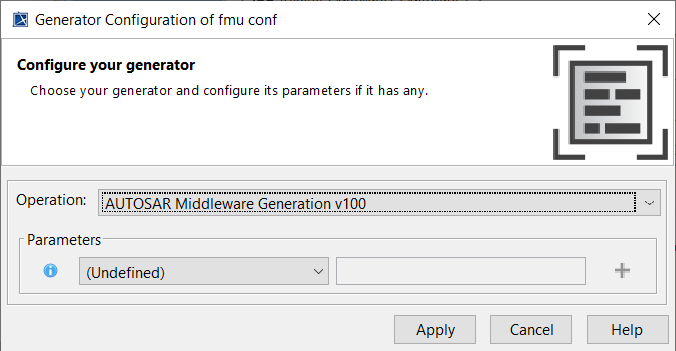 Image Removed Image Removed
You can deactivate the SPO you do not need. To deactivate the SPO - In the main menu, click Options > Environment. The Environment Options dialog opens.
- In the dialog, go to CATIA Software Producer Client > Operations.
- Select the needed operation and click the Change activation status button.
You can switch projects (or even shut down your computer, saving your work first) while waiting for the generation result as it is running on the cloud and as the widget keeps the ids of the cloud assets in the record files located in <local workspace path>\etc\operations\spoRecordFile.json (you have access to it if you need it for the debugging purpose for example). When you come back, another dialog will tell you that operations were running while you were away and will propose you inspect the result and download it. | Info |
|---|
| | A workspace is automatically created on our cloud servers for each of your projects using the widget. This workspace gathers the assets needed for the generation. A cloud workspace is automatically deleted after 30 days of inactivity. You can also delete it manually in the Environment Options dialog. If you delete the workspace, all the components will have to be regenerated on the cloud on your next session because you will not be able to push any files to a workspace through the plugin. |
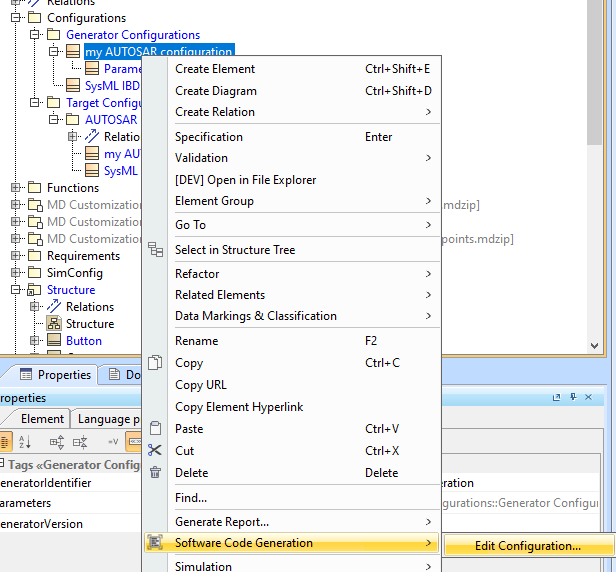 Image Added Image Added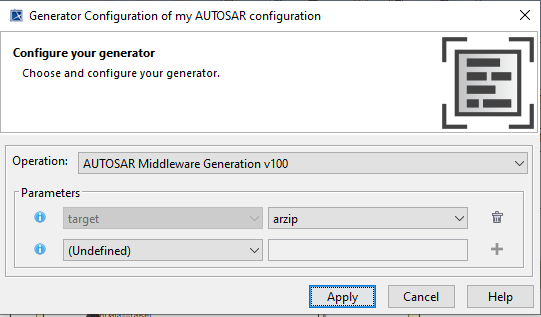 Image Added Image Added
If you have configured multiple targets for the same input, you might want to change the default one (which was created last). To change the default target configuration
- Do one of the following:
- In the diagram toolbar, click the
 Image AddedChange Default Target button. Image AddedChange Default Target button. - In the selected element's shortcut menu, click Software Code Generation > Change Default Target.
- Select the target you want to use.
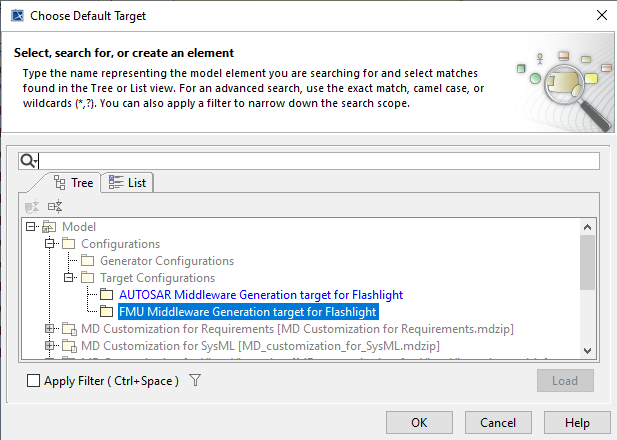 Image Added Image Added - Click OK.
Local workspace of the software producerUnder the local workspace, you can find the generated files, if you have selected the download option and left the default location (as seen above) in the configurations. You can also find some other files under an “etc” folder: - <Local_workspace_path>
- <componentA_name>
- <configuration1_name>
- <configuration2_name>
- <componentB_name>
- <configuration3_name>
- <configuration4_name>
- etc
1You can change the root of the local workspace path in the project options. 2By default, a backup of your downloaded files is saved in this folder so that in case something wrong happens with the download of new files, you can still reach your previous files. You can disable this option in the Project Options 3SPO Report files are rotated by size and date so that you might see multiple report files here. 4Log files are rotated by size and date so that you might see multiple log files here. RoundTripThe roundtrip action is a feature available for State Machines and Opaque Behaviors. Using the roundtrip action, you can add the modification you made in the code in between BEG_USER_CODE / END_USER_CODE tags (in files commonly named <ComponentName>_usr.c), back into the model and synchronize the file on the workspace on the cloud.  Image Added Image Added
ViewsSoftware Producer Logs In the Software Producer Log panel, you can see the messages of the running SPO. 
This information is saved in the log file next to your project files. To open the log file location quickly, in the Software Producer Logs window, click the Show Log File button. Each project has its own log file. 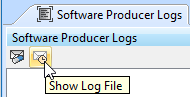
A log file for general Software Producer messages not related to a specific project is stored next to the modeling tool log file. At the bottom right corner of the modeling tool, in the progress bar, you can see whether the SPO generation is running. After the SPO generation is completed, the notification is displayed showing the status of the generation.in case of failure or always if the verbose mode is activated (Environment Options > CATIA Software Producer Client General Properties > Notifications section). Validation ResultsWhen an SPO operation produces a report, the plugin reads it and opens it in a Validation Result window if any element has a diagnostic associated. 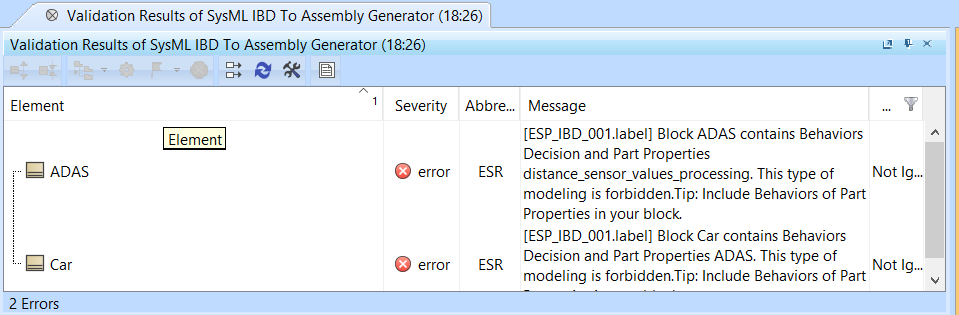
A diagnostic is associated with a rule consisting of a severity, message, and source. You can navigate to the source in the Containment tree. If you need to show more details concerning the rule or open the full report, right-click the appropriate lines of the table. You can turn off the Validation Results window's opening after the SPO operation produces a report.
To turn the validation report off
- In the modeling tool main menu, click Options and select Project.
- Set the Show Validation Report property to false.
The full set of code you need to generate to cover your target is composed of at least a component and a target-specific part. Component part is relative to the behavior of your application (such as State Machine) whereas the target-specific part is relative to the architecture of your application (such as IBD). In other words, target specific is the binder and the link between the component and the target. As one does not go without the other, this is why at the end of the IBD generation, a dialog will ask you if you want the applicative code to be automatically generated if you have not yet done it (or if it has changed). Once the full set of code has been generated, you can launch a build SPO by clicking on the Build  Image Removedbutton. Image Removedbutton. When you click a Build button, a dialog opens, wherein you need to specify the target and the available parameters (if there are any). The code is downloaded to your file system following a specific folder hierarchy: | Note |
|---|
The target name is present only if the related folder is the result of target-specific generation or build. |
- esp_workspace1
- <componentA_name>[_<targetX_name>]
- <componentB_name>[_<targetX_name>]
- etc
- You can change the root of the local workspace path in the project options.
- A bin folder is created only if the related component is the main component for the build.
- By default, a backup of your downloaded files is saved in this folder so that in case something wrong happens with the download of new files, you can still reach your previous files. You can disable this option in the Project Options dialog.
- Log files are rotated by size and date so that you might see multiple log files here.
The roundtrip action is a feature available for State Machines and Opaque Behaviors. Using the roundtrip action, you can add the modification you made in the code in between BEG_USER_CODE / END_USER_CODE tags (in files commonly named <ComponentName>_usr.c), back into the model and synchronize the file on the workspace on the cloud. Image Removed The following commands are available from the diagrams toolbar or from the shortcut menu of the supported elements in the Containment tree:
Diagrams and Containment treeThe following commands are available from the diagrams toolbar or from the shortcut menu of the supported elements in the Containment tree: Button | Description |
|---|
Button | Description |
|---|
Image Added Configure Target | Configure the code generators according to the first operation you selected (this first operation will be your final target). You can manage the parameters of the generators here, as well as the download options. |
|---|
 Image Added Change Default Target Image Added Change Default Target
| You can change the target selected for the current element. |
|---|
Image Modified Code Generation | Generates the code for the selected elements in, for example, the State Machine or Internal Block Definition diagrams. If the entire diagram is selected, the code is generated for the whole content. The generation result is downloaded to your |
|---|
machineAfter the code is generated, launch the SPO build and download the result on your machine. If you launch the SPO build when the code is not been generated yet, the code will be generated automatically in the build processmachine if you select the download option. |
Image RemovedBuild | By default, the classic generation is triggered, but you can select the full generation to generate code in all circumstances. |  Image ModifiedShow in File Explorer Image ModifiedShow in File Explorer
| Open a location in your file system wherein the Software Production Operation results file is stored. |
|---|
 Image ModifiedRoundtrip Image ModifiedRoundtrip
| The changes made in the generated code are applied in the State Machine diagram or Opaque Behavior. |
|---|
Associating Source Code Management repository to modelThe following features are related to software governance: - Source Code Management (SCM) repository association with the model.
- Generation results commit to the SCM.
To associate an SCM repository to the model - In the Containment tree, right-click the appropriate package.
- In the shortcut menu, click Software Code Generation and select Associate SCM Repository.
- In the open Associate SCM Repository dialog, choose the needed repository.
- Click OK.
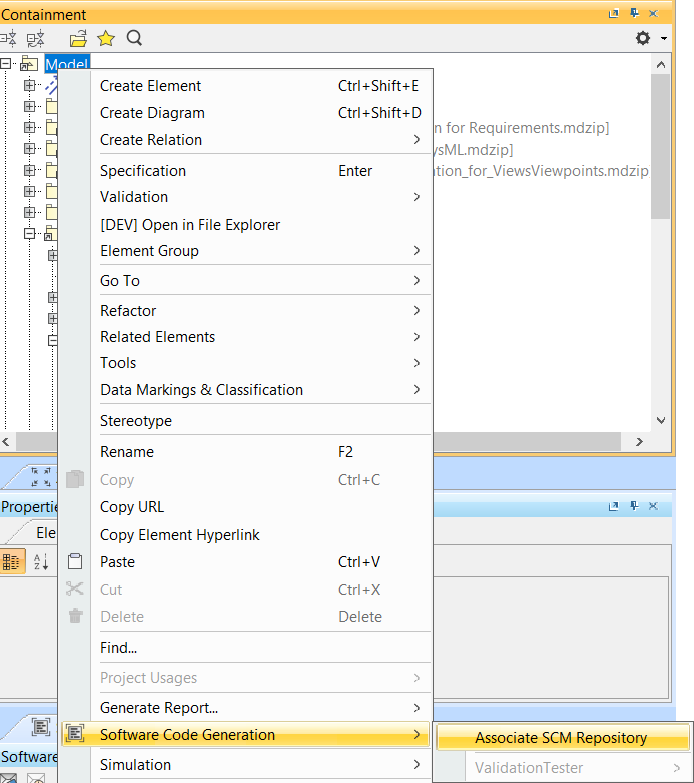 Image Removed Image Removed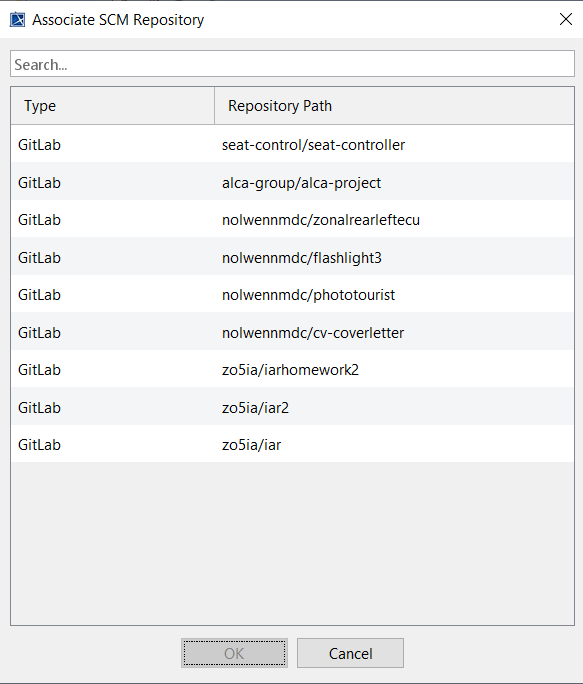 Image Removed Image Removed
To commit the generation results to the SCM - Initiate the code generation.
- In the open Operation Details dialog, Commit area, select the Commit to branch check-box.
- Click the ... button.
- Select the needed branch.
- Click OK.
OptionsYou can deactivate the Software Production Operation you do not need. To deactivate the Software Production Operation
- In the main menu, click Options > Environment. The Environment Options dialog opens.
- In the dialog, go to CATIA Software Producer Client > Operations.
- Select the needed operation and click Change activation status.
You can switch projects (or even shut down your computer, saving your work first) while waiting for the generation result as it is running on the cloud and as the widget keeps the IDs of the cloud assets in the record files located in <local workspace path>\etc\operations\spoRecordFile.json (you will have access to it if you need it, for example, for the debugging purpose). When you come back, another dialog will tell you that operations were running while you were away and will propose you inspect the result and download it. A workspace is automatically created on our cloud servers for each of your projects using the widget. This workspace gathers the assets needed for the generation. A cloud workspace is automatically deleted after 30 days of inactivity. You can also delete it manually in the Environment Options dialog. If you delete the workspace, all the components will have to be regenerated on the cloud on your next session because you will not be able to push any files to a workspace through the plugin.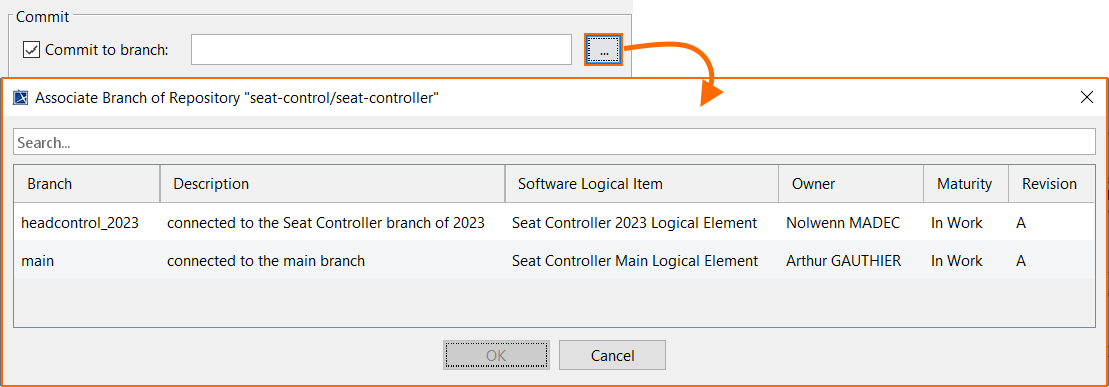 Image Removed Image Removed | 