
Page History
...
- Do one of the following:
- Select a Connector or an Association (in Direct mode) or an Association, Connector, Message, Control Flow, or Object Flow (in Between Part Types mode) on the diagram pane, and on its smart manipulator toolbar, click
 .
. - Drag the classifier you want to use as the Conveyed Item onto the intended Connector.
- Select a Connector or an Association (in Direct mode) or an Association, Connector, Message, Control Flow, or Object Flow (in Between Part Types mode) on the diagram pane, and on its smart manipulator toolbar, click
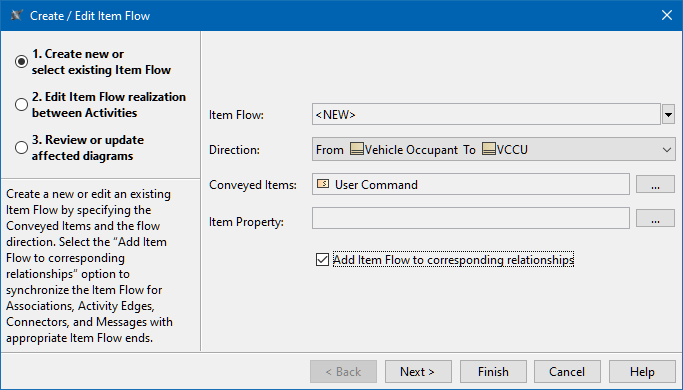
- In the Create/Edit Item Flow dialog, Create new or Select Existing Item Flow step, specify the following options:
Item Flow. From the drop-down menu, select an existing Item Flow or create a new one by selecting <NEW>.
Info If you select an existing Item Flow, you don't need to specify the rest of the options in this dialog.
Direction. From the drop-down menu, select the direction of the new Item Flow.
Note - If you are creating the Item Flow on the directed relationship, the Direction is set automatically and is not available for editing.
- If you are creating the Item Flow between an Activity Parameter Node and an Action, the Direction field displays suggested sender/receiver elements based on the element typing the parts to which actions are allocated.
Conveyed Items. Click
From the Select Conveyed Classifier dialog, select a classifier to be used as the Conveyed Classifier. Click OK.
Note If you have invoked the Create/Edit Item Flow dialog by dragging a classifier onto the Connector and do not want to change it, you may skip this option.
(Optional) Item Property. Click
Note This option is available when creating an Item Flow in the SysML Internal Block Diagram.
(Optional) Add Item Flow to corresponding relationships. Select the check box to synchronize the Item Flow for Associations, Activity Edges, Connectors, and Messages with appropriate Item Flow ends.
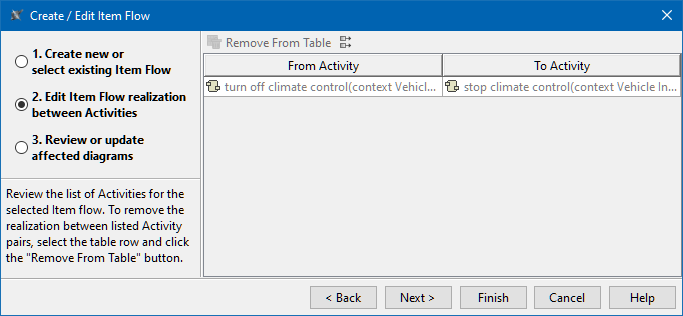
In the Edit Item Flow Realization between Activities step, review the activities.
If the Add Item Flow to corresponding relationships option is selected and multiple Activity Pairs are detected, remove the unnecessary pairs via the Remove From Table button.
Note This step is available only in the Between Part Types creation mode. However, this step is not available if you are creating the Item Flow between Part Properties with no types set.
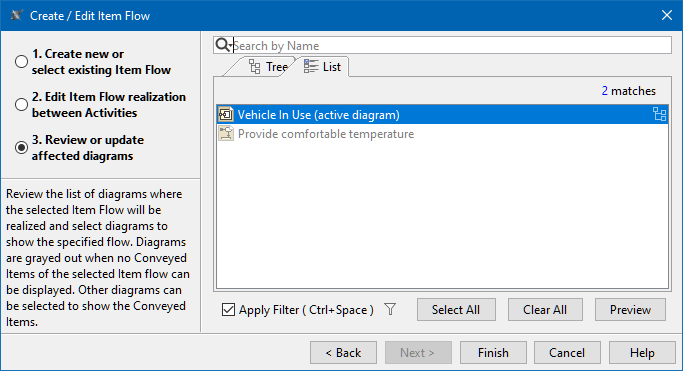
Click Review or update affected diagrams to see the list of diagrams where the selected Item Flow can be realized and displayed. You can choose one or more diagrams you want the specified flow to be displayed. If the diagrams are grayed out, this means there are no Conveyed Items of the selected Item Flow to be displayed.
Note - The project option Show Item Flows on Affected Diagrams controls how the diagrams will be updated for newly created or modified flows. By default, the option is set to true to update all affected diagrams and show the Conveyed Items of Item Flows whenever a new flow is created or an existing one is modified.
To learn more about previewing affected diagrams, see Preview Affected Diagrams dialog.
Click Finish. An Item Flow with the selected Conveyed Item (and Item Property if it was defined) is created and is set for the Connector and the corresponding relationships if the Add Item Flow to corresponding relationships was selected.
| Info |
|---|
If you want to reverse the Item Flow direction and update it in all related diagrams, read Reversing Information Flow direction. |
Specifying the Conveyed Item directly on the diagram pane
...
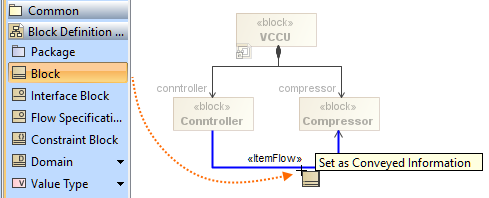
- In the diagram palette, select the needed Conveyed Item.
- Drag the selected Conveyed Item onto the Item Flow on the diagram pane. The Create/Edit Item Flow dialog opens. If the Item Flow already has Conveyed Item(s), the Conveyed Items field is appended with the new item.
- Follow the steps of the dialog. See the Creating Item Flow#Creating Item Flows procedure steps 2-4.
- Click Finish when you are done.
...
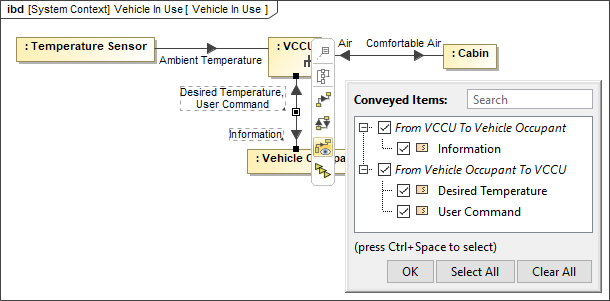
- On the diagram pane, select the element realizing an Item Flow.
- On the smart manipulator toolbar:
- If the Conveyed Item is not displayed, the tooltip for the button is
 Show Realized Item Flows. Click it to show the Conveyed Item.
 - If the Conveyed Item is displayed, the tooltip for the button is
 Hide Realized Item Flows. Click it to hide the Conveyed Item.
If the element realizes only one Item Flow, the Conveyed Item is displayed/hidden instantly with the click of a button.
- If the Conveyed Item is not displayed, the tooltip for the button is
- If the element realizes multiple Item Flows, the Conveyed Items menu opens. In it, do the following:
- Select the check boxes for the Item Flows whose Conveyed Item you want to be displayed.
Clear the check boxes for the Item Flows whose Conveyed Item you want to be hidden.
Info To select all check boxes, click the Select All button. To clear all check boxes, click the Clear All button.
- Click OK.
...
Overview
Content Tools