You can add new items to shortcut menus to use certain modeling tool commands more conveniently. To do so, you need to customize the model. | Info |
|---|
| Properties of all other types are ignored. |
There are two ways to customize the model: Quick property editor You can add those properties you frequently use to the customized element shortcut menu. To do so, open the project that includes your DSL customization, open the Specification window for your customization element, locate the In Shortcut Menu property, and specify the property you want to see in the element shortcut menu. These are the types of properties whose values can be edited directly via the element shortcut menu: - Boolean – allows selecting or clearing a checkbox.
- Enumeration – allows selecting one of the listed enumeration literals.
- Reference to one element (a subclass of Classifier) – allows using an element list to select a type.
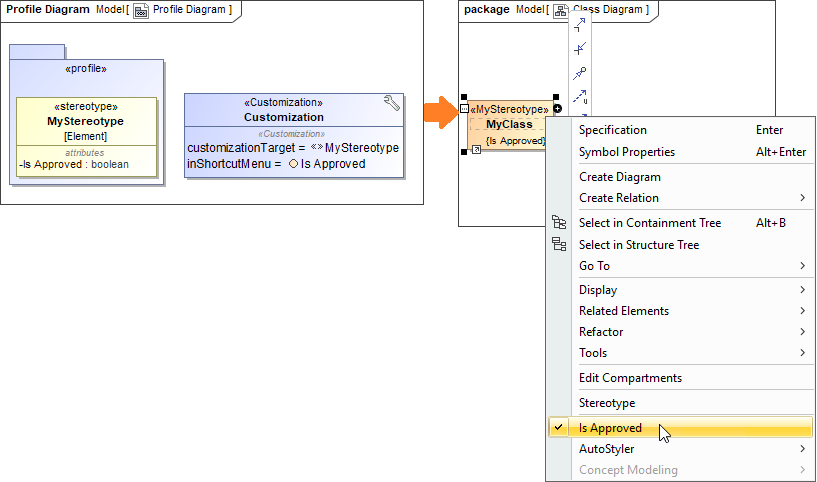
Applying quick stereotypes
Stereotypes, for example, «continuous», «buffer», etc., act as flags. You can set these stereotypes on selected elements with a single click from the element shortcut menu. Use the Quick Applying For property in the customization element Specification window to add stereotypes to the customized element shortcut menu. Before you can do that, you need to create your DSL customization for a stereotype. The Quick Applying for property specifies a stereotype or a metaclass to apply customizations directly from the element shortcut menu. For example, if the Quick Applying For property value is the Class metaclass, the customization will be available for the class elements only. 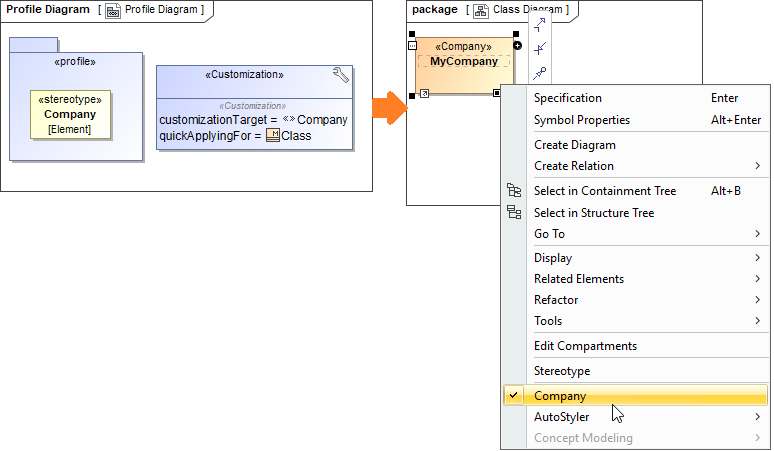
Example of a customized element shortcut menu| Note |
|---|
You can show/hide default modeling tool options in shortcut menus by using the Perspectives functionality (Options > Perspectives > Customize). |
| 