
...
| id | 404073639 |
|---|
...
| id | 404073659 |
|---|
...
| id | 404073638 |
|---|
On this page
Table of Contents maxLevel 4
...
| id | 404073649 |
|---|
You can find the actions you need to manage a webhook by selecting
...
the Actions button on the right of the webhook row:
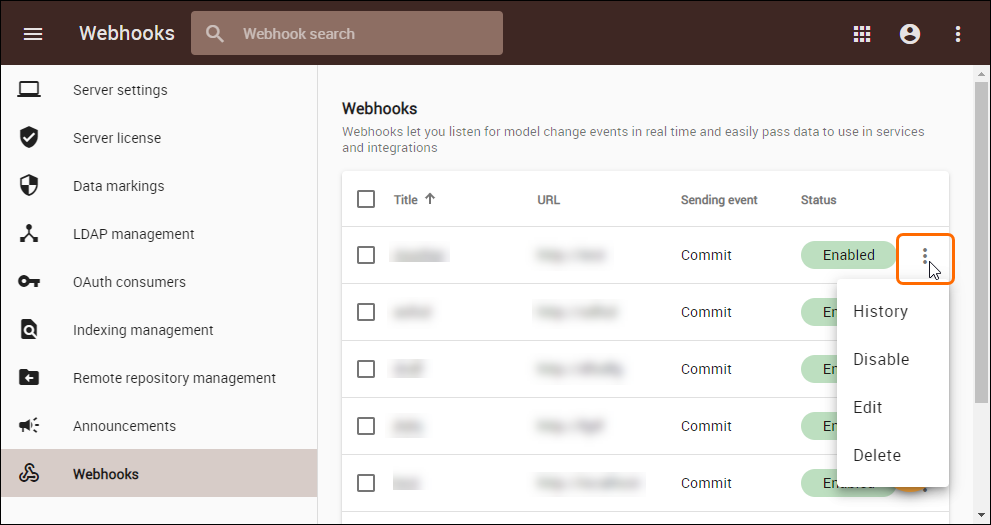
Selecting the Actions button for a webhook.
The actions you can select in this menu are described below.
Viewing the history of a webhook
To view the history of a webhook
- Select
...
- the Actions
 button on the right of the webhook row.
...
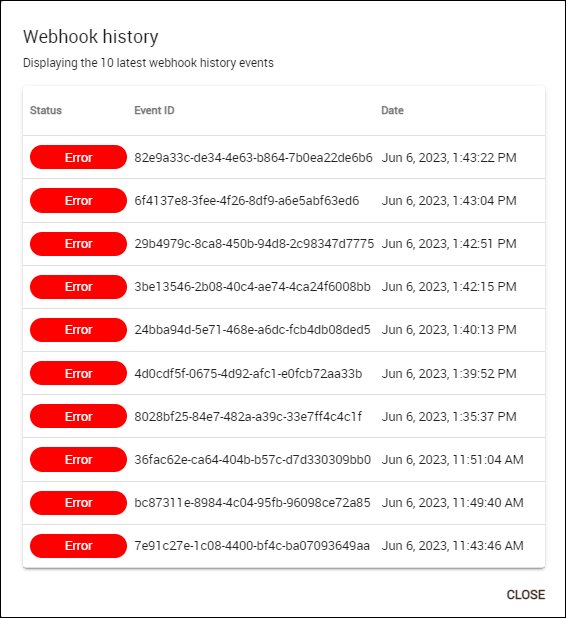
- Select History. In the dialog that opens, you can see up to 10 most recent webhook history events:
Disabling a webhook
To disable a webhook
- Select
...
- the Actions button on the right of the webhook row.
...
- Select Disable.
- In the dialog that opens,
...
- click DISABLE.
Editing a webhook
To edit a webhook
- Select
...
- the Actions button on the right of the webhook row.
- Make your edits and choose the options as you would
...
...
- the Actions button on the right of the webhook row.
- In the dialog that opens,
...
- click DELETE.
Bulk actions with webhooks
You can enable, disable, or delete multiple webhooks at once.
To manage webhooks in bulk
- In
...
- the Webhooks section of
...
- the Settings app, either:
- Select the checkbox next to Title to
...
- select all webhooks:
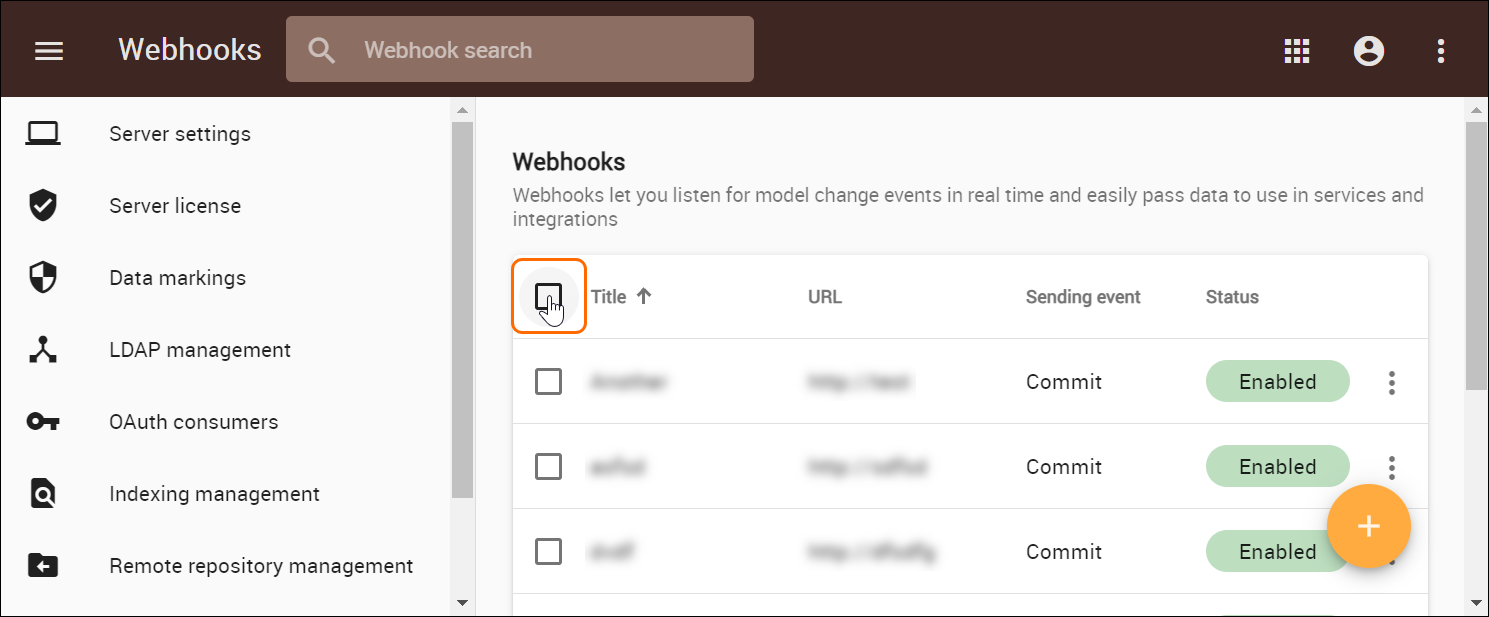
OR - Select the checkboxes of individual webhooks that you want to manage.
- select all webhooks:
- At the top of the page, click the button of the action you want - Enable, Disable,
...
- or Delete:
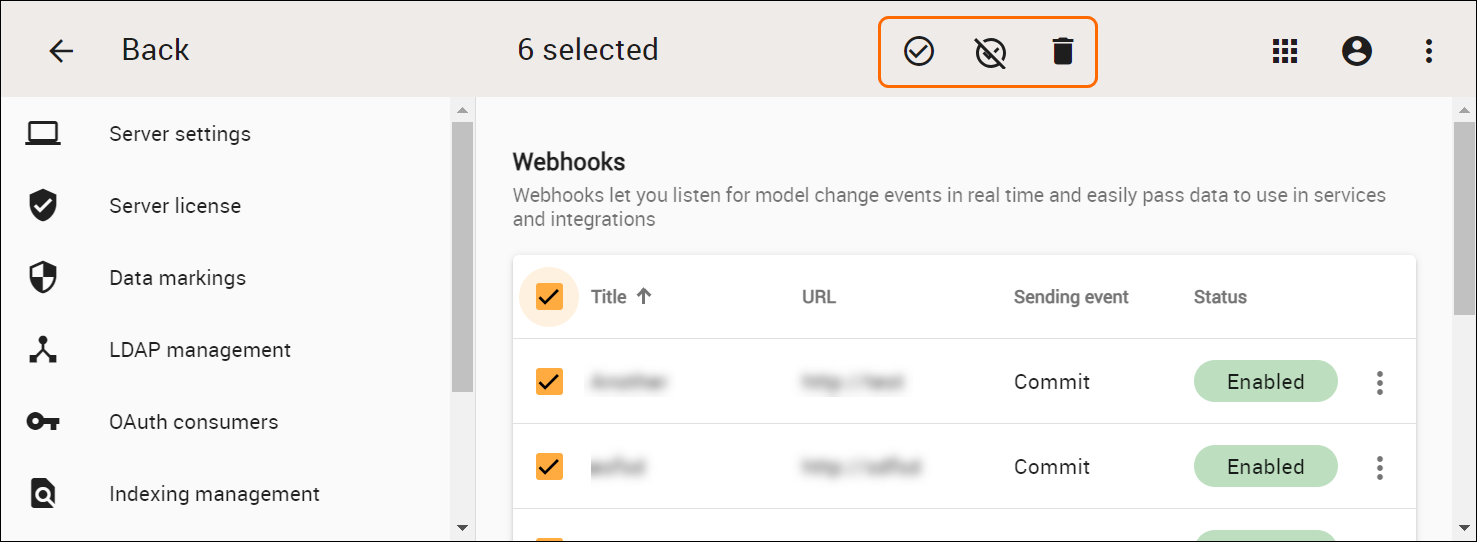
- In the dialog that opens, confirm your action by selecting
...
- ENABLE, DISABLE,
...
- or DELETE, accordingly.