When simulating a model, you can manipulate simulation information not only in the Simulation window but in diagrams as well. For example, you can change runtime values or send a trigger directly on Part shapes and Port lablels. | Info |
|---|
| You can manipulate simulation information only in diagrams that are based on a Composite Structure Diagram. |
You can change the runtime values of Part properties and Port labels directly in diagrams the same way you change them in the Variables pane of the Simulation window. | Note |
|---|
| To display and change runtime values in diagrams, the Show Runtime Values on Part Shapes and/or Show Runtime Values on Port Labels animation options must be enabled. For more information, see Disabling and enabling animation options. |
To change runtime values on Part shapes or Port labels
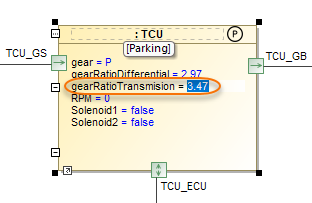
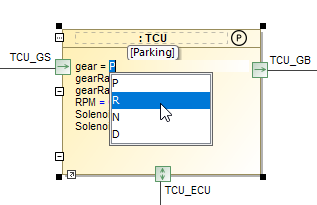
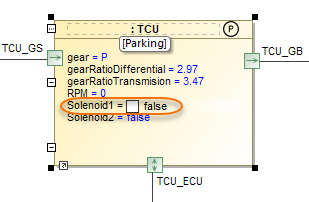
- During model simulation, select a Part shape or Port labels and click a runtime value you want to change.
Enter a new runtime value and press Enter. The figure below shows how to change different types of values.
| Section |
|---|
| Column |
|---|
| 
|
| Column |
|---|
| 
|
| Column |
|---|
| 
|
|
When you change runtime values of Value or Port Properties as described above, the simulation data is updated in real-time accordingly. When simulating a model, you can send a signal directly from a Part shape in a diagram the same way you would send it in the Sessions pane of the Simulation window. If it is possible to send a signal, a special button is displayed on a Part shape after selecting it.
To send a signal from a Part shape
- During model simulation, select the shape of the Part from which you want to send a signal.
- Click the signal icon next to the part shape as displayed below. If you can send more than one signal, the icons of all available signals are displayed.

| 