Choose one of the following ways to install a plugin in a modeling tool: Installing our commercial and no-cost pluginsAll available plugins provided by us, both commercial and no-cost, are accessible via the core.rdzip file, which is pre-bundled together with the installation files and is readily available in the Resource/Plugin Manager. The available plugins depend on the modeling tool that you are using. The file is located at <tool_installation_directory>\data\resourcemanager\distribution\core.rdzip, however, it is added automatically to the Resource/Plugin Manager. | Anchor |
|---|
| Add pre-bundled plugin bundle |
|---|
| Add pre-bundled plugin bundle |
|---|
|
To install our commercial and no-cost plugins
- In the main menu, select Help > Resource/Plugin Manager. The pre-bundled core.rdzip file containing all available plugins is loaded automatically.
- Select the check boxes for the plugins you want to install.
Click the Download/Install button to install the selected plugins. Restart your modeling tool.

| Anchor |
|---|
| Install custom plugins |
|---|
| Install custom plugins |
|---|
|
Installing custom pluginsIf you are using custom-built plugin .rdzip files located on a local file system, network share, or a web server, you can add the plugins from the file by specifying its location via the Resource/Plugin Manager. | Anchor |
|---|
| Adding plugins from a local file system or network share |
|---|
| Adding plugins from a local file system or network share |
|---|
|
Adding plugins from an .rdzip file located on a local file system or network shareTo add plugins from an .rdzip file located on a local file system or network share
- In the main menu, select Help > Resource/Plugin Manager.
- In the Resource Location section, click the
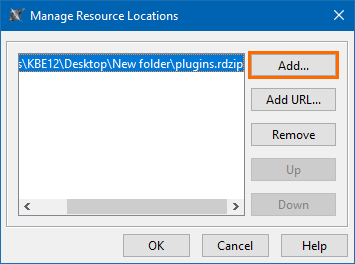
 button. button. In the Manage Resource Locations dialog, click Add.
 | Note |
|---|
You can manage the list displayed in the Manage Resource Locations dialog by adding, removing, or reordering the resource locations. |
- The Select Resource Location or Distribution File dialog opens. Specify the location of the plugin bundle (.rdzip) file and click Open. The resource location is added.
Click OK to import the resources. - Select the check boxes for the plugins you want to install.
Click the Download/Install button to install the selected plugins. Restart your modeling tool. 
| Anchor |
|---|
| Adding plugins from a web server |
|---|
| Adding plugins from a web server |
|---|
|
Adding plugins from a web serverYou can also obtain the needed plugins from a web server if you do not have the .rdzip file but have been provided a URL by your license manager. | Anchor |
|---|
| Installing plugins from a web server |
|---|
| Installing plugins from a web server |
|---|
|
To add plugins from a web server
- In the main menu, select Help > Resource/Plugin Manager.
- In the Resource Location section, click the button.
- In the Manage Resource Locations dialog, click Add URL. The Resource Server URL dialog opens.
- In the Resource Server URL dialog, type or paste the server address.
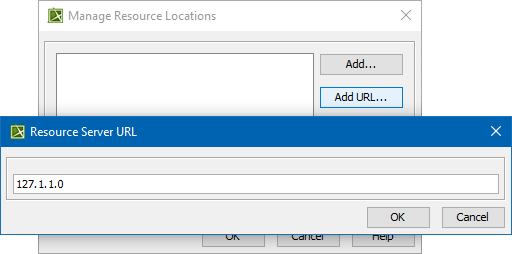 - Click OK. The plugins from the selected location are listed in the Resource/Plugin Manager.
| Anchor |
|---|
| Other plugin installation options |
|---|
| Other plugin installation options |
|---|
|
Other plugin installation optionsThe default and the recommended option is to use the pre-bundled core.rdzip file which is added automatically, however, you can also install individual plugins from their .zip files files. Installing an individual plugin by importing a .zip file | Anchor |
|---|
| Installing an individual plugin by importing a .zip file |
|---|
| Installing an individual plugin by importing a .zip file |
|---|
|
To install an individual plugin by importing a .zip file
- In the main menu, select Help > Resource/Plugin Manager.
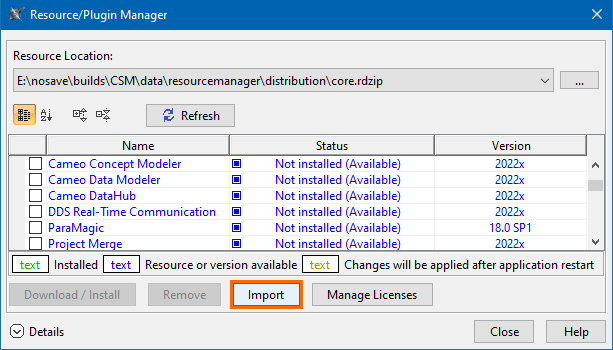
- Click the Import button and specify the location of the archived plugin file (.zip) and click Open. The plugin is extracted and installed automatically.
Restart your modeling tool. | Note |
|---|
The Import button is used to install only an individual plugin by importing an archived plugin file (.zip). To install plugins from an .rdzip plugin bundle file, you need to add the .rdzip file by specifying its Resource Location. |
| Anchor |
|---|
| Installing an individual plugin by extracting a .zip file |
|---|
| Installing an individual plugin by extracting a .zip file |
|---|
|
To install an individual plugin by extracting a .zip file
- Extract an archived plugin file (.zip) file to the same directory where your modeling tool is installed.
- Start the modeling tool. The plugin is installed on your modeling tool.
| Tip |
|---|
| If you run into any installation-related problems, try the following: |
| 