
...
Click
 on the bottom right corner of the content pane.
Click the Insert from document icon in the location of an open document section where you want to include content.
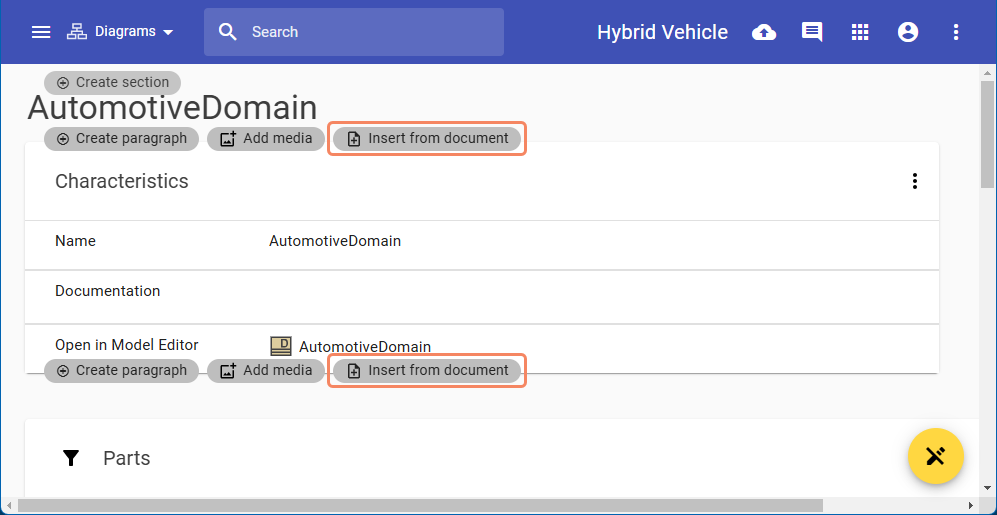
- In the open wizard, select the document from which you want to insert the content.
- In the next step, navigate to and select the document section from which you want to insert the content.
- Select the element of the section you want to insert.
Note You can only insert tables and diagrams.
- Select one of the following insert settings:
- Display latest version - automatically updates the inserted content to the latest version when it becomes available.
- Display current version (at the time when inserting) - always displays the content version that was available at the time of insertion.
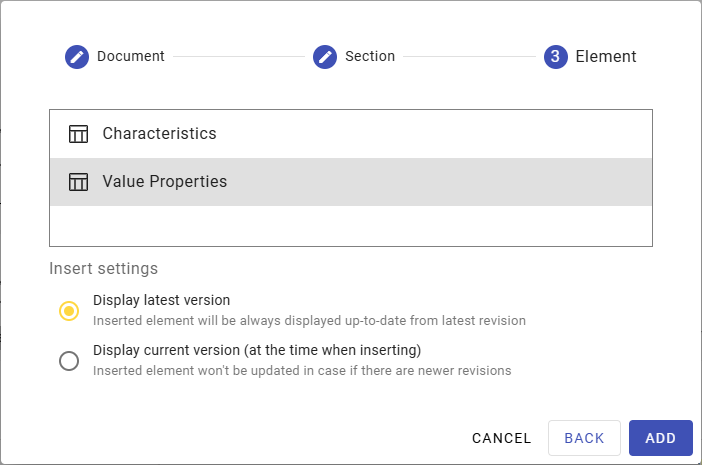
- Click the Add button.
- Repeat steps 3 to 8 to insert more content or click
 on the bottom right corner of the content pane to exit the editing mode.