
...
| Note | ||
|---|---|---|
| ||
|
...
After completing the steps above, your model is published to Cameo Collaborator. If you want to publish the same model frequently, you do not need to do it manually every time. Instead, schedule publishing as a background task to save time.
Scheduling to publish a document
If you need to publish your models periodically and/or during non-business hours, you can schedule them to be published automatically. The following procedures describe the scheduling process on Windows and Linux operating systems.
...
- Open the Task Scheduler from the Start menu of your Windows computer and select the option to create a basic task.
- Type the task name, an optional description, and click Next.
- Select how often you want the task to reoccur and click Next.
- Specify when you want the task to start and click Next.
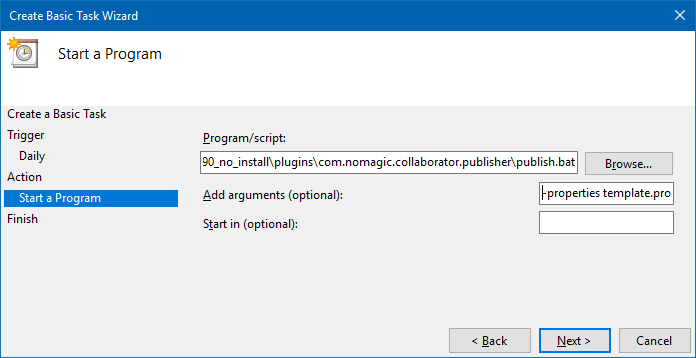
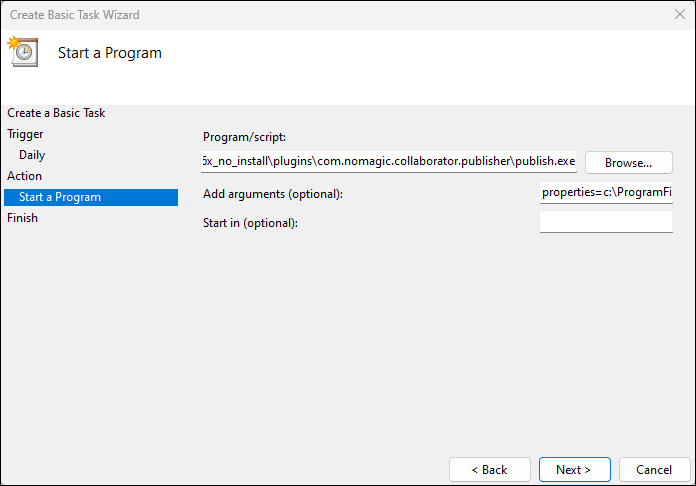
To schedule the publishing to start automatically, select the Start a program radio button and click Next.
Click the Browse button, go to the <modeling tool installation directory>/plugins/com.nomagic.collaborator.publisher directory, and open the publish.exe file.
In the Add Arguments (optional) box box, type -properties PowerBy_type properties=<modeling_tool_installation_directory>\plugins\com.nomagic.collaborator.publisher\template.properties and click Next.
- Click Finish.
To schedule a publishing task on Linux
...