A Collaboration Use represents the implementation of a pattern described by a Collaboration in a specific situation. In this context, the role binding means that the roles in the Collaboration are bound by concrete elements. A Collaboration can be used many times in different Collaboration Uses. 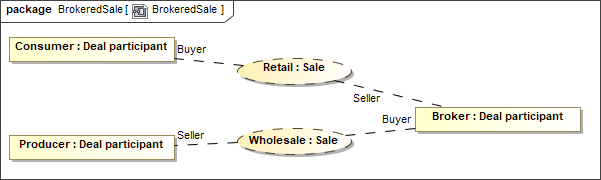
Example of multiple Collaboration Uses along with Parts
To assign a Collaboration to a Collaboration Use
Before assigning a Collaboration to a Collaboration Use, you must have a Collaboration created in your model. | Info |
|---|
| Read Collaboration on how to create a Collaboration in your model. |
After creating a Collaboration, do one of the following: - On the Composite Structure diagram palette, click the Collaboration Use button
 , and then in the opened dialog, select an existing Collaboration or click the Creation Mode button , and then in the opened dialog, select an existing Collaboration or click the Creation Mode button  to create a new Collaboration. Click OK when you are done. to create a new Collaboration. Click OK when you are done. - On the Composite Structure diagram pane, create a Collaboration Use, then click the Collaboration Use shape, and then on the smart manipulator toolbar, click the
 symbol. Select a Collaboration. Press Enter or click anywhere on the diagram pane. The Collaboration is now created and assigned. symbol. Select a Collaboration. Press Enter or click anywhere on the diagram pane. The Collaboration is now created and assigned. - On the Composite Structure diagram pane, create a Collaboration Use, then click the Collaboration Use shape, and then press Ctrl+T. Type the name of the new Collaboration and press Enter, or click anywhere on the diagram pane. The Collaboration is now created and assigned.
- On the Composite Structure diagram pane, create a Collaboration Use, then click the Collaboration Use shape, after that, click the name area. Type the “:” colon and then type the Collaboration name. Press Enter, or click anywhere on the diagram pane. The Collaboration is now created and assigned.
- In the Containment tree, select the Collaboration and drag and drop it on the diagram pane. A Collaboration Use with the assigned Collaboration is created.
- On the Composite Structure diagram pane, open the Specification window of the Collaboration Use and click the cell of the Type property value. In the opened dialog, click
 , and select the Collaboration. Click OK when you are done. , and select the Collaboration. Click OK when you are done.
Collaboration use propertiesYou can format Collaboration Use symbol properties in the Symbol Properties dialog. You can specify Collaboration Use properties in the Collaboration Use's Specification window. In the same window, you can find the description of each property. Descriptions are presented in the description area of the Specification window. | Tip |
|---|
| title | Specification Window and Property Values |
|---|
| For more information about the Specification window usage, see Specification window. For more information about specifying property values, see Editing property values. |
| 