
On this page
| Table of Contents | ||
|---|---|---|
|
You can track the evolution of your project and see how your elements have transformed over time by comparing diagrams and tables across different versions of a document.
Opening comparison screen
To compare elements in different document versions
- Navigate to the document section you wish to compare in other versions.
- At the top right, select
> Compare versions. The version comparison screen opens.
Structure of comparison screen
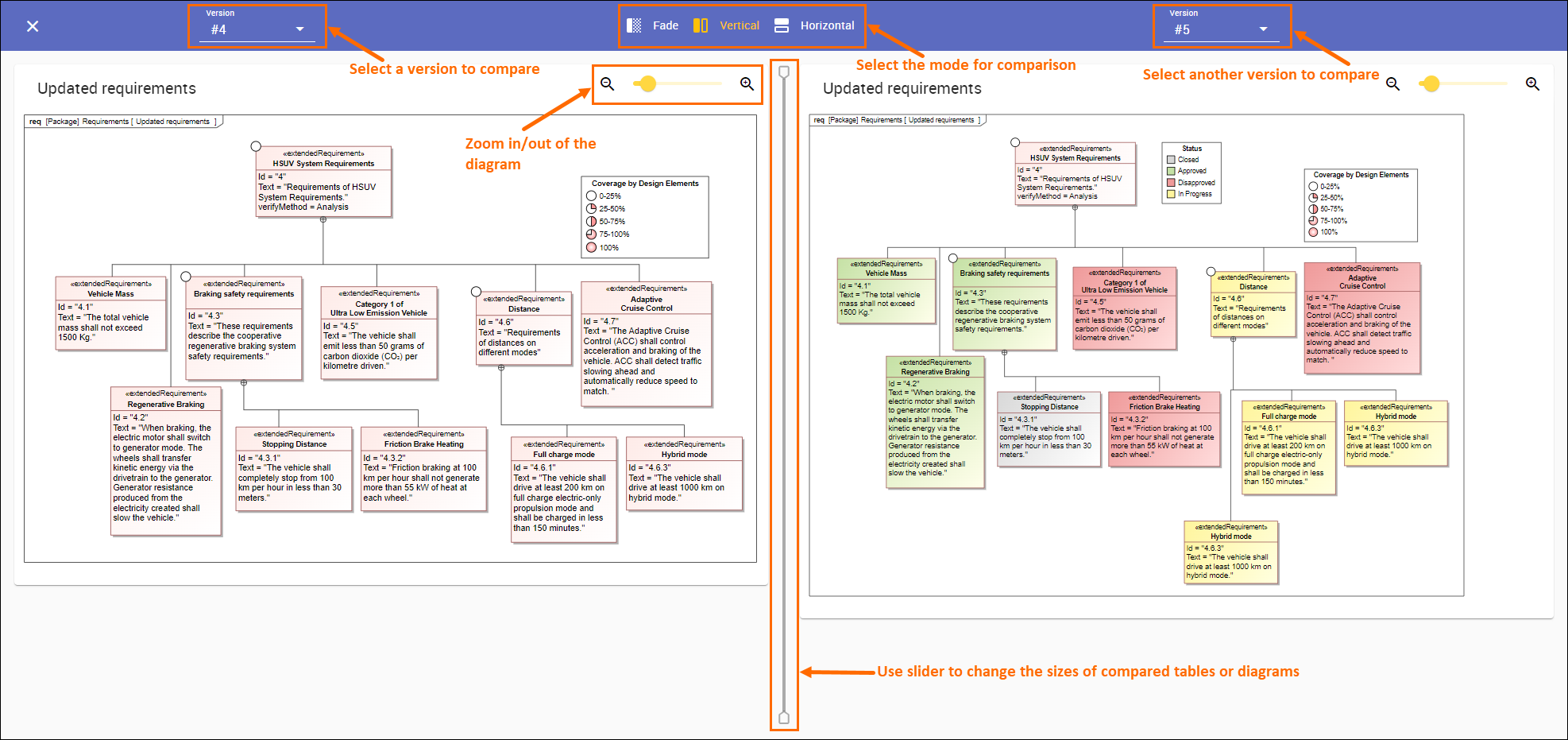
- Version drop-down. In the app bar at the top of the screen, you can select the versions you wish to compare by choosing them in the Version drop-down list.
- Comparison mode selection. In the centre of the app bar, you can select the mode for table or diagram comparison.
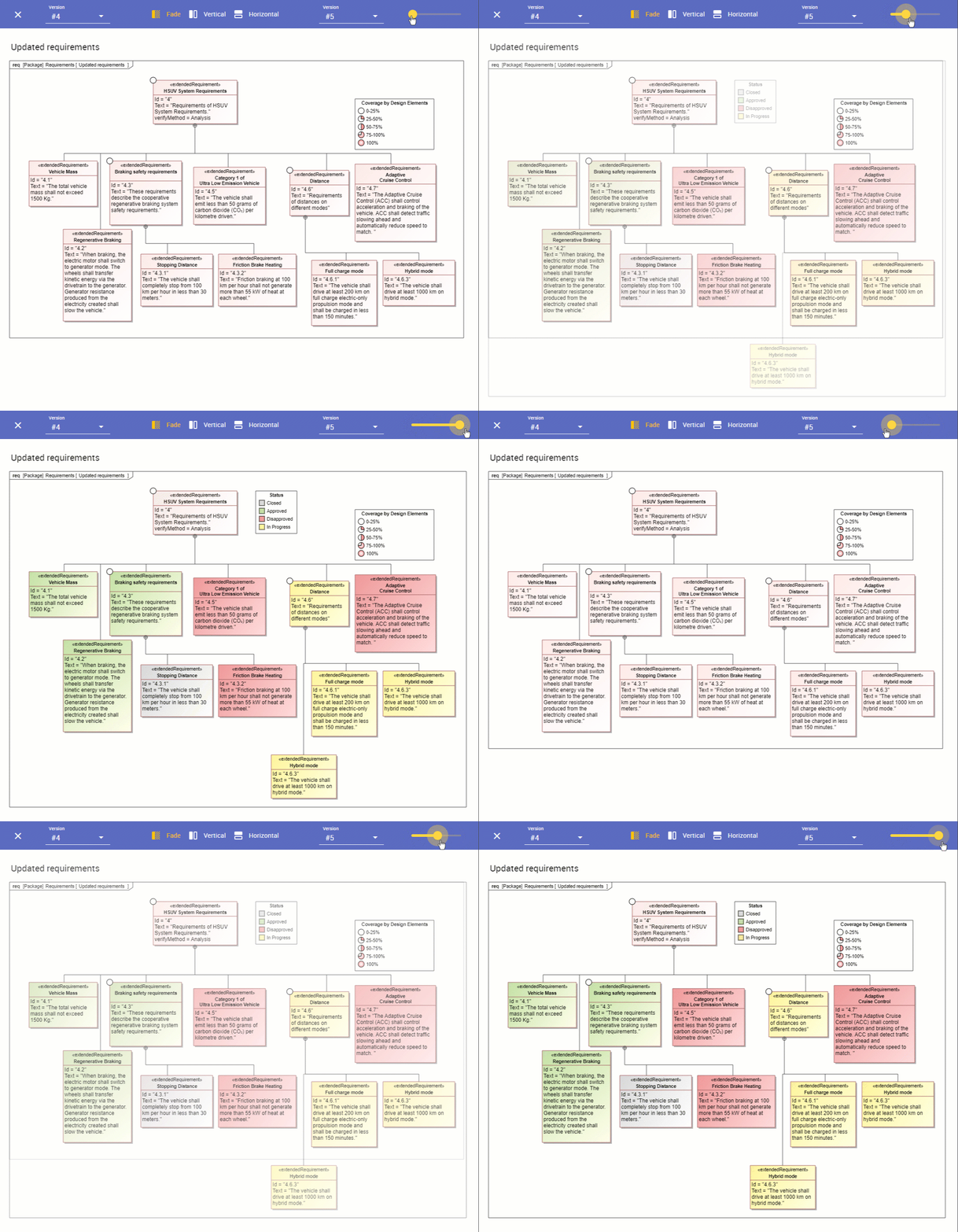
- Fade: this mode allows you to transition between two overlapping diagrams. Use the sliding toolbar to adjust opacity and discern subtle differences.
Info Fade mode is only available for diagrams.
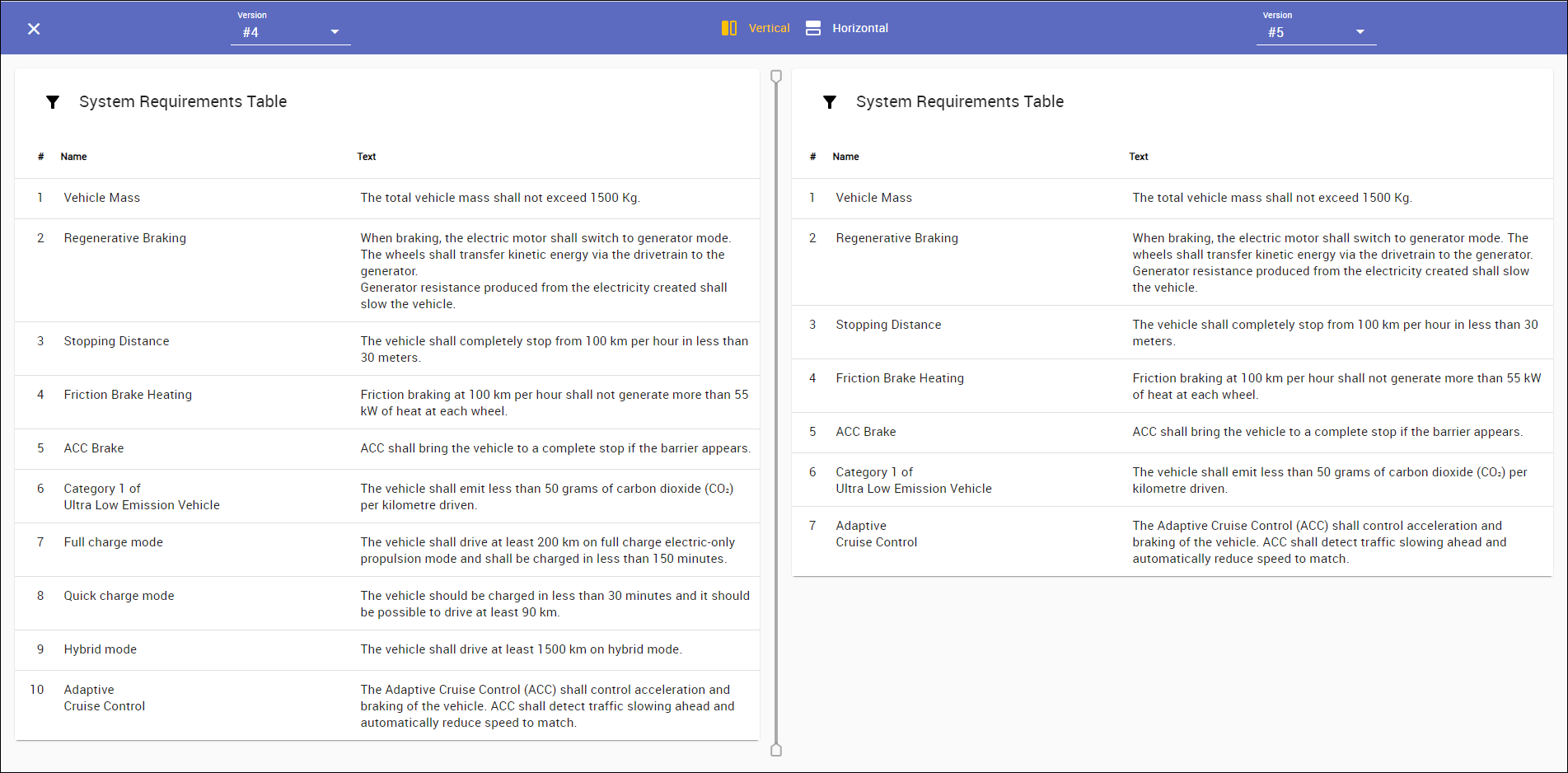
- Vertical: select this mode to view diagrams or tables side by side.
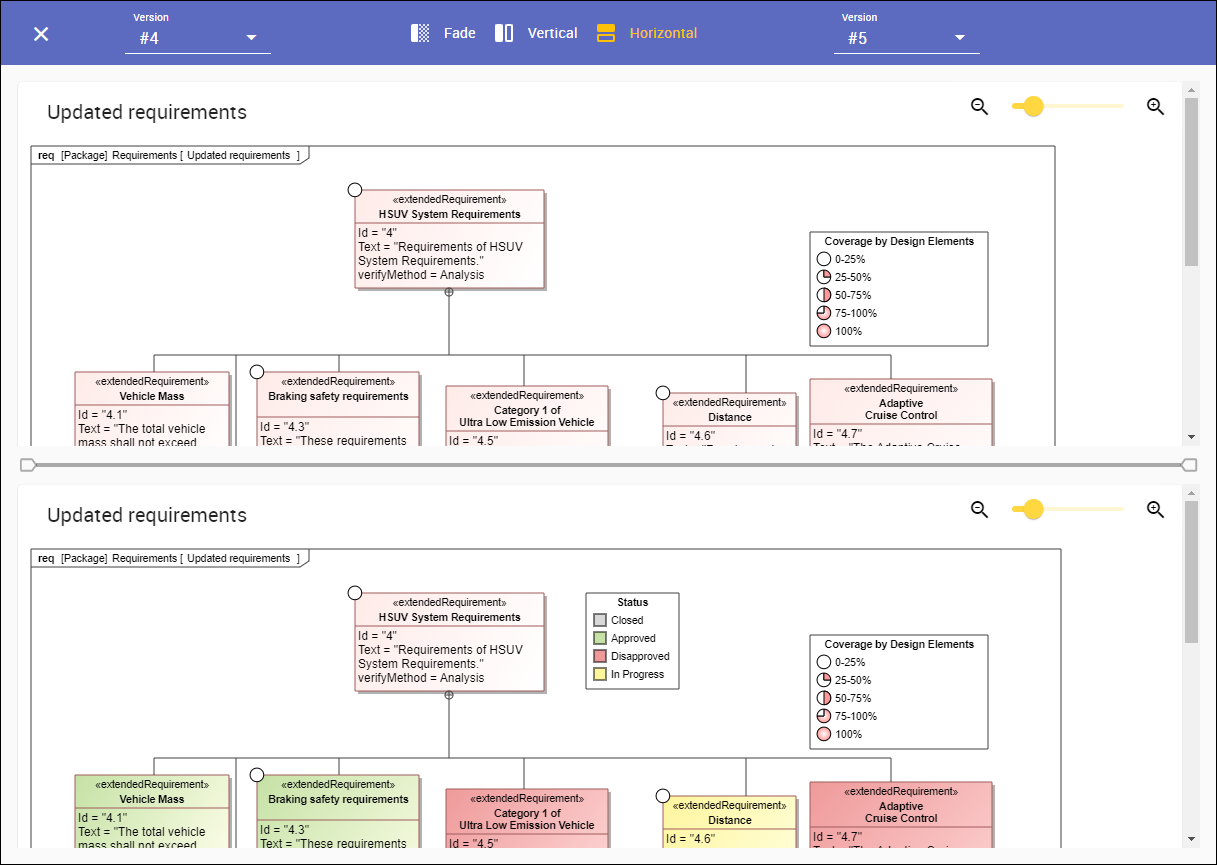
- Horizontal: this mode shows diagrams or tables one below the other.
- Fade: this mode allows you to transition between two overlapping diagrams. Use the sliding toolbar to adjust opacity and discern subtle differences.
- Filtering: when comparing tables, you can click
 next to the table name and enter text to filter out table elements.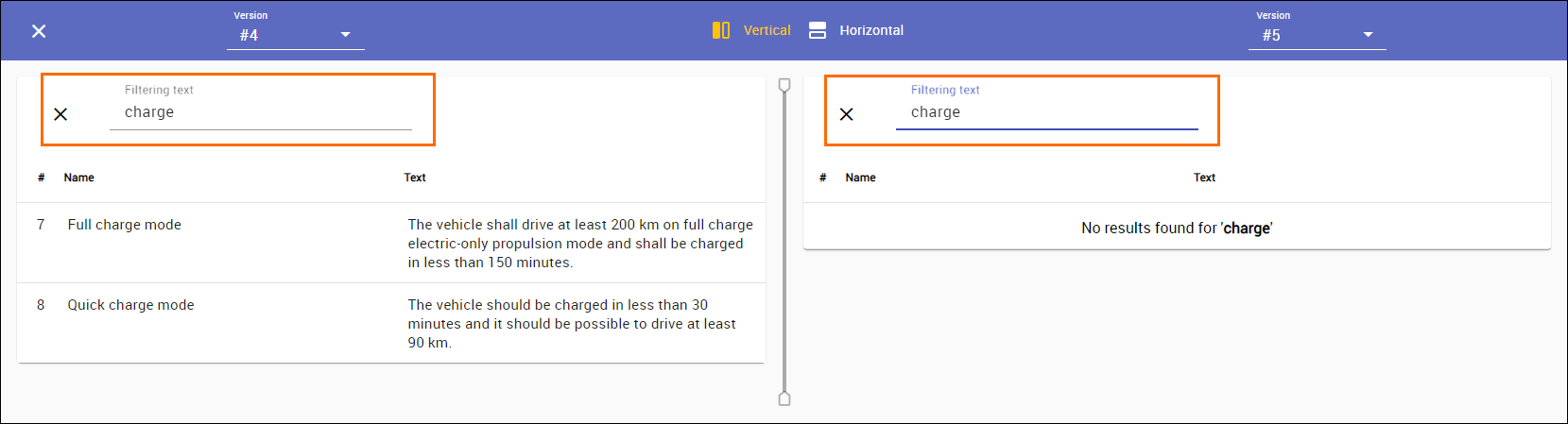
- Project version drop-down. When the project is changed from within the document, only the project version updates, not the document version. To compare different project versions, use the project version switcher to switch between project versions.
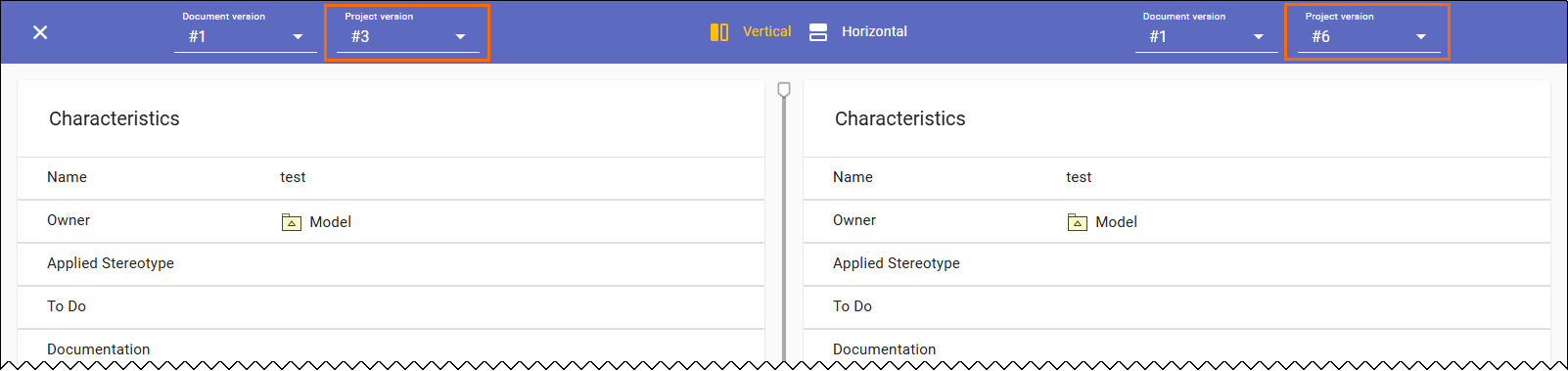
Note You can only select the project version for documents that are published for editing.