You can generate an FMU (Functional Mock-up Unit) for external co-simulation of dynamic models that enables the exchange of simulation results between different simulation tools. The generated FMU exposes the defined input and output parameters of a model, as specified in a Simulation Configuration. The generated FMU runs the server-side simulation of a particular Simulation Configuration using given inputs and returns the outputs after each time step. FMUs can be generated for two platforms: Linux 64-bit and Windows 64-bit. | Note |
|---|
| - You must have
OpenJDK to generate FMU from the modeling tool- the same Java HOME version as the modeling tool’s Java version. To check the Java HOME version, run
java --version in the command prompt. To check the modeling tool’s Java version, go to Help > About > Environment tab. - You must have a simulation server certificate to co-simulate the generated FMU.
- You must use the generated FMU with tools that use the same JAVA version as the modeling tool; otherwise, you will not be able to run the generated FMU.
- You must add the JAR files to the plugin library to generate FMU. To learn more, refer to Generating FMU - Technology preview#Adding Adding JAR file to the library.
|
FMU generation uses selected Simulation Configuration properties, and can contain the following defined data: - Start Time, End Time, and Step Size property values.
- Input Parameters property value: the default values from the defined input parameters will be included in the generated FMU.
- Output Parameters property value: the default values from the defined output parameters will be included in the generated FMU.
To generate an FMU
- Open a Teamwork Cloud project.
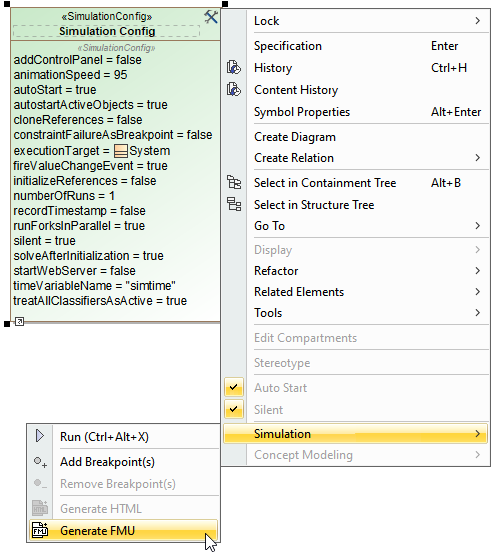
- Right-click a Simulation Configuration and select Simulation > Generate FMU.
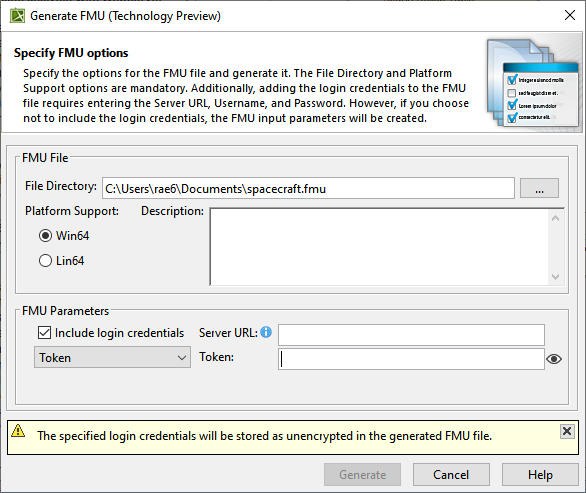
- In the Generate FMU dialog specify the following:
- Click Generate.
| Note |
|---|
In the case of an FMU file generation error, see the detailed error message in the log file. |
Adding JAR files to the libraryAn external library is required to generate the FMU files. You must add the JAR files to the plugin library folder. To add the JAR files to the plugin library
- Download the fmu-builder-2.6.1.jar and the fmu-framework-2.6.1.jar files.
- Copy the downloaded JAR files to the <modeling tool installation directory>\plugins\com.nomagic.magicdraw.simulation\lib path.
- Restart the modeling tool after copying the JAR files.
|