Enterprise Architect Import (EA) will automatically load when you start a program. You can use it to import UML 2.1 XMI 2.1 to your modeling tool.
To import Enterprise Architect UML XMI file
- On the main menu of the modeling tool, click File > Import From > Enterprise Architect UML2.1 XMI 2.1 File. The Import Enterprise Architect Files dialog opens.
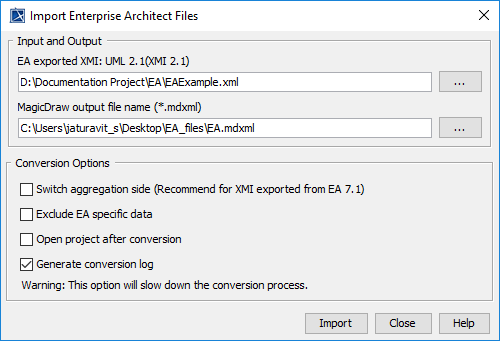
- In the dialog, you must specify:
- Click Import to import the file.
The following table describes conversion options: | Conversion Option | Description |
|---|
| Switch aggregation side | Toconfigure the aggregationswitch-side.This option is recommended forXMIfiles exported from EA7.1. | | Exclude EAspecific data | Toexclude all EA-specific data from being imported (see TransformingEASpecific Data tosee a list of EAspecific-data thatcan be transformed into UML elements with stereotypes). | | Open project afterconversion | Toload the output project file once the conversion process has been completed. | | Generate conversion log | To generate a conversion log and save it in the same folder as the output file. The same conversion information will also be displayed on the Notification Window. | Info |
|---|
| You can open the window by pressing Ctrl + M. |
|
| 