
...
| id | 840047702 |
|---|
...
| id | 840047704 |
|---|
...
| id | 840047700 |
|---|
On this page
| Table of Contents | ||
|---|---|---|
|
...
...
| id | 840047703 |
|---|
Creating textual comments
You can create textual comments for any element, including standard properties and relations. Textual comments can be edited as many times as necessary.
| Note | ||
|---|---|---|
| ||
You can create textual comments if:
|
To create a textual comment
...
 on the bottom right corner of the content pane.
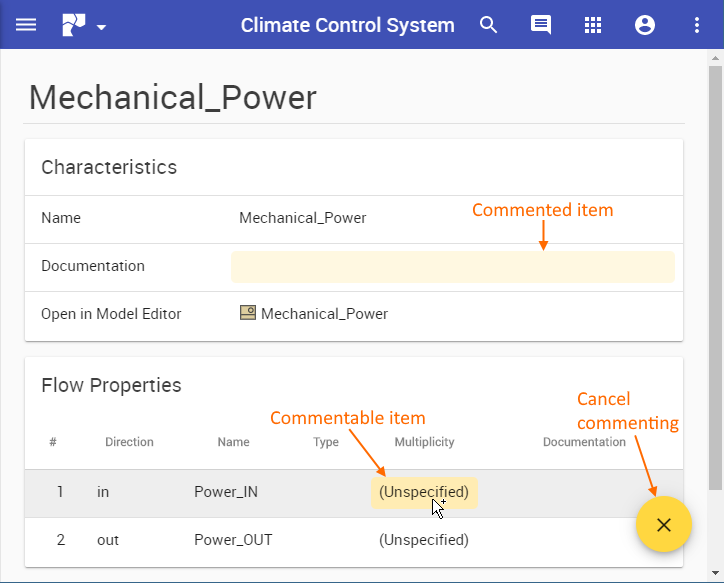
On the content pane, select the item you want to comment on. Commentable items are highlighted in yellow when hovering over them with a mouse pointer, as displayed below.
When the New comment pane opens on the right side of the document portal, enter the comment title and comment text in the appropriate boxes.
If needed, click the High priority switch on the bottom of the new comment pane to set the comment priority to high.
Click
...
 on the top right corner of the new comment pane to save the comment, or click
...
 to cancel comment creation.
The textual comment is created and displayed in the comments pane. The commented item in the content pane is highlighted in yellow. You can easily navigate between comments and commented items, as shown below. If an item has more than one comment, clicking it opens the list of comments, allowing you to choose the comment you want to navigate to.
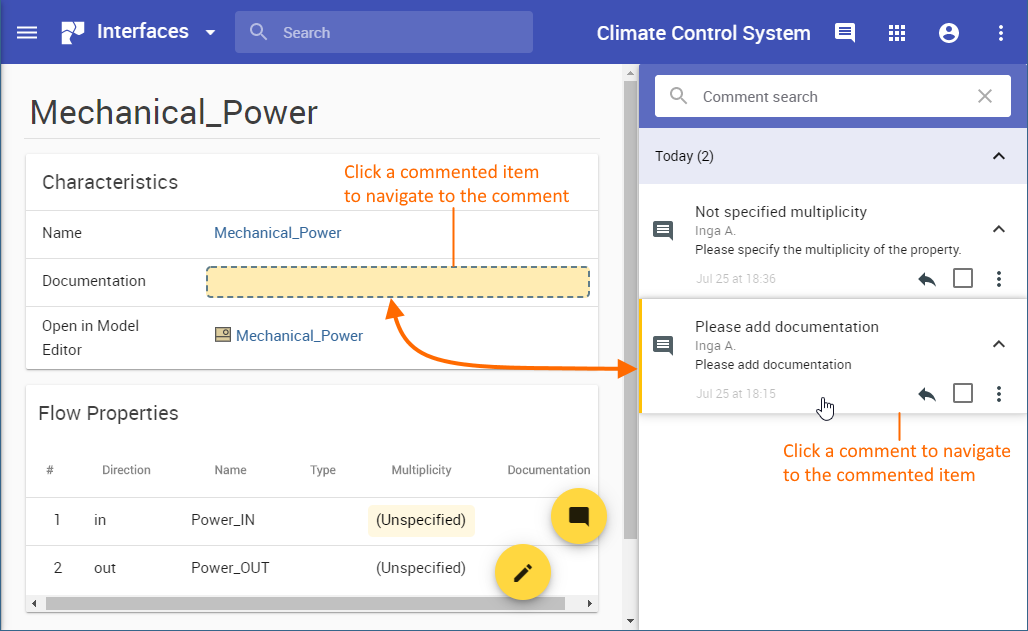
Navigating from comments to commented items and vice versa.
Editing textual comments
You can edit any textual comment displayed on the comments pane of a published model portal, as described below.
| Note | ||
|---|---|---|
| ||
You can edit textual comments if:
|
To edit a textual comment
In the comments pane, find the comment you want to edit.
Click
...
 on the right side of the comment to show available actions.
Click
...
 on the bottom of the comment and select Edit. The Edit comment pane (displayed below) opens on the right side of the document portal.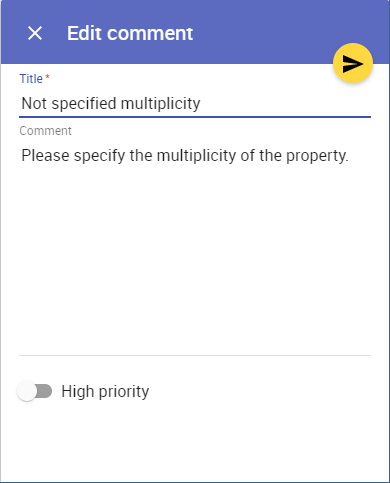
- On the open pane, do one or more of the following:
- Edit the comment title.
- Edit the comment text.
- Click the High priority switch on the bottom of the Edit comment pane to change the comment priority.
- Click
...
- on the top right corner of the pane to save the changes.
After completing the above steps the comment is updated and displayed on the comments pane.
...
| id | 840081187 |
|---|
Related pages
...