
...
- In the Containment Tree, select the Strategic Constraints Definition Strategic Constraints package and do one of the following:
- From the selected package's shortcut menu, select Create Diagram > Strategic Constraints Definition.
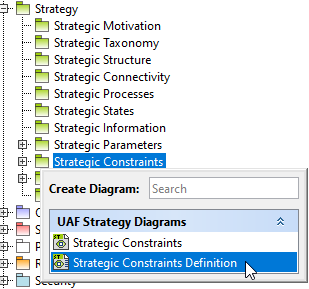
- In the modeling tool's main menu, click Create Diagram, search for Strategic Constraints Definition and select it.
- From the selected package's shortcut menu, select Create Diagram > Strategic Constraints Definition.
- Name a diagram or leave it with the default name.
...
When the diagram is created, you can start creating the appropriate elements (assets). An example is described using the Capability element, but the same is valid for other elements.
To create an element in a diagram
...
...
- Select a needed asset Capability and open its Specification window.
- In the Constraints property group, click Create > Strategic > Strategic Constraint.
- Specify the name.
In the Specification cell, define the rule.
Note The specification (rule) can be defined in English as well as using expressions or formulas (OCL).
...
- In the Containment tree, select a Strategic Constraint Strategic Constraint and drag it on the elementCapability.
- In the needed element's Capability Specification window, go to the Constraints property group. Click the Apply button and from the Select Element window, choose a constraint.