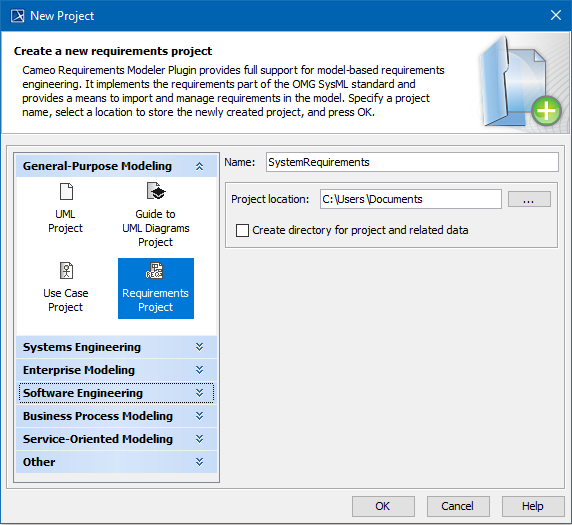
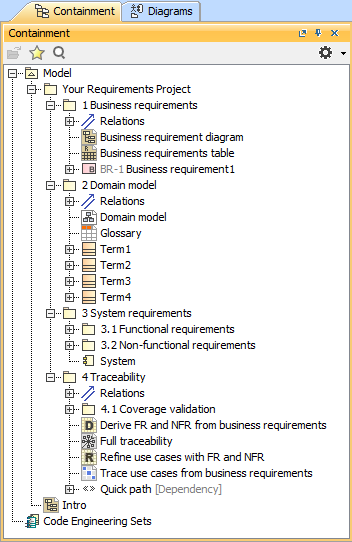
You can create requirements using the the Requirements Project template. It contains predefined packages, elements, and diagrams to start creating your own requirements in the model.
Warning
The Requirements Project template is only available in MagicDraw with Cameo Requirement Modeler Plugin installed.
To create a Requirement Project
Open the New Project dialog. Do one of the following:
From the File menu, select New Project.
On the main toolbar, click the New Project button.
Press Ctrl + Shift + N.
In the New Project dialog, specify the following:
On the left side of the dialog, under the General-Purpose Modeling domain, select the Requirements Project.
On the right side of the dialog, type the file name in the Name box.
On the right side of the dialog, click the Image RemovedImage Addedbutton and select the location to store the created project. Image RemovedImage Added
Click OK. The new Requirement project is created with predefined structure as shown in the image below. Image RemovedImage Added