
Manipulating run-time objects with scripts lets you dynamically control simulation environment, structural elements, and behavioral workflows. You can modify structural and global variables, invoke behaviors and operations. You can also create and send signals, and retrieve key runtime data like token values, simulation time, and callers of the scripts. Additionally, you can evaluate expressions and check behaviors to gain information about the simulation.
Action scripts can be used where the scripts are evaluated during simulation, for example in the Opaque Behaviors, Actions, Guards, or directly in the simulation Console pane). You can In Cameo Simulation Toolkit, you can use the following types of action scripts to manipulate runtime objects:
- fUML object syntax, which simplifies some ALH actions. Example: object.get("property")
ALH (Action Language Helper) scripts. Example: ALH.getValue(object, "property")
- Alf - Action Language for fUML (requires an additional pluginadditional plugin). Example: object.property
Action scripts can be used anywhere where scripts are evaluated during simulation (e.g., Opaque Behaviors, Actions, Guards, or even directly in the simulation Console pane). You can use them to get and specify a Structural Feature value, call a specific behavior or operation, create a runtime object, get its current State, create a Signal instance, and more.
| Note |
|---|
| Note that scripts depend on the objects where they are executed, i.e., scripts are context-dependent. |
| Tip |
|---|
It is easy to access elements that are deeper in the hierarchy tree, but accessing parent elements is more complicated. Therefore, it is important to plan where executing a particular script would be the most efficient. |
Specifying context
Scripts are context sensitive, whenever you execute a script, you must When executing a script, you always need to specify its context (object). Most commonlyMostly, it is the current simulation context (marked as "self" in a script). However, it can also be an input pin (pin name) or an object created in a script itself (see Creating a runtime object (Copy)).
Analyze the example described below to see how scripts change depending on the context.
When evaluating from Simulation console, the context depends on the selected element in the variables pane. For example:
To get the
ExampleIn the example below, to get the Diameter Value Property when the script is executed in the Car Block, the script should be self.get("tyre.wheel.Diameter").
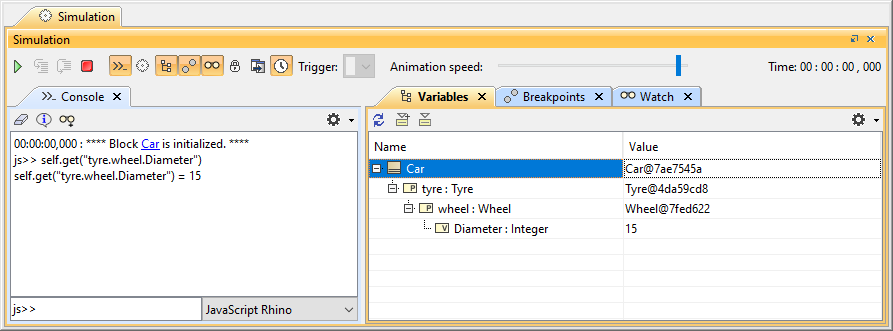
Getting the Diameter Value Property when the simulation context is the Car Block.
However, if you wanted to get the same To get the Diameter Value Property when executing the script in the Tyre Blockis executed after selecting the wheel, the script should be self.get("wheel.Diameter").
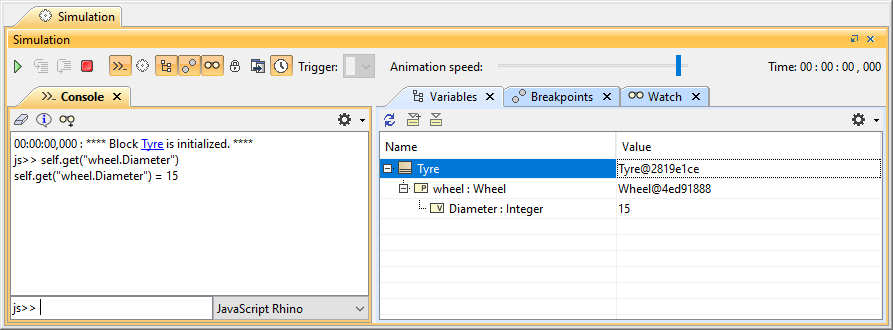
Getting the Diameter Value Property when the simulation context is the Tire Block.
Note that when executing scripts directly in the simulation Console pane, the context is the currently selected element in the Variables pane. So even if the simulation context is the Car Block, selecting the wheel Part Property in the Variables pane allows you to access the Diameter Value Property directly, as shown below.Diameter.
| Info |
|---|
The first level properties can be directly accessed using their name. |
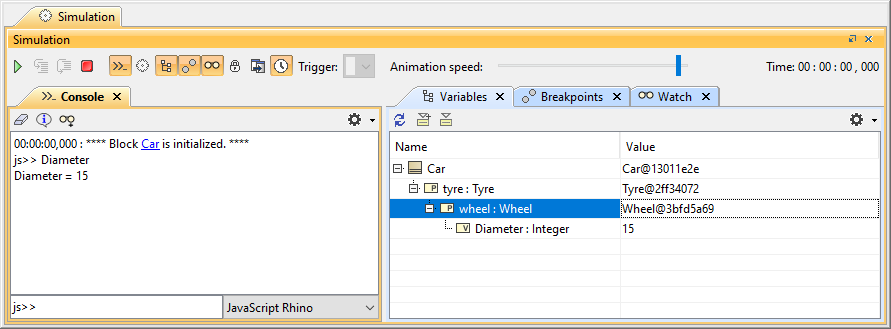
Getting the Diameter Value Property when the script is executed in the Console pane.
| title | Tip |
|---|
.
Therefore, it is important to plan where executing a particular script would be the most efficient.To learn more, refer to the following topics:childrenAdditional resources
- You can find more examples of API usage at <install_root>\samples\simulation\SmallTestSamples.mdzip (Tests section).
- For more information, see the JavaDoc at <install_root>\openapidocs\SimulationJavaDoc.