
Page History
...
| id | 2025285967 |
|---|
...
| id | 2025285969 |
|---|
...
| id | 2025285966 |
|---|
On this page
| Table of Contents | ||
|---|---|---|
|
...
| id | 2025285968 |
|---|
What is Simulink?
Simulink is a MATLAB-based graphical environment that allows modeling, simulating, and analyzing dynamic systems. It enables users to simulate the dynamic behavior of the modeled system
...
; for example, it is now widely used in automatic control and digital signal processing for multi-domain simulation.
Simulink file import
The modeling tools support the SLX file format, meaning that you must have your Simulink model in this format to import it. Following the Simulink file import, the Simulink Import Options dialog opens. It allows customizing the Simulink model import options. For example, you can specify whether the parameters from the model should be imported as ports or value properties, set the name for the Simulink Block (the Simulink file name is used by default), and select the checkbox to attach the file to the model upon import automatically.
To import the Simulink file into the model
...
- In the top-left corner of the modeling tool, click File > Import From > Simulink File.
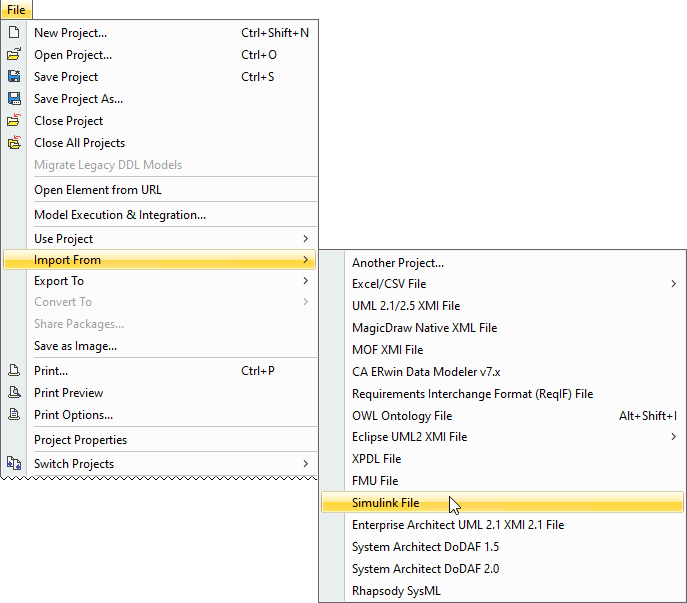
- Select the Simulink (.slx
...
- ) file on your file system and click Open.
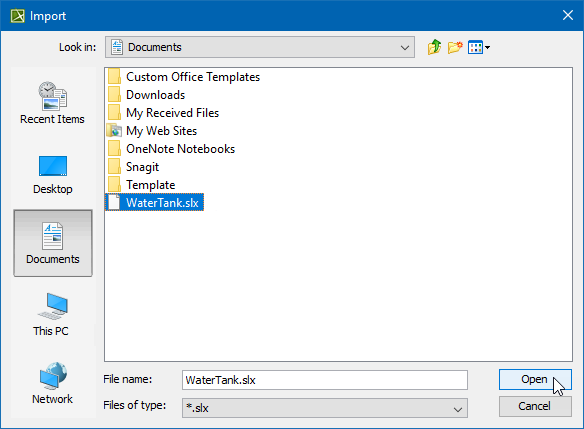
- In the Simulink Import Options dialog, specify which properties from the Simulink file should be imported into your model as values and ports. Click OK.

Dragging and Dropping a Simulink file on a diagram
You can import the Simulink
...
model by dragging and dropping the Simulink file directly onto the Block Definition (BDD), Internal Block (IBD), and SysML Activity diagrams:
To import the Simulink model
...
- Locate the SLX
...
- file on your file system.
- Do one of the following:
- Drag and drop the file from your file system onto the BDD diagram. A Block with the applied «SimulinkBlock» stereotype is created in the model after customizing Simulink import via the Simulink Import Options dialog.
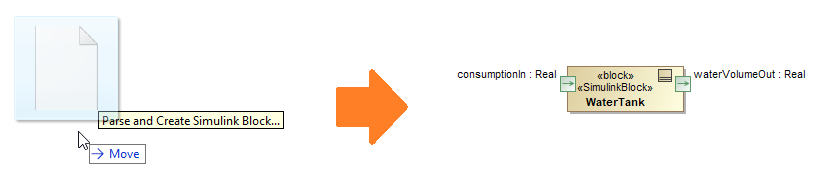
- Drag and drop the file from your file system onto the IBD diagram. A Part property is created in the model after customizing Simulink import via the Simulink Import Options dialog.
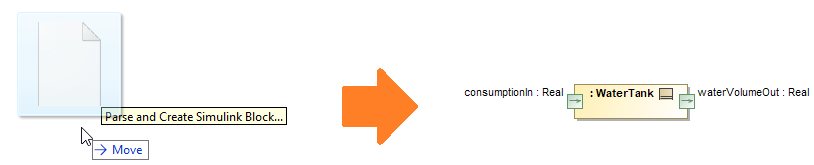
Drag and drop the file from your file system onto the SysML Activity diagram. The Activity (stereotyped by «SimulinkBlock»), which is assigned as behavior for a Call Behavior Action, and its Input and/or Output Pins are created in the model.
Note The Simulink Import Options dialog does not open in this case.
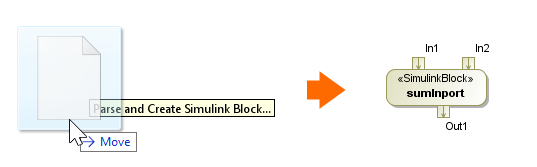
- Drag and drop the file from your file system onto the BDD diagram. A Block with the applied «SimulinkBlock» stereotype is created in the model after customizing Simulink import via the Simulink Import Options dialog.
The Simulink Import Options dialog opens immediately after dropping the file. Specify the Simulink import options and click OK when you are done.
The Simulink Import Options dialog has the following options:
Option name | Description | ||
|---|---|---|---|
| Direction | The direction of the port: In or Out. Inputs and Outputs are selected to be imported as ports by default. | ||
| Name | The name of the property/parameter. | ||
| Type | The type of the property, for example, a value property. | ||
| Description | The textual description of the property. | ||
| As Port | Click to select whether properties should be represented as Flow or Proxy ports. Select None to import the selected properties as value properties. | ||
| Interface Block | Click to select a compatible interface Block or create a new one. <NEW> is selected by default.
| ||
| Redefine | Click to redefine inherited value or part properties. | ||
| Click to select all listed properties at once. | ||
| Click to deselect all listed properties at once. | ||
| If the checkbox next to Attach file to the project is selected, the imported Simulink file is automatically attached to the model. | ||
| The name of the element created in the model upon import. By default, the name of the Simulink file is used, but you can set the one you like. |




Dragging and dropping a Simulink file on an existing Block
You can drag and drop the external Simulink model directly onto the existing element in your model. Once the .
...
slx file is dropped, the Simulink Import Options dialog opens. You can then redefine value and part properties.
In this case, a new Block is created as a subtype of the existing Block together with the Generalization relationship.
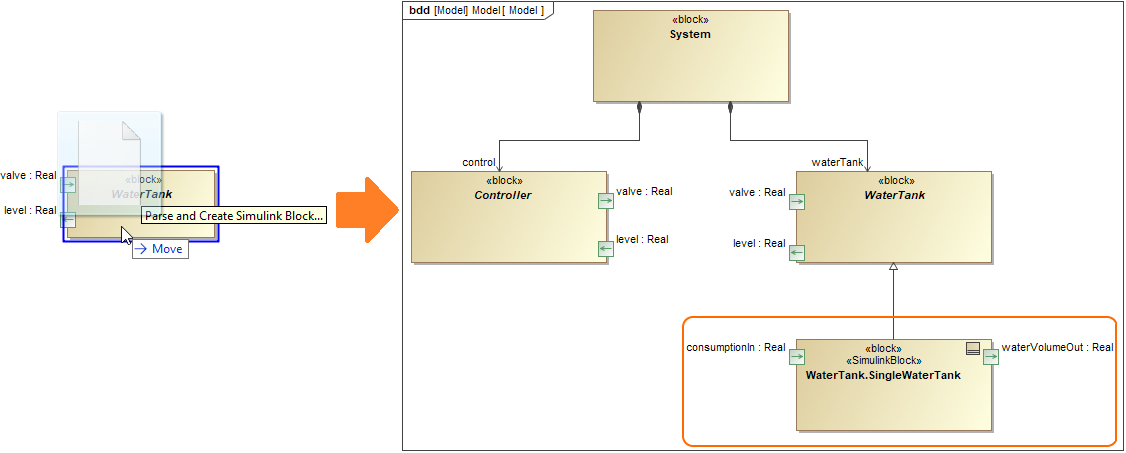
Dropping the Simulink file on the existing Block.
| Note |
|---|
In/Out properties in the Simulink Import Options dialogdialog are, by default, imported into the model as ports of a Flow type. |
Updating existing Simulink Block
An existing Simulink Block can be updated by dragging and dropping the .
...
slx file directly on it. This is useful in those cases when there is a need to update the Block, for example, to import properties that were left out at first or update the model with the latest version of the Simulink file.
To update a Simulink Block
...
- Locate the SLX
...
- file on your file system.
- Drag and drop it on the shape of your Simulink Block.
- In the opened Simulink Import Options dialog, select the properties to update the Simulink Block with.
- Click OK.

Dragging and dropping the Simulink file on the existing Simulink Block.
Alternatively, you can update the Simulink Block directly from the shortcut menu.
To update a Simulink Block
...
- Right-click the Simulink Block.
- Select Tools > Update from Simulink file from the shortcut menu.
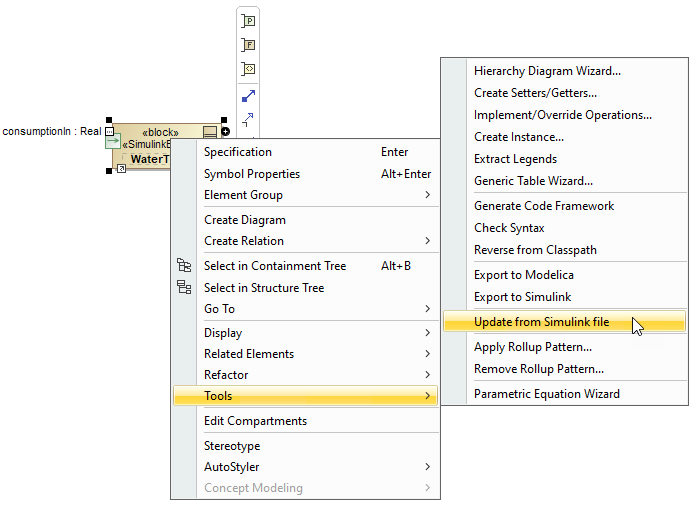
- In the opened Simulink Import Options dialog, select the properties to update the Simulink Block with.
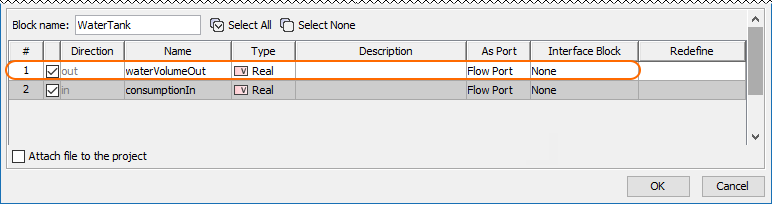
- Click OK.
| Note |
|---|
Already imported properties are grayed out and cannot be edited in the Simulink Import Options dialog. |
| Note |
|---|
If the Attach file to the project is checked in the Simulink Import Options dialog, a previous version of the attached file is replaced with a new one upon import. |
Co-simulation
The Simulink model can be simulated using the Cameo Simulation Toolkit (CST). To learn more, please click here.
Overview
Content Tools