
...
| id | 102943735 |
|---|
...
| id | 102943739 |
|---|
...
| id | 102943734 |
|---|
On this page
| Table of Contents | ||
|---|---|---|
|
...
| id | 102943738 |
|---|
...
After creating a role, you can modify it by changing its name, description, and permissions as described in the following sections.
| Note | ||
|---|---|---|
| ||
|
Editing role details
In the Roles application, you can edit the name and description of a custom role as described below.
To edit role details
- Do one of the following actions:
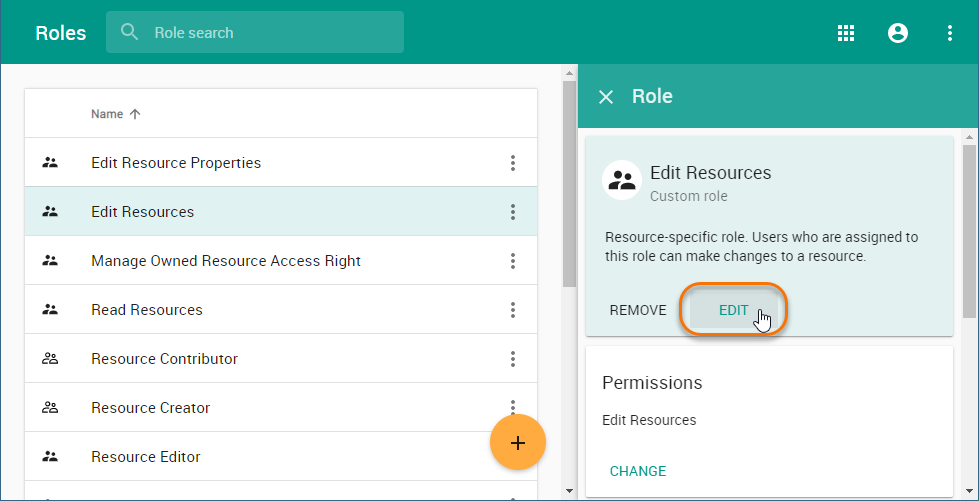
- In the content pane of the Roles application, select a role and when
...
- the Role
...
- pane opens, click
...
- the Edit
...
- button in the role details card.
- In the content pane of the Roles application,
- button in the role details card.
...
- click
 next to a role name and
- click
...
- select Edit role details.
- When
...
- the Edit role details
...
- pane opens, change role name and or description and
...
- click
 .
.
Changing role permissions
You can use the Roles application to add or remove
...
permissions of a custom role. Note that a role must have at least one permission.
To add or remove permissions of a role
- Do one of the following actions:
- In the content pane of the Roles application, select a role and when the Role pane opens, click the Change button in the role details card.
- In the content pane of the Roles application,
...
- click
 next to a role name and select Change permissions.
- click
- When
...
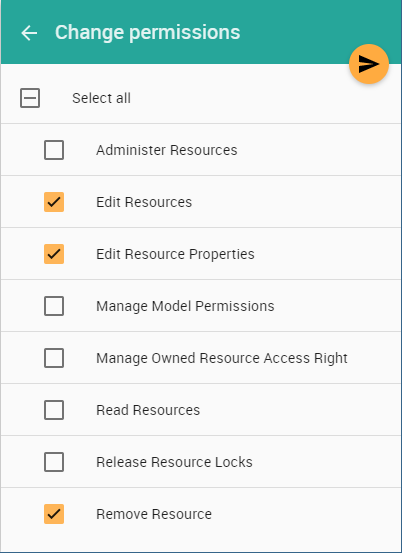
- the Change permissions
...
- pane opens, select the permissions you want to assign to the role (as shown below) and/or clear the check-boxes next to the permissions you want to remove.
...
- Click to save the changes.
...
| id | 1976618753 |
|---|
Related pages
...