
...
| id | 1675741375 |
|---|
...
| id | 1675741386 |
|---|
...
| id | 1363178503 |
|---|
On this page
Table of Contents maxLevel 5
...
You can index resources for their element usages within the selected scope of the Magic Collaboration Studio repository and later query these usages through the modeling tool. This enables you to evaluate what impact modifying or deleting certain model elements will have on other models that are using it. To enable this functionality, Magic Collaboration Studio needs to be incorporated with
...
a dedicated search
...
engine - Elasticsearch. This component makes it possible to index model element usage data and serve it quickly when queried from a modeling tool.
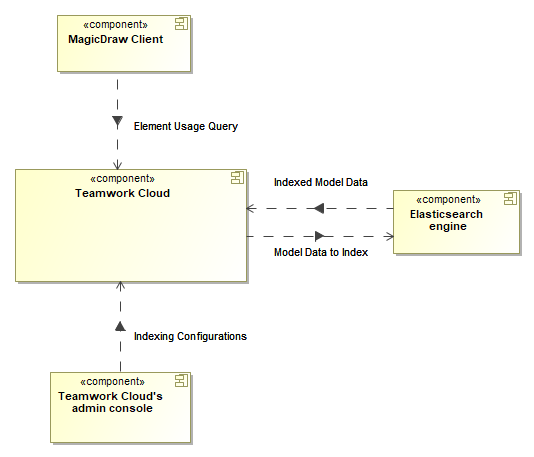
Conceptual solution for the global element usage indexing and search functionality.
To start using the global element usage search functionality, you need to install and set up Elasticsearch (v7 series) as described below.
Installing and setting up Elasticsearch
System requirements
- We recommend using NVMe SSD disks for the Elastic search instance.
...
- The -Xmx
...
- value should be set to 4GB as a minimum.
- The expected indexing speed under recommended hardware settings is roughly 1 revision per second.
- The following formula can be used to roughly determine the required disk space per single Indexing Configuration:
Used Project size (element count) x 400 bytes x N x # of Using Projects (specified scope),
where N equals the number of times both using and used elements get changed throughout their history (N tends to range from 4 to 10 as noted from experiments with production data).
The formula also assumes that actual element-level reference ratio is 15-20% from all of the elements in a Used Project.
E.g. A DB size of 250GBs yields an index size of 60GBs under the above mentioned conditions.
Installing Elasticsearch
Go to https://www.elastic.co/downloads/elasticsearch and install Elasticsearch (v7 series).
| Note |
|---|
We highly recommend deploying Elasticsearch on a machine separate from Magic Collaboration Studio and Cassandra due to additional server resource consumption. |
| Note |
|---|
In the Elasticsearch installation directory, open the jvm.options file and make sure the -Xms and -Xmx properties are uncommented. |
Enabling global element usage indexing and search
Once you install Elasticsearch, configure Magic Collaboration Studio as described below to start using the global element usage search functionality.
To enable global element usage search
- Go
...
- to <install_root>/TeamworkCloud/configuration, open
...
- the application.conf
...
- file, and add the following lines at the end of the file:
To enable the querying component, add the following property and set it
...
to true:
Code Block esi.server.actor.query.component-enabled=trueTo enable resource indexing, add the following property and set it
...
to true:
Code Block esi.indexer.enabled = trueIf Elasticsearch and Magic Collaboration Studio run on different machines, add the following line:
Code Block esi.query.es.node.host = "<es.host.or.ip>"If Elasticsearch is set up to listen on a different port from the default one (9200), add the following line:
Code Block esi.query.es.node.port = <es.port>
- Restart Magic Collaboration Studio services.
Now
...
...
in the Settings application and
...
...
in a modeling tool.
Enabling Encrypted Communication (SSL) with ElasticSearch Server
| Note |
|---|
| SSL setup with Elasticsearch is a general security feature, required both to configure Elasticsearch itself and Magic Collaboration Studio. You must specify a username and password. See more information on setting up passwords in Elasticsearch: https://www.elastic.co/guide/en/elasticsearch/reference/7.16/security-minimal-setup.html |
To enable encrypted communication between Magic Collaboration Studio and ElasticSearch servers
- Prepare type PCKS #12 (*.p12) certificate. You can:
- Use an existing certificate for the machine that will host Elasticsearch, or
- Generate a new certificate for Elasticsearch using elasticsearch-
...
Example:
| Code Block | ||
|---|---|---|
| ||
elasticsearch-certutil cert --self-signed --name <elasticsearch.host.name> |
Alternatively, if the certificate subject name does not match the hostname, you can generate the certificate to facilitate
...
the Subject Alternative
...
Name extension:
| Code Block | ||
|---|---|---|
| ||
lasticsearch-certutil cert --self-signed --name <arbitrary.subject.name> --dns <elasticsearch.host.name> --ip <elasticsearch.host.ip> |
2.
...
Configure elasticsearch.yml.
Enable security:
| Code Block | ||
|---|---|---|
| ||
xpack.security.enabled: true |
Enable SSL for transport:
| Code Block | ||
|---|---|---|
| ||
xpack.security.transport.ssl.enabled: true
xpack.security.transport.ssl.verification_mode: certificate
xpack.security.transport.ssl.keystore.path: <path.to.p12.file>
xpack.security.transport.ssl.keystore.password: changeit |
Enable SSL for HTTP (REST API):
| Code Block | ||
|---|---|---|
| ||
xpack.security.http.ssl.enabled: true
xpack.security.http.ssl.verification_mode: certificate
xpack.security.http.ssl.keystore.path: <path.to.p12.file>
xpack.security.http.ssl.keystore.password: changeit |
3.
...
Import the certificate into Java's trusted certificates
...
keystore cacerts.
First, export the X.509 certificate (usually *.crt or *.cer file) from the *.p12 file (for this use tools
...
like OpenSSL or KeyStore Explorer). Then import the certificate file using Java's keytool:
| Code Block |
|---|
keytool.exe -import -file <path.to.certificate.file> -cacerts -alias <certificate.subject> |
4. Set up Magic Collaboration Studio:
...
in application.conc, set the following properties:
| Code Block |
|---|
esi.query.es.security.enabled = true
esi.query.es.security.auth.username = "elastic"
esi.query.es.security.auth.password = "<elastic.password>"
esi.query.es.node.protocol = "https" |
...
| id | 1675741374 |
|---|
Related pages
Pointing multiple Teamwork Cloud instances to one Elasticsearch instance
Instead of using a separate Elasticsearch instance for each Teamwork Cloud instance, you can point multiple Teamwork Cloud instances or clusters to a single Elasticsearch instance.
To point multiple Teamwork Cloud instances to one Elasticsearch instance
- Go to <install_root>/TeamworkCloud/configuration, open the application.conf file.
- Uncomment the following setting and specify a valid suffix. Note that each Teamwork Cloud instance pointing to the same Elasticsearch instance needs a unique suffix:
| Code Block | ||
|---|---|---|
| ||
# Custom suffix for Elasticsearch index names. Allows for separating indexes of separate TWCloud instances/clusters
# if they are using same Elasticsearch instance. Uncomment and enter a non-empty alphanumeric value to enable.
# NOTE: make sure to set the same suffix for all nodes of the same TWCloud cluster!
#
# esi.query.es.index-name-suffix = "CHANGE_ME" |
...