
On this page
| Table of Contents | ||
|---|---|---|
|
In this section, we will review the various settings which you may have to adjust in order to establish communication between web services and Magic Collaboration Studio.
| Note |
|---|
Change these settings only if you need to change the default installation. |
Increasing open file limit on Linux
Use this method to increase the maximum number of files that the entire operating system can handle at once before installing Web Application Platform with services.
To increase the open file limit for the operating system
- Open the /etc/sysctl.conf file with a text editor as a root user:
Code Block language text sudo nano /etc/sysctl.conf - Add or modify the following line with the new limit:
Code Block language text fs.file-max = 20000 - Save and exit the editor.
- Apply the changes immediately by running:
Code Block language text sudo sysctl -p - To verify the change, run:
Code Block language text cat /proc/sys/fs/file-max
Connecting to remote authentication and Magic Collaboration Studio servers
Configuring remote authentication server
To configure remote authentication server
- Open the webappplatform.properties file at
- at <install_root>/WebAppPlatform/shared/conf/webappplatform.properties. Locate
Locate Authentication server
properties properties and change the values as necessary:
Code Block language bash # Authentication server properties # # Specify the Authentication server location. # IP address or domain name. authentication.server.ip=127.0.0.1 # Specify the Authentication server port. authentication.server.port=8443 # Specify rest protocol (http or https) depending on the Authentication server setup. authentication.server.protocol=httpsNote title Authserver access If you are accessing via a hostname or FQDN, especially if you are using a signed certificate, use the applicable FQDN or hostname instead of the IP address.
If you have configured authserver to use HTTP or to run on a different port, make sure that the URI reflects the correct values.
Configuring remote Magic Collaboration Studio server
To configure remote Magic Collaboration Studio server
- Open the webappplatform.properties file at
- at <install_root>/WebAppPlatform/shared/conf/webappplatform.properties. Locate
Locate Magic Collaboration Studio server
properties properties and change the values as necessary:
Code Block # Specify the Magic Collaboration Studio IP address or domain name. twc.ip=127.0.0.1 # Specify rest protocol (http or https) depending on the Magic Collaboration Studio server setup. twc.rest.protocol=https # Specify the Magic Collaboration Studio rest API port. twc.rest.port=8111Note title Magic Collaboration Studio access Please ensure these credentials for twc.admin.username and twc.admin.password match those of a user with administrative privileges.
If you are accessing via a hostname or FQDN, especially if you are using a signed certificate, use the applicable FQDN or hostname instead of the IP address.
If you have configured Magic Collaboration Studio to use HTTP or to run on a different port, make sure that the URI reflects the correct values.
Warning If you change any of the configuration parameters, you will need to restart the WebApp service.
Configuring remote Zookeeper service discovery server
To configure remote Zookeeper service discovery server
- Open the webappplatform.properties file at
- at <install_root>/WebAppPlatform/shared/conf/webappplatform.properties. Locate
Locate Platform service discovery related
properties properties and change the values as necessary:
Code Block # Specify the Zookeeper server IP address. zookeeper.server.ip=127.0.0.1 # Specify the Zookeeper server port. zookeeper.server.port=2181 # Specify zk node where ZooKeeper registers applications zookeeper.base.service.path=/services # Enable or disable service discovery. Enabled if the property does not exist service.discovery.enabled=true # Indicates path of services. Specify / if all services are deployed on the same Tomcat. service.uri=/ # Enables or disables ACLs of ZooKeeper nodes under zookeeper.base.service.path. To use this functionality, # skipACL must be set to no in the ZooKeeper configuration file, which is <zookeeper-home>/conf/zoo.cfg by default #zookeeper.acl.enable=false #zookeeper.acl.username=zkuser #zookeeper.acl.password=zkpassword # One of: all, read, write, create, delete, admin. If not set, the all permission will be used #zookeeper.acl.user.permissions=all
Configuring remote FlexNet license server for Web Application Platform services
You can configure a remote FlexNet license server for Web Application Platform services, such as Cameo Collaborator or Server-side simulation.
To configure remote FlexNet license server for Web Application Platform services
- Open the webappplatform.properties file at
- at <install_root>/WebAppPlatform/shared/conf/webappplatform.properties. Locate
Locate FlexNet/DSLS server
properties properties and change the values as necessary:
Code Block # Specify if you want to use the FlexNet or DSLS framework (the default value is FlexNet).
license.framework=FlexNet
# Specifytheif
FlexNet/DSLSyou
licensewant
serverto
IPuse
address.the
IfFlexNet
theor
valueDSLS
offramework (the
'license.dsls.server.mode' property is ORGANIZATION_DEFINED, address will be read from the DSLicSrv.txt filedefault value is FlexNet). license.
server.nameframework=FlexNet # Specify the FlexNet/DSLS license server IP:Port
portaddress. # If the value of the 'license.dsls.server.mode' property is ORGANIZATION_DEFINED,
portaddress will be read from the DSLicSrv.txt file. license.server
.port=
Changing client port
To change remote FlexNet license server
- Open the webappplatform.properties file at
- at <install_root>/WebAppPlatform/shared/conf/webappplatform.properties. Locate
Locate Magic Collaboration Studio server
properties properties and change the value as necessary:
Code Block # Specify the Magic Collaboration Studio client API port. twc.client.port=3579
Setting web server protocol (HTTPS to HTTP)
By default, in order to enforce a higher level of security, web services are accessed via HTTPS. In order to change the mode of operation to HTTP, various configuration changes must be made.
| Warning |
|---|
We do not recommend changing HTTPS to HTTP. Perform this only if necessary. |
The default port for web services is 8443. In this example, we will make the changes necessary to run over HTTP on the default port of 8443.
The WebApp server configuration is located in in <install_root>/WebAppPlatform/conf/server.xml.
Locate the following following connector executor executor section:
| Code Block |
|---|
<Connector executor="tomcatThreadPool"
           port="8080" protocol="HTTP/1.1"
           connectionTimeout="20000"
redirectPort="8443" /> |
Edit the section as shown below:
| Code Block |
|---|
<Connector executor="tomcatThreadPool"
           port="8443" protocol="HTTP/1.1"
connectionTimeout="20000" /> |
The modifications consist of changing the port from 8080 to 8443, and removing a redirect that would route to the handler on port 8443.
Since we have configured this connector to listen on port 8443, we now need to remove the existing connector handler on port 8443.
Locate the following connector following connector section (text shown below is truncated):
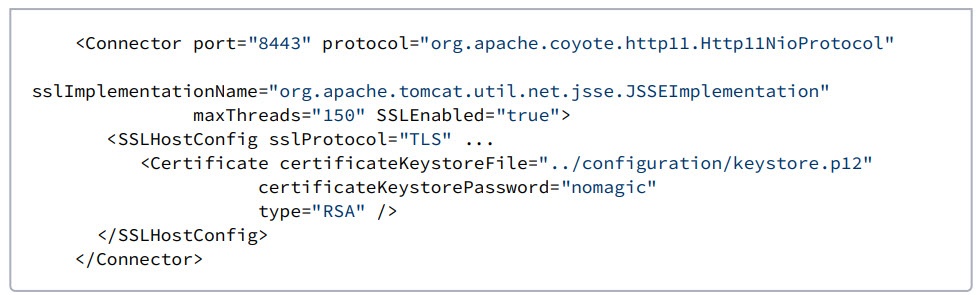
Comment out the entire section as shown:
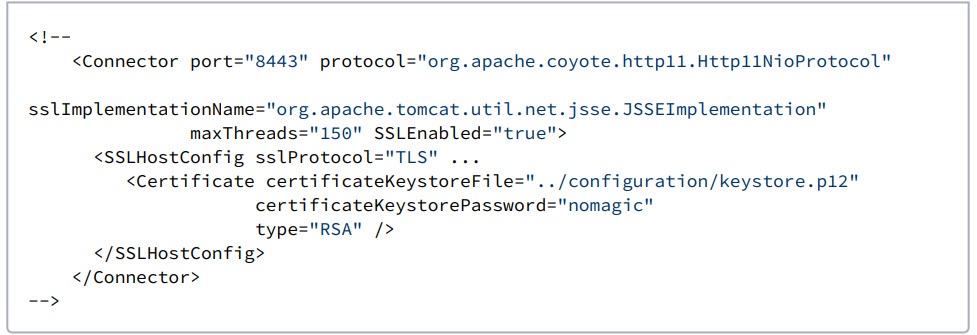
By default, due to security reasons, we have established a security policy requiring access to be encrypted. To disable this, we need to edit edit <install_root>/WebAppPlatform/conf/web.xml. This This section is located at the very bottom of the file.
The following section:
| Code Block |
|---|
<security-constraint>
    <web-resource-collection>
        <web-resource-name>webapp</web-resource-name>
        <url-pattern>/*</url-pattern>
    </web-resource-collection>
    <user-data-constraint>
        <transport-guarantee>CONFIDENTIAL</transport-guarantee>
    </user-data-constraint>
</security-constraint> |
needs to be edited as follows:
| Code Block |
|---|
<security-constraint>
    <web-resource-collection>
        <web-resource-name>webapp</web-resource-name>
        <url-pattern>/*</url-pattern>
    </web-resource-collection>
    <user-data-constraint>
        <transport-guarantee>NONE</transport-guarantee>
    </user-data-constraint>
</security-constraint> |
where where transport-guarantee guarantee is changed to to NONE.
Next, update the configuration files to reflect the change in protocol.
- In
- In <install_root>/WebAppPlatform/shared/conf/authserver.properties: change addresses listed in
- in authentication.redirect.uri. whitelist
- whitelist to HTTP. In
- In <install_root>/WebAppPlatform/shared/conf/webappplatform.properties: change
- change authentication.server. protocol
- protocol to HTTP.
- Optionally,
set - set twc.rest.
protocol - protocol to HTTP if the Magic Collaboration Studio service will also switch protocol.
In - In <install_root>/TeamworkCloud/configuration/application.conf: set url for
- set url for esi. auth
- auth to the HTTP address for authentication server (e.g. url="http://<authserver>:8443")
- Optionally,
set - set ssl
enabled to - enabled to false esi.
http - http if the Magic Collaboration Studio service will also switch protocol.
Restart all Magic Collaboration Studio services after changes are saved. Access web addresses via HTTP once services are restarted.
| Info |
|---|
Please also see more detailed instructions at at https://tomcat.apache.org/tomcat-10.0-doc/ssl-howto.html. |
Changing Web Application Platform port
The default port of Web Application Platform is 8443. You can change this port if needed by editing the the server.xml xml file in in <install_root>/WebAppPlatform/conf. The example below reconfigures web services to run HTTPS via port 8444, instead of 8443.
- Locate this code section:
Code Block language xml title server.xml <Connector port="8443" protocol="org.apache.coyote.http11.Http11NioProtocol" sslImplementationName="org.apache.tomcat.util.net.jsse.JSSEImplementation" maxThreads="150" SSLEnabled="true"> <SSLHostConfig sslProtocol="TLS" protocols="TLSv1.2" honorCipherOrder="true" certificateVerification="none" ciphers="..." > - Replace the port number:
Code Block language xml title server.xml <Connector port="8444" protocol="org.apache.coyote.http11.Http11NioProtocol" sslImplementationName="org.apache.tomcat.util.net.jsse.JSSEImplementation" maxThreads="150" SSLEnabled="true"> <SSLHostConfig sslProtocol="TLS" protocols="TLSv1.2" honorCipherOrder="true" certificateVerification="none" ciphers="..." >
The only change is the definition of the port number, which changed from 8443 to 8444. Update - Update authentication.redirect.uri.whitelist in
- in <install_root>/WebAppPlatform/shared/conf/authserver. properties
- properties to reflect the port change. Update
- Update authentication.server.port in
- in <install_root>/WebAppPlatform/shared/conf/webappplatform. properties
- properties to reflect the authentication port change.
- Provide new authentication address for twcloud service in
- in <install_root>/TeamworkCloud/configuration/application.conf. Under
- Under esi.auth, specify url
- specify url like this example:
Code Block title application.conf # Authentication Server address esi.auth { # Authentication Server base URL. url = "https://<server-address>:8444"