
...
| id | 600464591 |
|---|
...
| id | 600464593 |
|---|
...
| id | 600464592 |
|---|
You can import external users and user groups from LDAP servers to Teamwork Cloud.
| Note | ||
|---|---|---|
| ||
|
To import LDAP users or user groups
...
In the Users application, click
and select
- Select the LDAP server from which you want to import users and user groups and
...
- click OK.
In the search bar of the LDAP server pane, enter the name of the user or user group you want to import.
Tip title Searching for users and user groups If you want to get the list of all users stored in the selected LDAP server, type the asterisk sign (*) in the search bar.
- Select the check-boxes next to the users and user groups you want to import.
- Optionally click
...
- the Set roles
...
- button and assign specific roles to the users and user groups to be imported. For more information, see Adding roles.
...
- Click
After completing the above steps, you will get a notification that the import process has started. If you import a large number of users at once, it may take a while before the import is finished.
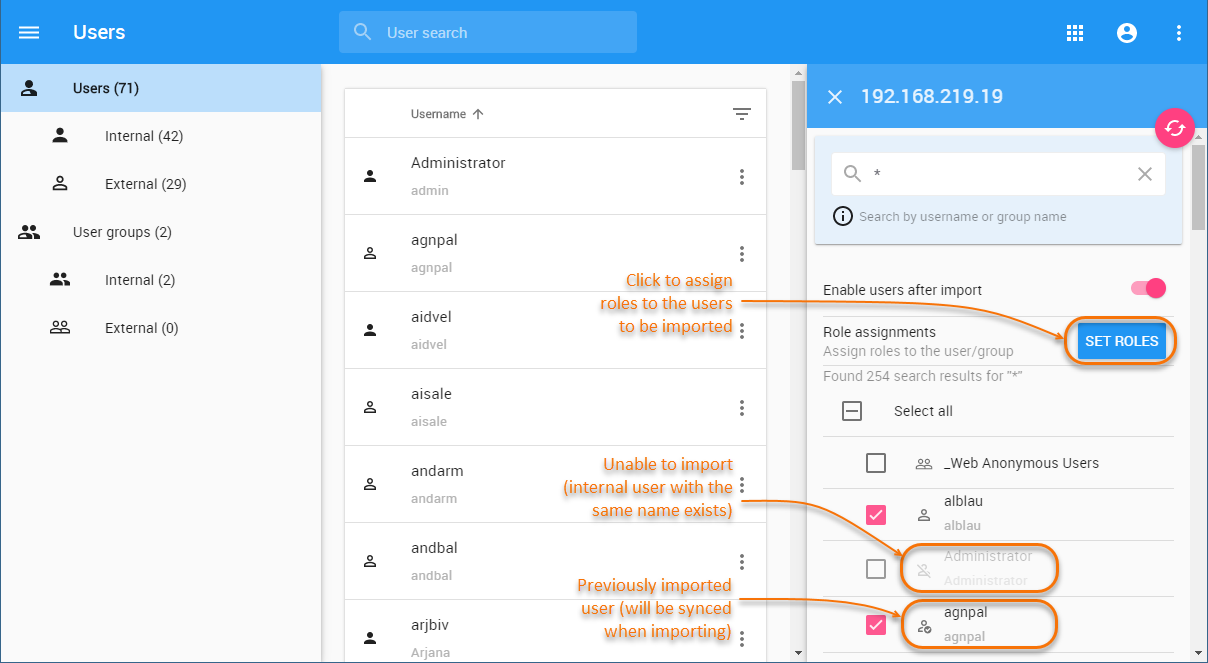
Importing users and user groups in the Users application.
When imported users are new, external users are created and the selected roles are assigned to them (see step 5). If you import users that have been imported before, the existing user information is synchronized during the import process but the role assignments stay the same. For more information, see Synchronizing users and user groups.
...
| id | 600464588 |
|---|
Related pages
...