
On this page
| Table of Contents | ||
|---|---|---|
|
Viewing resource details
In the Resources app you can view the following resource information:
- Resource details, including the resource name, creation and last modification dates, and the user who created or modified the resource.
- Resource history information, including the user who created each version of the resource, the version creation date, and the type of changes that were made.
- The roles assigned to the resource.
- Resource branches.
To view resource details
- In the Resources application, find click the category where the resource whose details you want to viewrelevant resource is located.
- Click
 next to the resource and select View resource Resource details.
Resource details, such as category, creation date, and last modification date, are shown on the Resource pane on the right side of the screen.
| Note |
|---|
|
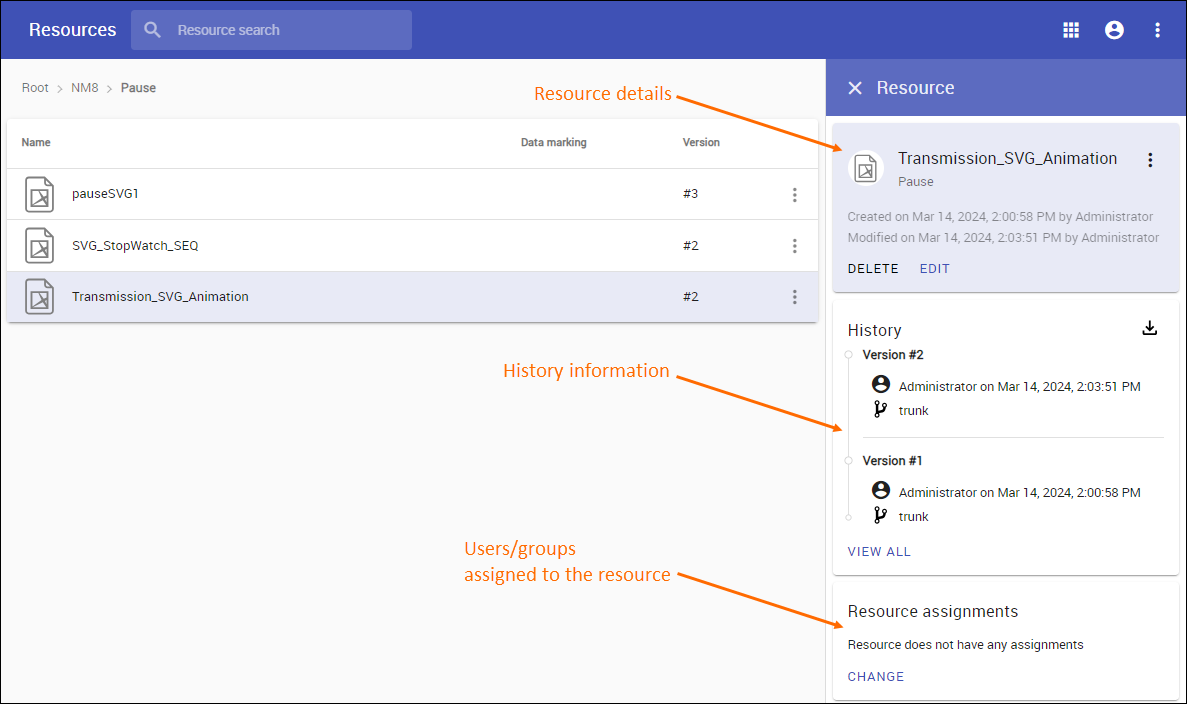
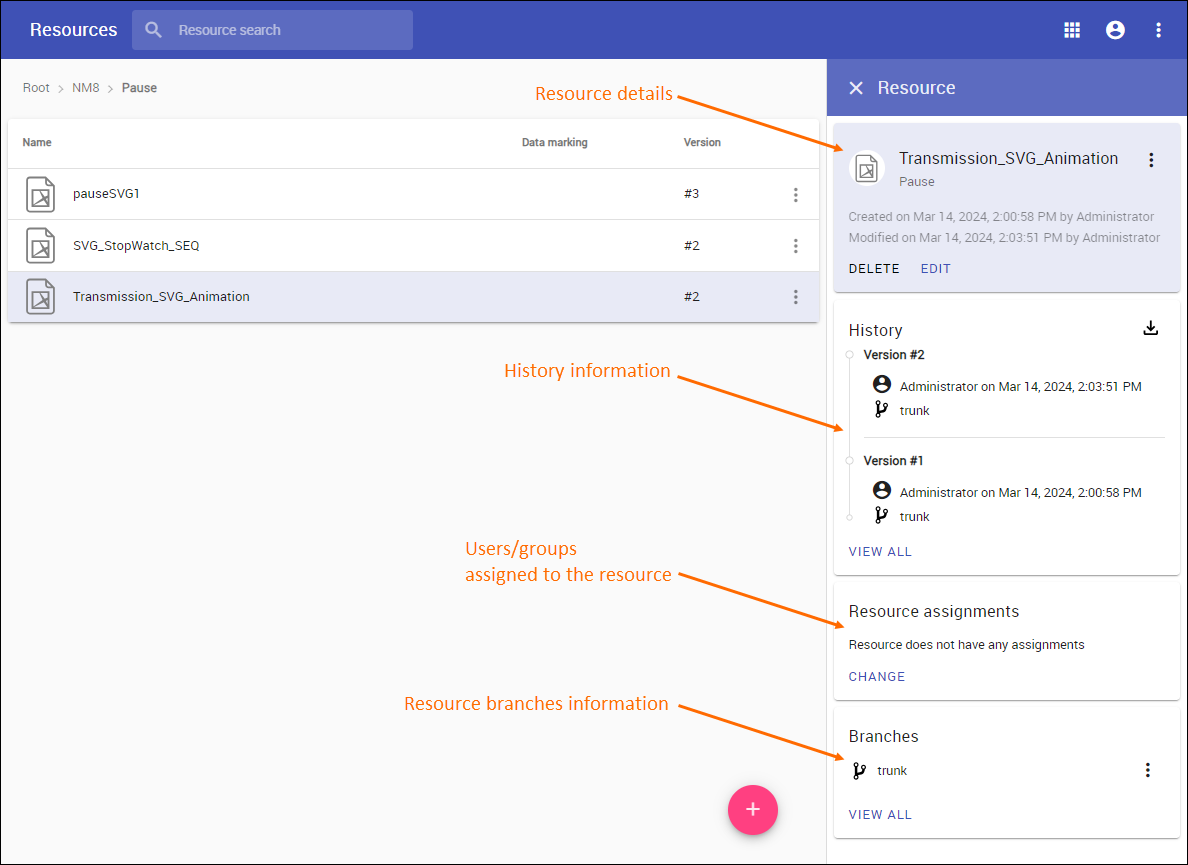
Viewing resource details, history, and
the users/groups assigned to the resourceother information.
Editing resource details
You can edit a resource name and description or move the resource to another category, as described below.
To edit resource details
- Open the Resources application and go to the category where the relevant resource is located.
- Click next next to the resource with the details you want to edit and select Resource details.
- On the Edit To edit resource details,, click Edit on the bottom of the Resource details pane.
- You can pane, do one or more of the following actions:
- Change the resource name in the Resource name field.Change the resource category in the Category field to move the resource to another category field.
- Change or add a resource description in the Description field.
- Click
 Click
Click  on the top right corner of the Edit resource details pane pane to save resource details.
When you get a confirmation message, it means the resource details are successfully updated.
Setting
aresource classification
A resource Resource classification that you set through data markings allows you to control access to that resource. To set a resource classification, enable data markings in the Settings app and ensure you have sufficient permissions.
To set a resource classification
- Open the Resources application and go to the category where the relevant resource is located.
- Click next next to the resource and select Edit resource detailsselect Set data markings.
- In the Classification drop down select the the window that opens, select the desired data marking.
- Click Set to set the selected data marking.