
After installing the Web Application Platform, you may need to create and setup the configure the Administrator user password.
| Warning | ||
|---|---|---|
| ||
It is recommended to set up and use the default Administrator user. However, you can also create a new user in the Users application of Teamwork Cloud Admin. If you |
To set up or change the Administrator user password
...
- Open the Users application and select the Administrator user.
Note If you previously used Teamwork Cloud with a custom Administrator password
...
and have only recently installed Web Application Platform, skip this step and proceed to step 5
- In the User pane, click
 and select Change password.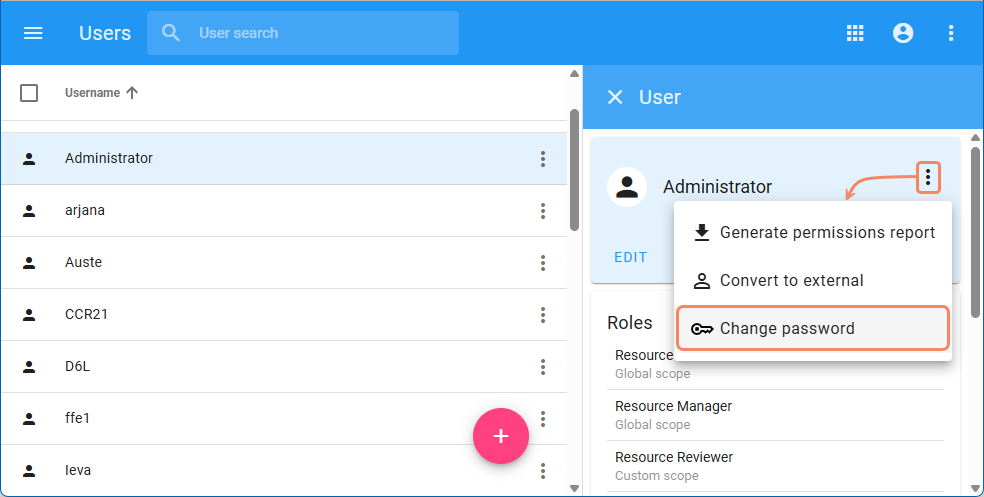
- In the Change password pane, enter the current Administrator password, then enter and confirm the new password in the appropriate boxes.
- Click
 .
. - Use the console of the machine where the server is deployed to open the <install
To set up the Administrator user
- Go to the <install
- _root>/WebAppPlatform/shared/conf directory and open the
- /webappplatform.properties file . (If you installed Cameo Collaborator for Magic Collaboration Studio manually, the file may be placed in a custom directory
- . )
- Change the
- twc.admin. username=<admin_username> twc.admin.password=<admin_password>
- Replace the placeholders in the added properties (between angle brackets (<>) with the actual user name and password used in Magic Collaboration Studio. Save and close the file
- password property value to the same password you set in the Users application.
- Restart Web Application Platform (webapp service).
Edit the values in the file as shown below: