
On this page
| Table of Contents | ||
|---|---|---|
|
By default, communication between the Magic Collaboration Studio server and client is unencrypted. This page provides information on how to encrypt communication using TLS over TCP.
Enabling TLS encryption on server side
To enable a secure connection to Magic Collaboration Studio, you must enable TLS (Transport Layer Security) on the Teamwork Cloud Admin's Server Settings page. This page also allows you to disable the option if you do not need to use a secure connection (see the following figure). You can always enable it whenever necessary. The most straightforward way to set up encryption is to use the keystore generated for Teamwork Cloud and/or Web Application Platform. Locate and download the server Java keystore (default: <install_root>/TeamworkCloud/configuration/keystore.p12). Make a note of the password used for the keystore. If there is a corresponding public certificate (e.g. teamworkcloud.crt) on the server, download it as well. If there is no public certificate, use the following command to extract the public certificate from the Java keystore:
| Code Block | ||||||
|---|---|---|---|---|---|---|
| ||||||
keytool -export -alias <teamworkcloud> -keystore <keystore.p12> -file <teamworkcloud.crt> |
| Info |
|---|
If you need to generate a new keystore, see Regenerating self-signed keystore. |
| Info |
|---|
The unencrypted port (default: 3579) remains active even after encryption is enabled. To prevent unencrypted connections, block the port at the firewall level. |
To enable a secure connection using the TLS protocol in Teamwork Cloud Admin
- Go to the Settings app.
- Move the slider to the right to enable the TLS protocol.
- Enter a custom port for encrypted communication, or keep default value of 10002.
- Upload the Java keystore file, and type the password.
- Click Save.
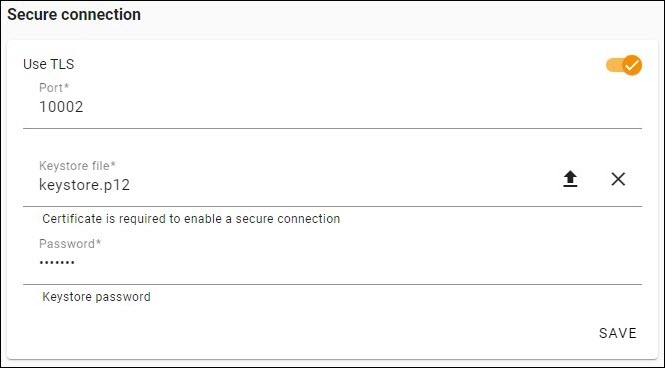
Enabling TLS protocol in Teamwork Cloud.
Setting up client-side TLS
To enable a secure connection using the TLS protocol on the client-side, use the Server Certificates tool and provide the public certificate.
| Note |
|---|
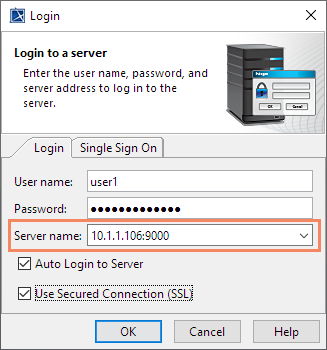
The default port for a secure connection is 10002. If you are using another port for a secure connection instead of the default, append the port number to the server name in the Login dialog:
|
| Warning |
|---|
The unecrypted port (3579) remains active even after TLS is enabled. Teamwork Cloud will continue to accept communication through both encrypted and unencrypted ports. Use firewall to disable port 3579 and block unencrypted communication. |
| Expand | ||
|---|---|---|
|
...
| id | 1318605945 |
|---|
...
| id | 1318605957 |
|---|
| Content block | ||||
|---|---|---|---|---|
| ||||
On this page:
|
...
| id | 1318605947 |
|---|
...
| To enable a secure connection between the client and the server, you need to generate two keystore files, each in their own keystores: |
...
|
...
To generate a key pair
|
...
|
...
|
...
|
...
|
...
|
...
|
...
|
...
|
...
|
...
|
...
|
...
|
...
|
...
Enabling a secure connection to Magic Collaboration Studio
To enable a secure connection to Magic Collaboration Studio, you must enable TLS (Transport Layer Security) on the Teamwork Cloud Admin's Server Settings page. This page also allows you to disable the option if you do not need to use a secure connection (see the following figure). You can always enable it whenever necessary.

...
|
...
| title | Self-signed TLS certificate warning |
|---|
|
...
|
...
By default, your server generates a TLS certificate and signs it as being valid (self-signed certificate). Unlike a TLS certificate issued by a valid Certificate Authority (CA), the self-signed TLS certificate allows a secure connection to be established but does not verify the authenticity of the server.
Trusted root certificates are embedded into popular browsers such as Firefox and Chrome. They are used to verify all TLS certificates that the browsers encounter. If a certificate is not signed by one of these roots, the browsers display an error or warning message stating that it is untrusted. Thus, when you try to access the server via the self-signed one, you will get an error or warning in your web browser. The following figure below shows an example of the ”TLS certificate not trusted“ warning in Chrome.
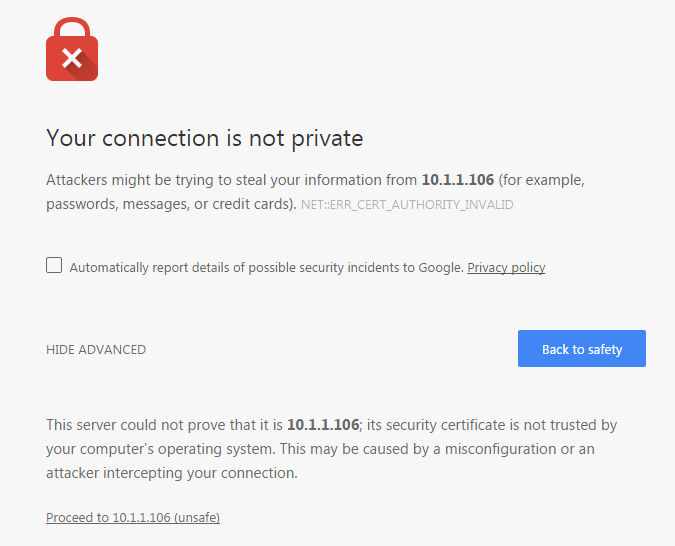
A self-signed TLS certificate error in Google Chrome.
This warning tells you the TLS certificate installed on your server was self-signed and cannot be verified by the browser. You may simply let your browser accept it and continue using the server. If you are using Firefox, you can accept it and the error or warning will no longer appear. If you are using Chrome, the error or warning will appear every time you try to access your server.
To permanently mitigate this situation and avoid having the self-signed TLS certificate error or warning appear when accessing your server via TLS, it is recommended that you either:
- Replace the self-signed TLS certificate with a dedicated one issued by a trusted certificate authority or
- Establish your own root certificate authority and manually import it to each browser on all workstations.
Setting up TLS in Teamwork Cloud Admin
To enable a secure connection using the TLS protocol in Teamwork Cloud Admin
...
|
...
At this point, you will be able to connect to Magic Collaboration Studio from the modeling tool via the TLS connection.
Setting up client-side TLS
To enable a secure connection using the TLS protocol on the client-side, use the Server Certificates tool.
...
The default port for a secure connection is 10002. If you are using another port for a secure connection instead of the default, append the port number to the server name in the Login dialog:
...
| id | 1318605943 |
|---|
Related pages
...