
On this page
| Table of Contents | ||
|---|---|---|
|
Publishing documents from the graphical user interface is the simplest way to present models to stakeholders, sponsors, customers, and engineering teams. Cameo Collaborator documents can be used not only to review model information and provide feedback but also to edit models directly from the web without using a modeling tool.
| Note | ||
|---|---|---|
| ||
|
| Tip | ||
|---|---|---|
| ||
|
| Tip | ||
|---|---|---|
| ||
|
| Info | ||
|---|---|---|
| ||
When you publish a new document with the Administer Resources permission, it inherits Magic Collaboration Studio project permissions. When you update a document, project permissions are not affected. |
To publish a Cameo Collaborator document
Start your modeling tool and open the server project you want to publish.
Info title Publishing from a historical version of a model You can publish a Cameo Collaborator document from a historic version of a model as well. However, note that the commenting, editing, and comment import functionalities in such a document will be disabled.
- In the main menu, select Tools > Cameo Collaborator > Publish.
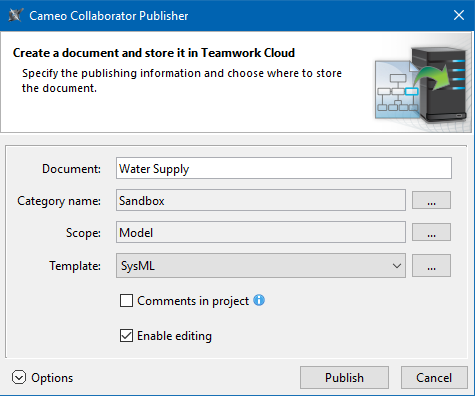
- In the Cameo Collaborator Publisher dialog, specify the publishing options.
Click the Publish button.
Wait until you get the message that the document is successfully published.
Notetip The message about a successfully published document allows you to copy or open the document URL. For the document URL to work, go to Options > Environment in the main menu and specify the Cameo Collaborator URL option.
Now you can go to the Resources application, navigate to the category where the document was published, and open the document.
Publishing options
The table below explains all the publishing options available in the Cameo Collaborator Publisher dialog.
| Publishing option | Description | |||||
|---|---|---|---|---|---|---|
| Document box | Enter the document name. By default, the document name is the same as the project name. | |||||
| Document type drop-down box | If you want to publish a resource other than a Cameo Collaborator document, select the type of resource you want to publish. Available values are Collaborator (default), OSLC, and 3DEXPERIENCE Systems Traceability.
| |||||
| Category name box | Click | |||||
| Scope box | Click | |||||
| Template drop-down box | Select one of the predefined document templates to be used for publishing. If you want to select a custom template, click
| |||||
| Comments in project check box | Select the check box to save Cameo Collaborator comments inside the project as model elements.
| |||||
| Enable editing check box | Select the check box to allow editing of the model from a Cameo Collaborator document.
| |||||
| Enable commenting check box | Select the check box to allow reviewers to create comments in a Cameo Collaborator document.
| |||||
| Update previously published document check box | Select the check box to update the document previously published from this project. After selecting the check box, click the Document drop-down box and select the document you want to update.
|

Publishing other types of resources
In addition to Cameo Collaborator documents, Cameo Collaborator for Teamwork Cloud allows you to publish other types of resources - OSLC and 3DEXPERIENCE Systems Traceability - described in the sections below.
To publish other types of resources
Start your modeling tool and open the server project you want to publish.
- In the main menu, select Tools > Cameo Collaborator > Publish.
- Click the Options button in the bottom left corner of the Cameo Collaborator Publisher dialog.
- In the Document type drop-down box, select the type of resource you want to publish: OSLC or 3DEXPERIENCE Systems Traceability.
- In the Template drop-down box, make sure to select the template depending on which type of resource you want to publish:
- If you want to publish an OSLC resource, select OSLC.
If you want to publish a 3DEXPERIENCE Systems Traceability resource, select TRA.
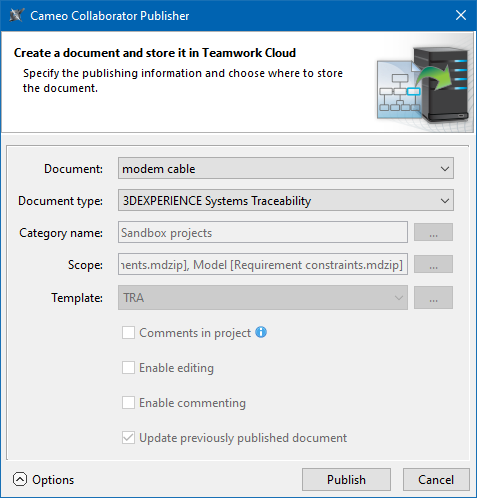
Info When publishing an OSLC or 3DEXPERIENCE Systems Traceability resource, other publishing options are specified automatically and cannot be changed.
- Click the Publish button.
- Wait until you get the message that the document is successfully published.
OSLC resources
Modeling tools with Cameo Data Hub plugin makes it possible to link and share data using Open Services for Lifecycle Collaboration (OSLC) integration. Publishing projects as OSLC resources allows you to see the OSLC UI previews of model elements in the environment of a synchronized tool, e.g., Doors Next Generation.
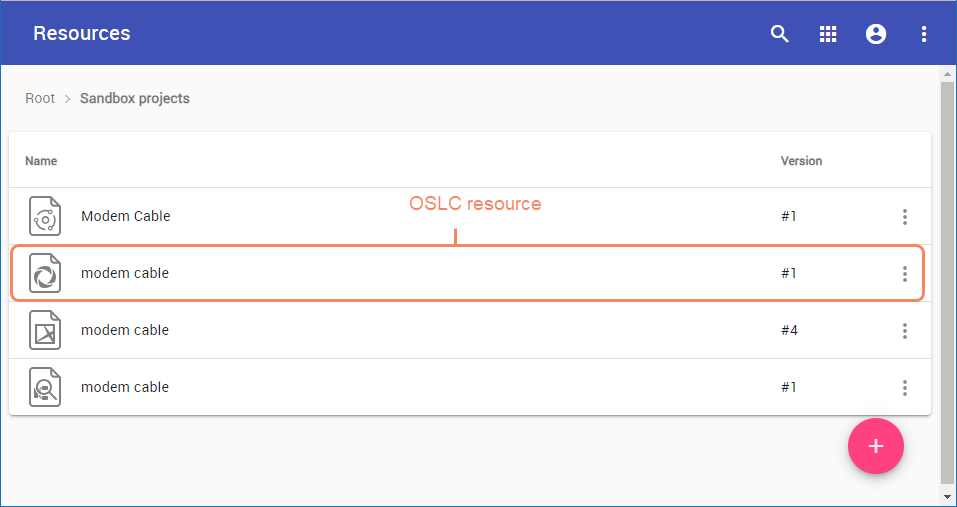
An OSLC resource in the Resources application.
3DEXPERIENCE Systems Traceability resources
The Cameo Collaborator for Teamwork Cloud allows you to publish 3DEXPERIENCE Systems Traceability resources (TRA) - which can be used in the Systems Traceability app on the 3DEXPERIENCE platform.
