
Here you can learn how to start Magic Collaboration Studio using the installer file.
| Warning | ||
|---|---|---|
| ||
To run Magic Collaboration Studio:
|
The installer file includes both TWCloud and Web applications (Resources, Collaborator, TWCloud Admin) in its installation package. During installation you will be asked to choose from installation options. The short introduction about these options During installation, you can choose one of the following installation options:
- Quick Install -
...
- intended for simple collaboration scenarios where
...
- web-based collaboration is not a daily activity. It will install
...
- Magic Collaboration Studio and all
...
- its web applications
...
- into a single machine.
- Advanced Install -
...
- intended for heavy-weight production use. It will allow you to choose
...
- what components to install: Teamwork Cloud Server and/or Web Application Platform (with all of the available web applications).
...
- This installation option should be used when Teamwork Cloud Server is deployed
...
- on a separate
...
- machine from Web Application Platform.
| Note | ||
|---|---|---|
| ||
Before installing Magic Collaboration Studio, do the following: |
To install MCS by using the installer file
...
|
| Warning | ||
|---|---|---|
| ||
To obtain the Cassandra installation file do one of the following:
|
...
|
...
|
| Warning | ||
|---|---|---|
| ||
If the installation path contains any of the special characters, like '[', ']', '(', ')', '!', '@', '#', '$', '#', '%', '{', '}', '+', '=', or ';', the installation procedure cannot be completed successfully and the login page will not load. For example, if the installation path is C:\Program Files\TeamworkCloud, which does not contain any of the special characters, the installation will not fail. |
To install Magic Collaboration Studio by using the installer file
...
- Right-click the magic_collaboration_studio_<version_number>_installer_win64.exe file and select Run as administrator.
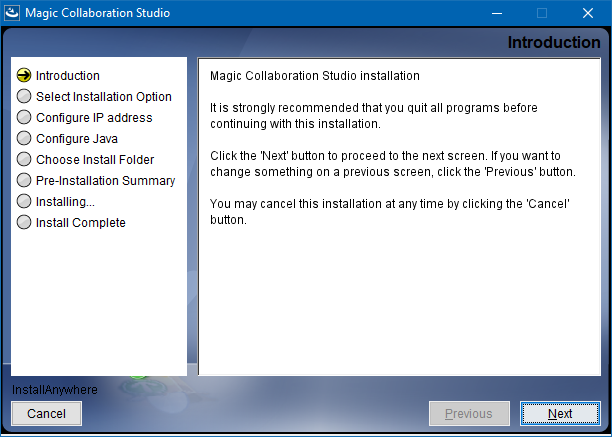
- When the installation wizard opens, click Next.
- Do one of the following:
- Select the Quick install installation option, click Next, and go to step 5.
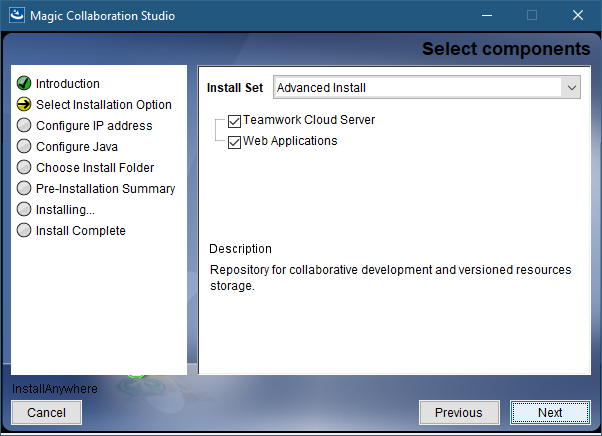
- Select the Advanced Install installation option and click Next.
- Select the components you want to install and click Next.
- Configure the IP address:
- Enter
_installer_linux64.bin for Linux). - Right click on the downloaded installer and Run as administrator. The Introduction section will open. Click Next.
- In Select Installation Option section select type of installation:
- If you select Quick install, click Next and go to step #4.
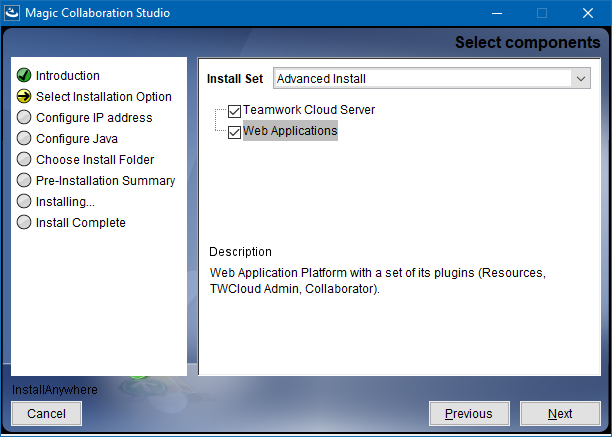
- If you select Advanced Install, you will need to specify components that you want to install. Click Next.
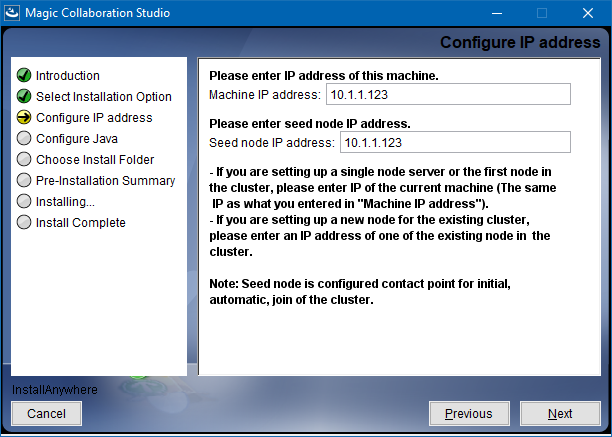
- Configure IP address:
- Type the name or IP of the machine on which you want to install MCSMagic Collaboration Studio.
- Enter the node IP. If your machine is a single node server or the first node in the a cluster, enter the IP of your machine.
- Click Next.
Select the Java VM installed on your machine for running MCS and click NextMagic Collaboration Studio and click Next.

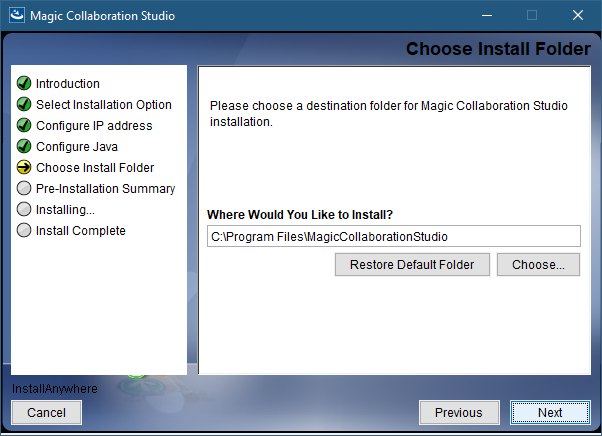
Select a location on your machine where you want to install TWCloud Magic Collaboration Studio and click Next. The Pre-Installation Summary section will open.
- Check if everything is correct.
Next.
Check the pre-installation summary and click Install.Click Install. The installer will install MCS on your machine.
Upon successful installation, click Done to close the installation window.
Open the Task Manager and start the following services:
- AuthServer service
- TeamworkCloud service
- WebApp service
- Zookeeper service
Check if the system is working. You should be able to access Magic Collaboration Studio via https://FQDN:8443/webapp/.
Post-installation configuration
| Note |
|---|
The installer has now created the preliminary configuration. If your system is still not operational and you cannot use Magic Collaboration Studio, check the configuration parameters as described below. |
Edit the configuration file: C:\Program Files\TeamworkCloudMagicCollaborationStudio\configuration\application.conf. Search for seeds = , located under the section for the persistence Cassandra section, and replace: localhost with: ip_address_of_cassandra_node. Search for url =, located in the esi.auth section. Enter the IP address or FQDN (if accessing via FQDN) of your server.
If you are accessing TWCloud Admin via its FQDN, edit the configuration file: C:\Program Files\MagicCollaborationStudio\AuthServer\config\authserver.properties. Search for server.public.host and replace the IP address with the FQDN. Search for authentication.redirect.urluri.whitelist, and append the following to the entry, https://FQDN:8443/webapp/
Please create a an entry in C:\Windows\System32\drivers\etc\hosts containing the local IP address and the FQDN of your machine, if accessing via FQDN. For example, if your IP address is 10.1.1.123 and your FQDN is mymachine.mydomain.local, it would be in the this form:
10.1.1.123 mymachine.mydomain.localOpen an administrative command prompt and issue the following commands in order to create service dependencies:
sc config authserver depend= teamworkcloud
sc config webapp depend= teamworkcloud
Open the Task Manager and
start the following services:- No Magic Authserver service
- No Magic Teamwork Cloud service No Magic WebApp service
In your web browser, go to https://localhost:8443/webapp (if default options are used) to open Magic Collaboration Studio.
restart the authserver, teamworkcloud, and webapp services.