
...
| id | 1992696423 |
|---|
...
| id | 1992696425 |
|---|
| Content block | ||||
|---|---|---|---|---|
| ||||
On this page
|
...
| id | 1992696424 |
|---|
Cameo Collaborator for
...
Teamwork Cloud allows you to export an open document or a part of it to PDF and HTML formats.
| Tip | ||
|---|---|---|
| ||
PDF templates are customizable and can be modified according to your needs. You can find them in thethe <install_root>/WebAppPlatform/shared/conf/data/collaborator/pdf directory. |
| Note | ||
|---|---|---|
| ||
By default, you can export up to 400 sections to PDF and up to 3000 sections to HTML. To change the export to PDF/HTML limits:
|
To export a Cameo Collaborator for
...
Teamwork Cloud document to PDF/HTML
...
- Open the Cameo Collaborator for
...
- Teamwork Cloud document you want to export.
...
- Click

...
- on right side of the app bar and select
...
- an Export document to PDF or HTML.
- In the open wizard, click
...
- the Type
...
- drop-down box and
...
- select Document.
- Click
...
- the Document scope drop-down box and select one of the following scope options:
- Active section - exports the open section of the document which is selected in the Navigation pane.
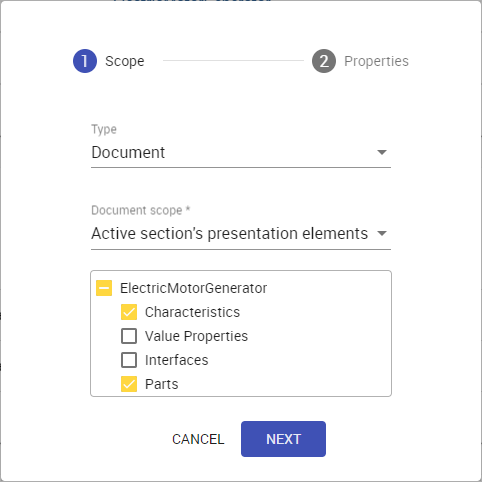
- Active section's presentation elements - selecting this option allows you to choose which elements of the active section should be exported as displayed below.
- Active view - exports the open view of the document selected in
...
- the app bar.
- Whole document - exports the whole document.
- Click
...
- the Next
...
- button.
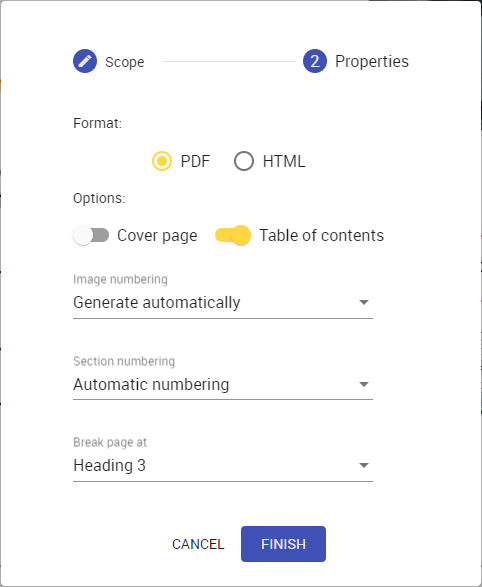
In the second step of the wizard, choose the format of the target document by selecting
...
the PDF
...
or HTML
...
radio button.
- If needed, enable the following export options:
- Turn on
...
- the Cover
...
- page switch to add a cover page to the generated document. A cover page contains the document name, export date, and project and document information.
Turn on
...
the Table of contents
...
switch to add a page with the table of contents to the generated document.
Info You cannot add the table of contents when exporting documents to the HTML format.
- Click
...
- the Image numbering drop-down box and select one of the following options:
- Generate automatically - all images in the generated document are numbered automatically while disregarding any image numbers that were changed manually.
- Use current numbering - all images in the generated document are numbered the same way as in the Cameo Collaborator for
...
- Teamwork Cloud document.
- Click the Section numbering drop-down box and select one of the following options:
- Automatic numbering - all sections in the generated document are numbered automatically.
- None - sections in the generated document are not numbered.
Click
...
the Break page at
...
drop-down box and select the heading after which page breaks are added in the generated document.
Info You cannot add page breaks when exporting documents to the HTML format.
- Click
...
- the Finish
...
- button.
After completing the above steps, the generated PDF or HTML document is downloaded to your computer. Note that exporting a large document may take a while, so be patient while the document is being generated.
| Note | ||||
|---|---|---|---|---|
| Installing additional
| |||
If your Cameo Collaborator for Magic Collaboration Studiodocument uses fonts that are different from the default font used in documents, you need to install Microsoft TrueType core fonts as described below. Otherwise,the exported PDF/HTML files may not support these fonts .Note | . To install additional fonts
Note | avoid this, install Microsoft TrueType fonts for Document Exporter. |