
...
| id | 685410269 |
|---|
...
| id | 685410271 |
|---|
...
| id | 685455285 |
|---|
On this page
| Table of Contents | ||
|---|---|---|
|
...
|
...
Here, you can learn how to run Web Application Platform with its service by using the no-installer package.
| Note | ||
|---|---|---|
| ||
Before starting, you should know the following:
|
Prerequisites
Before running the Web Application Platform with services, you need to:
- Have a working instance of Teamwork Cloud.
- If you intend to
...
- use the Cameo Collaborator for Teamwork Cloud service, make sure
...
...
- is installed beforehand.
- Download
...
- the Web_App_Platform_<version number>_<operating_system>_no_install.zip file.
- If you use Linux, increase the open file limit for the OS or Web Application Platform/Tomcat to a minimum of 20 000 files.
Before starting the installation, you should know the following:
Running Web Application Platform
...
with no-install package
To run Web Application Platform by using the no-install package
- Download and extract the Web_App_Platform_<version number>_<operating system>_no_install.zip file.
...
- Open for editing the <no-install_root>/CATIANoMagicServices/WebAppPlatform/shared/conf
...
- /webappplatform.properties file, read the comments with property descriptions, and specify the following:
- Web Application Platform properties
- Authentication server properties
- Teamwork Cloud server properties
- FlexNet/DSLS server properties
- Platform service discovery-related properties
...
In your computer settings, specify the JRE_HOME and CATALINA_HOME_WEBAPP variables as shown below:
| Code Block |
|---|
CATALINA_HOME_WEBAPP=/<no-install_root>
JRE_HOME=/<Java_install_directory> |
...
- Open for editing the <no-install_root>/CATIANoMagicServices/WebAppPlatform/shared/conf/authserver.properties file, read the comments with property descriptions, and specify the following:
- Copy the keystore.p12 file from Teamwork Cloud server (<install_root>/CATIANoMagicServices/TeamworkCloud/configuration) to Web Application Platform folder<no-install_root>/CATIANoMagicServices/WebAppPlatform/shared/conf.
Note Web Application Platform is released with pre-configured SSL certificates and keystore.
Perform this step only if you need to change the default values when the keystore file name, path, or password changes.- Go to the
- <no-install_root>/CATIANoMagicServices/WebAppPlatform/conf
...
- directory and open the server.xml file.
- In the server.xml file,
...
- specify the following properties
...
- (use the same certificate file that is used in Teamwork Cloud):
- certificateKeystoreFile="
- (use the same certificate file that is used in Teamwork Cloud):
...
- ./shared/conf/keystore.p12"
- certificateKeystorePassword="
...
| Warning | ||
|---|---|---|
| ||
| The certificateKeystorePassword property value must be the same as the -storepass and -keypass property values that you specified when creating the SSL certificate. |
- nomagic"
- type="RSA" />
- Install the webapp service and enable it to start automatically. For example:
Code Block language bash theme DJango linenumbers true service.sh install systemctl enable webapp systemctl start webapp
For information on how to start Web Application Platform, refer to Starting and Stopping Web Application Platform.
...
To access Web Application Platform, open a web browser and go to http(s)://<domain_name>:
...
| Info | ||
|---|---|---|
| ||
If you want to start Web Application Platform, start Zookeeper first and only then - Web Application Platform. |
...
In this section, you can learn how to specify the JRE_HOME and CATALINA_HOME_WEBAPP variables in different operating systems.
To specify variables on Linux
- Go to the /etc directory and open the profile file.
Copy the following lines to the profile file and replace the placeholders between angle brackets (<>) with actual paths:
Code Block export CATALINA_HOME_WEBAPP=/<path_to_Web_App_Platfrom_extratcted_no-install_root> export JRE_HOME=/<path_to_Java_install_directory>Tip title Variable examples export CATALINA_HOME_WEBAPP=/Users/admin/Desktop/Web_App_Platform_190_noinstallexport JRE_HOME=/usr/java/jdk1.8.0_172-amd64/Open the Terminal application and execute the following command:
Code Block source /etc/profile
To specify variables on Windows
- Open Control Panel and go to System and Security > System.
- Select the Advanced system settings option on the left side of the System dialog.
- In the System Properties dialog, click the Environment Variables button.
In the System variables area of the Environment Variables dialog, specify the values for the JRE_HOME and CATALINA_HOME_WEBAPP variables as shown below:
Code Block CATALINA_HOME_WEBAPP=/<no-install_root> JRE_HOME=/<Java_install_directory>- Click OK.
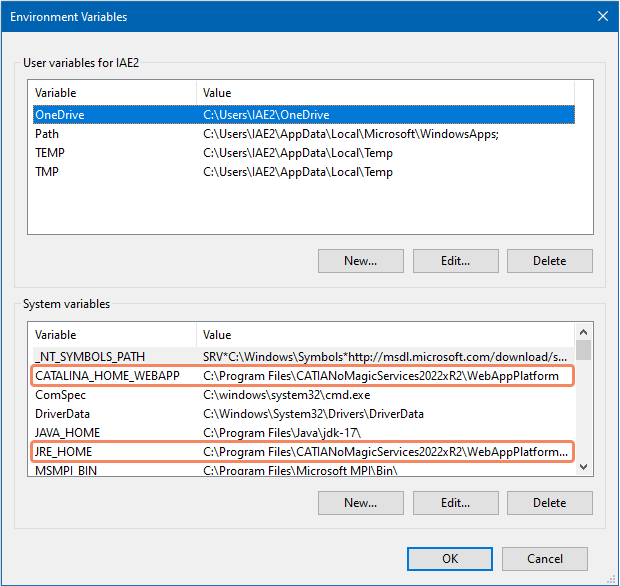
System variables in the Environment Variables dialog on Windows
8443/webapp.