

The content of this chapter is intended for system administrators. Here, you can learn how to install and configure Web Application Platform with Cameo Collaborator and other services used with Teamwork Cloud.
Installation prerequisites and other important information
Before installing Web Application Platform with services, you need to:
- Have a working instance of Teamwork Cloud.
- If you intend to install the Cameo Collaborator for Teamwork Cloud service, make sure that DSLS or the FlexNet license server is installed beforehand.
- Download the Web_App_Platform_<version number>_win64.exe file.
- Have access to the KeyStore file with the same certificate that is used in Teamwork Cloud for authentication configuration.
Before starting the installation, you should know the following:
- We recommend installing Web Application Platform and Teamwork Cloud on different machines.
- Before installing Web Application Platform, note down Teamwork Cloud, the Authentication server, and license server data, such as the hostname (or IP address) and port. You will need to enter this data during installation.
- After installing Web Application Platform, it is recommended to disable the web container (e.g., Apache Tomcat) on the machine where Teamwork Cloud is installed.
To install Web Application Platform and services (advanced installation)
- Run the Web_App_Platform_<version number>_win64.exe file as an administrator to start the installation wizard.
- Specify the location where you want to install Web Application Platform and click Next.
- Select the Advanced Install radio button and click Next.
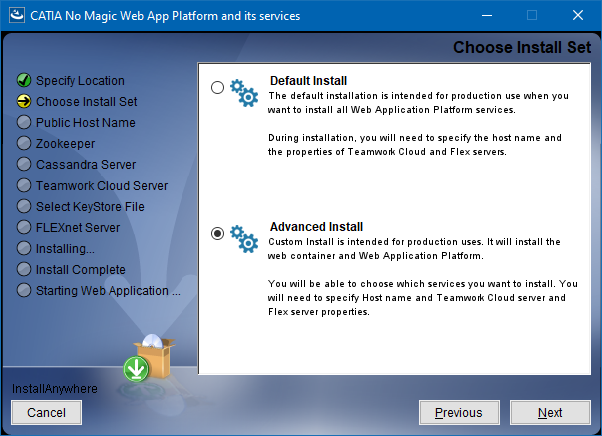
- Follow the on-screen instructions in the installation wizard and click Next after each step.
When the Pre-Installation Summary is displayed, check if all the installation properties are specified correctly and click Install.
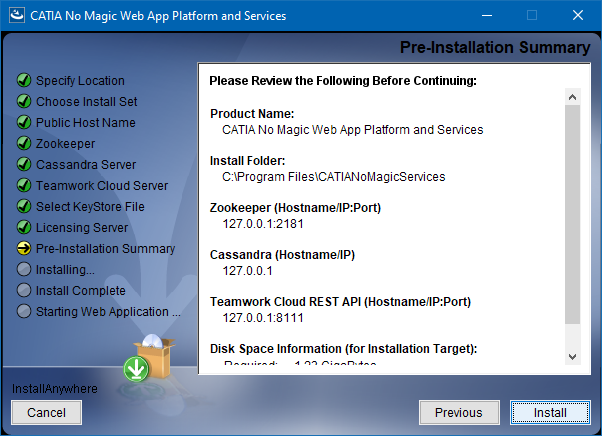
- When Web Application Platform is successfully installed, click Next.
- If you do not want to start the Web Application Platform service right after installation, clear the Start WebApp Service check box.
- Click Done.
- Go to the <install_root>\WebAppPlatform\shared\conf directory and open for editing the authserver.properties file.
- Update the authentication.redirect.uri.whitelist property by adding the Web Application Platform address (http(s)://<domain_name>:<port>/webapp) as its value.
- If you installed the Came Collaborator for Teamwork Cloud service, apply the Cameo Collaborator license.
Web Application Platform is now installed with the selected services. For information on how to start Web Application Platform, refer to Starting and Stopping Web Application Platform. To access Web Application Platform, open a web browser and go to http(s)://<domain_name>:<port>/webapp. By default, the Web Application Platform uses port 8443.