Cameo Requirements Modeler Plugin 2024x Documentation
You are viewing an old version of this page. View the current version.
Compare with Current View Page History
Version 1 Next »
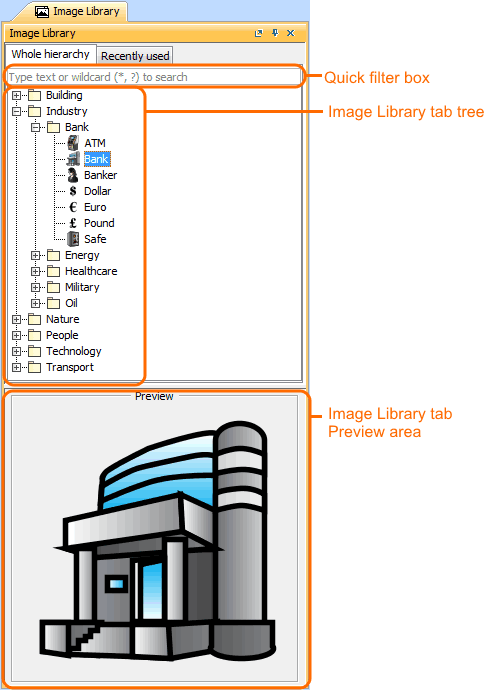
The Image Library tab displays images grouped in logical sets. You can use a bundled image collection or add your own set of images. To open the Image Library tabFrom the Window menu, select Image Library.The Image Library tab opens on the right side of the window. To add your own set of images into Image Library, do eitherCompress a folder (.zip) with a set of desired images and place it in the MagicDraw installation directory: \data\imagelibraries\commonsymbols.Image formatsYou can add images of the following formats: .gif, .jpg, .jpeg, .svg, .png, .wmf.Create an Image Library plugin. See the Writing plugins page. Using the Image Library tab, you can apply an image on symbol.Image Library tab The Image Library tab consist of three components: Quick filter Image Library tree Image Library Preview area Quick filterYou can search for images in the Whole hierarchy or Recently used tabs using one of the following way:Simple Search: type what you want to find in the hierarchy.Pattern Search: type * to find any image.For example, type "*Bank" if you want to find "Bank" somewhere in the hierarchy.Image Library treeYou can drag an image from the Image Library tree directly:On the symbol (image is applied for symbol).To the diagram pane (image shape is created).Image Library Preview areaYou can preview the image before applying it on the symbol in the Image Library Preview area.
To open the Image Library tab
To add your own set of images into Image Library, do either
Compress a folder (.zip) with a set of desired images and place it in the MagicDraw installation directory: \data\imagelibraries\commonsymbols.
Image formats
You can add images of the following formats: .gif, .jpg, .jpeg, .svg, .png, .wmf.
Using the Image Library tab, you can apply an image on symbol.
Image Library tab
The Image Library tab consist of three components:
You can search for images in the Whole hierarchy or Recently used tabs using one of the following way:
Pattern Search: type * to find any image.
For example, type "*Bank" if you want to find "Bank" somewhere in the hierarchy.
You can drag an image from the Image Library tree directly:
You can preview the image before applying it on the symbol in the Image Library Preview area.