

On this page
The Validation Results panel and Active Validation Results panel display the results of the validation: invalid element, severity, explanation of the validation rule and its abbreviation. The Active Validation Results panel shows the results of active validation suites, while the Validation Results panel shows predefined validation suites. The Validation Results panel opens automatically after the validation has ended. How to start the validation >> Since the active validation suites always check your model's correctness, you must open the Active Validation Results panel to see the results of active validation. To open the Active Validation Results panel On the status line, click the failure indicator (e.g. If you cannot see the failure indicator on the status line, your model is correct according to active validation suites. The Validation Results panel consists of the following areas: The toolbar allows you to manage the validation results. All buttons are described in the following table. Navigate to Validated Object (Alt+B) Click the button to select the element in the Containment tree. Click the arrow next to the button to open the menu of the following navigation commands: Solve Click to open the list of available commands to solve a selected element violation in the validation results area. Click to ignore a selected element violation in the validation results area. In server projects, you can select whether to ignore the violation for you as a project user or for all users who works on that server project. The button is available when you select an unignored element in the validation results area. Click the arrow next to the button to open the menu of the following commands: Click to make a selected element in the validation results area violation unignored. The button is available when you select an ignored element in the validation results area. Display the full path of the elements Run validation with current settings Run validation with new settings Click to open the Validation dialog and run the validation with new settings. Click to export the list of validation results either to .html or .csv file. The validation results area provides a list of violated elements. This area contains the following columns: You can use the validation results area to: To manage validation results All those commands are described in the table above. To sort the validation results To filter the validation results The summary of the severity area displays the number and severity of violated elements in expanded packages. If you collapse the package in the validation results area, the number of violated elements are excluded from the count.Introduction
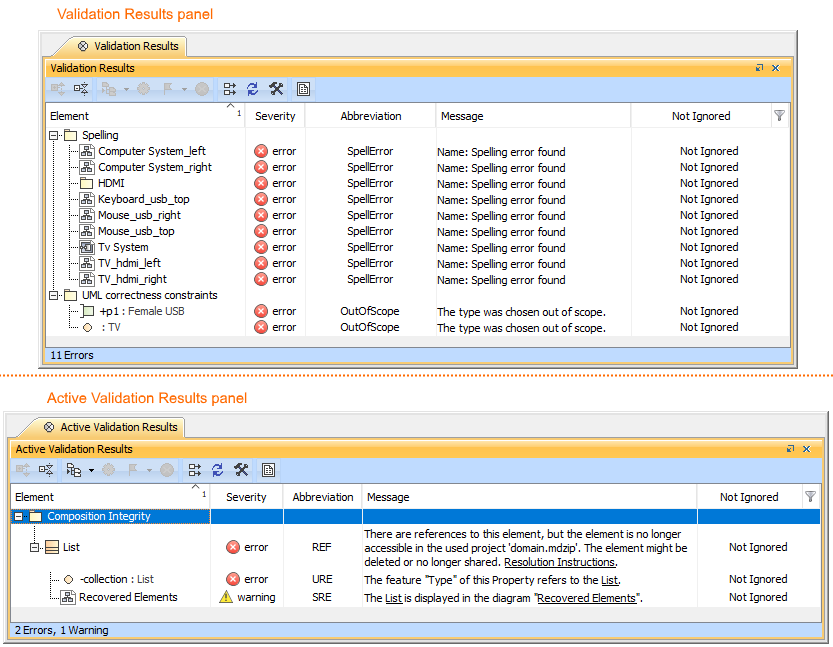 The Validation Results and Active Validation Results panels.
Opening the Validation Results panel
 ).
).Description of Validation Results panel areas
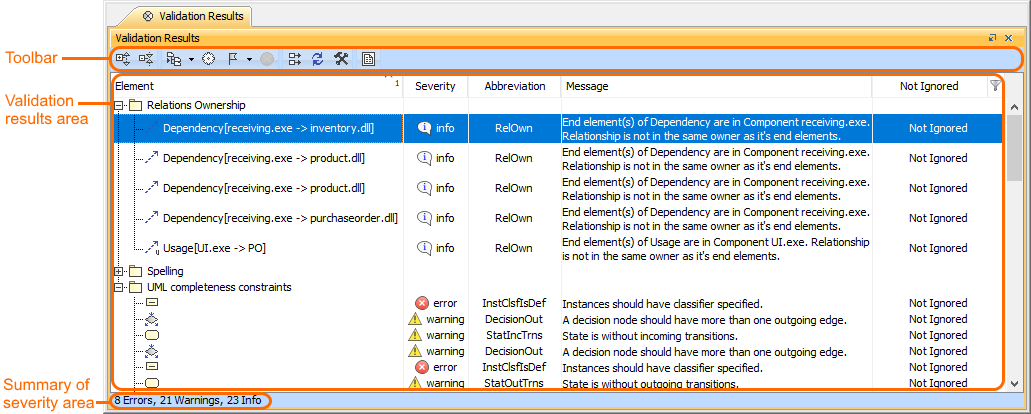 The Validation Results panel areas: toolbar, validation results, and summary of severity areas.
Toolbar
Button icon Button name Description 
Expand All Click to expand recursively all the elements in the validation results area. 
Collapse All Click to collapse recursively all the elements in the validation results area. 
 Open Specification - opens Specification window of the selected element in the validation results area.
 Go To - opens a submenu whose commands allow you to track and navigate to the elements.
 Select Rule in The Containment Tree - selects the failed validation rule in the Containment tree of the selected element in the validation results area.
 Add to Search Results - selects an element in the Search Results tree.

Ignore 
Unignore 
Click to show the full path of all elements in the validation results area. 
Click to run the validation with current settings. 

Export Validation results area
 - ascending sorting.
 - descending sorting.
 at the right of the column header and select a value from the drop-down list.
Summary of severity area