

On this page
The Find dialog provides a quick way to search for specific model elements. Use it to search for elements by name, applied stereotype name, tag value and documentation content. The dialog can be opened from several different places in your modeling tool. To complete a simple search, use the main area of the dialog, or click the Options button, to specify criteria that will reduce your search results to only applicable ones. To search for elements using the Find dialog Searching tips The selected search results are now added to Favorites. They can be accessed by clicking A new Smart Package containing all the search results from the Search Results tab is created under the selected owner. Use the main area of the Find dialog to specify the most common search criteria, such as an element name or the scope of the search. The table below provides detailed descriptions of all the elements in the main area. Dialog element name Dialog element type Description What Text box with drop- down list The What box allows you to search for model elements by the text used in their names or textual properties. To search for desired model elements, enter the text you want to find. To search in element names, select the Search in names check box. To search in textual properties including Documentation, select the Search in all texts check box. Note that both of these options are available only if the Options area is collapsed. To make your search more specific, click You may use wildcard characters (,?) in your search phrase. "" means zero, one, or more characters. If your search phrase is "dd", all the elements containing "dd" in their names can be found, e.g. "Address" and "ThreadDeath". "?" means exactly one character. If your search phrase is "?dd", only the elements with "dd" in their names, beginning with the second character (e.g., "Address"), can be found. "ThreadDeath" cannot be found in this case, because it contains more than one character before the search phrase "dd". Be sure to check the Match exactly command when using wildcard characters! Click The box is available only when the Options area is expanded. Click The Options area allows you to select from a number of additional search options that will make your search more specific and narrow down the search results. Dialog element name Dialog element type Description Clear Previous Search data unused in diagrams Show results in new window The Find dialog offers a number of advanced search options allowing you to narrow down search results. Below are some specific cases illustrating how search criteria can be defined. To find an element by an element ID To find abstract Classes To find the elements with a specific stereotype and a certain phrase in their documentation .
.
After completing the steps above, the search results are displayed in the Search Results tab of the model browser.
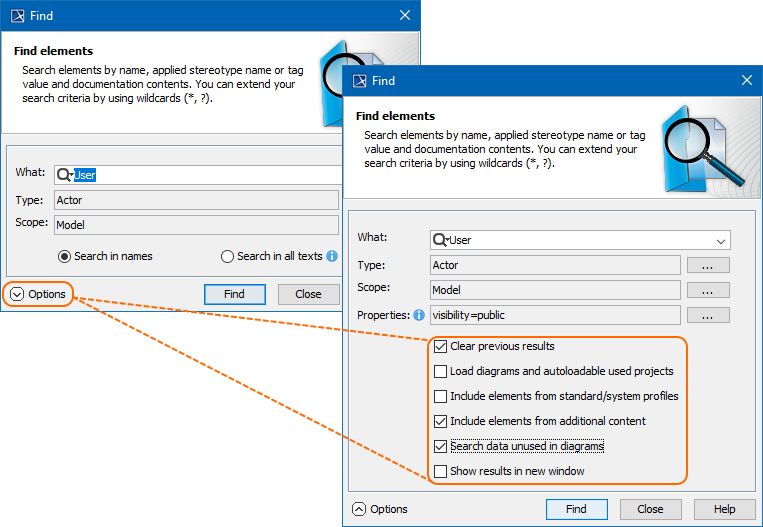
The Find dialog with the extended Options area.
 in the diagram toolbar or press Ctrl+F.
 on the toolbar of the Search Results tab. Then select Add Selected to Favorites from the menu. and selecting the desired element under the Go to Favorites group.
 on the toolbar of the Search Results tab containing the search results you want to add to a Smart Package.
Main area of the Find dialog
 as illustrated below.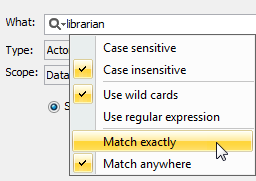
Type  and select one or more element types from the list provided in the open Select Element Type dialog. You have the option to include standard and custom subtypes of the selected element type in the search results.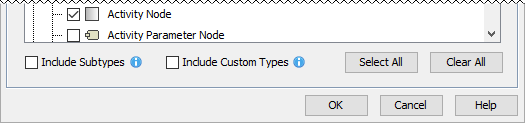
Scope and select the desired package. Specify the search scope before opening the Find dialog by performing one of the following:Properties , select the properties applicable to your search and specify their values. The property list in the open dialog contains only the properties of the element types selected in the Type box. Select at least one element type to make the button available. Keep in mind that the property list contains primitive value properties, e.g. string, boolean, integer, and a non-primitive value property named Applied Stereotype.Options area of the Find dialog
ResultsCheck box Select to remove all previous search results from the Search Results tab in the Model Browser. Load diagrams and autoloadable used projects Check box Select to load all elements to be included in the search if the model has diagrams or used projects that are not loaded. If the load mode of the used project is Manual load, the used project will not be loaded and elements from it will not be included in the search. Include elements from standard/system profiles Check box Select to include elements from standard/system profiles. Include elements from additional content Check box Select to include additional elements from Smart packages if Smart packages fall into the search scope. By default, this check box is not selected and elements from Smart packages are excluded from search results. This enables you to avoid search results being duplicated by results outside of Smart packages. Check box Select to search for only those elements that do not have symbols in any diagram. Note that the check box is unavailable if the Find dialog is opened by using the Find in Diagram command in the diagram shortcut menu. Check box Select to display the results of every subsequent search in a new Search Results tab of the Model Browser. Advanced search options
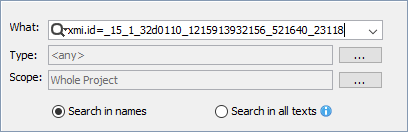
 next to the Type box, and select Class. next to the Properties box, select the IsAbstract property, and set its value to true. next to the Type box, select the element type you want to find (e.g, Actor) and select the Include Subtypes check box. next to the Properties box, select the Applied Stereotype property, and select a custom stereotype (e.g., «BusinessActor») as its value.