

The Users application contains a list of all users and user groups. Information about them includes usernames (or group names), full names, last activity, and login status (Enable or Disable).
Only a user with a User Manager role can create a new user and/or change a user's password.
Only authorized users are able to view all users in the TWCloud system. There are individual users and user groups in TWCloud, which are classified as external/internal users and external/internal user groups. External users or user groups are imported from external LDAP servers. Internal users or user groups are created in TWCloud. You can learn more about internal and external users in the section Managing users, and internal and external user groups in the section Managing user groups.
To open Users application
- Click
 and select Users application.
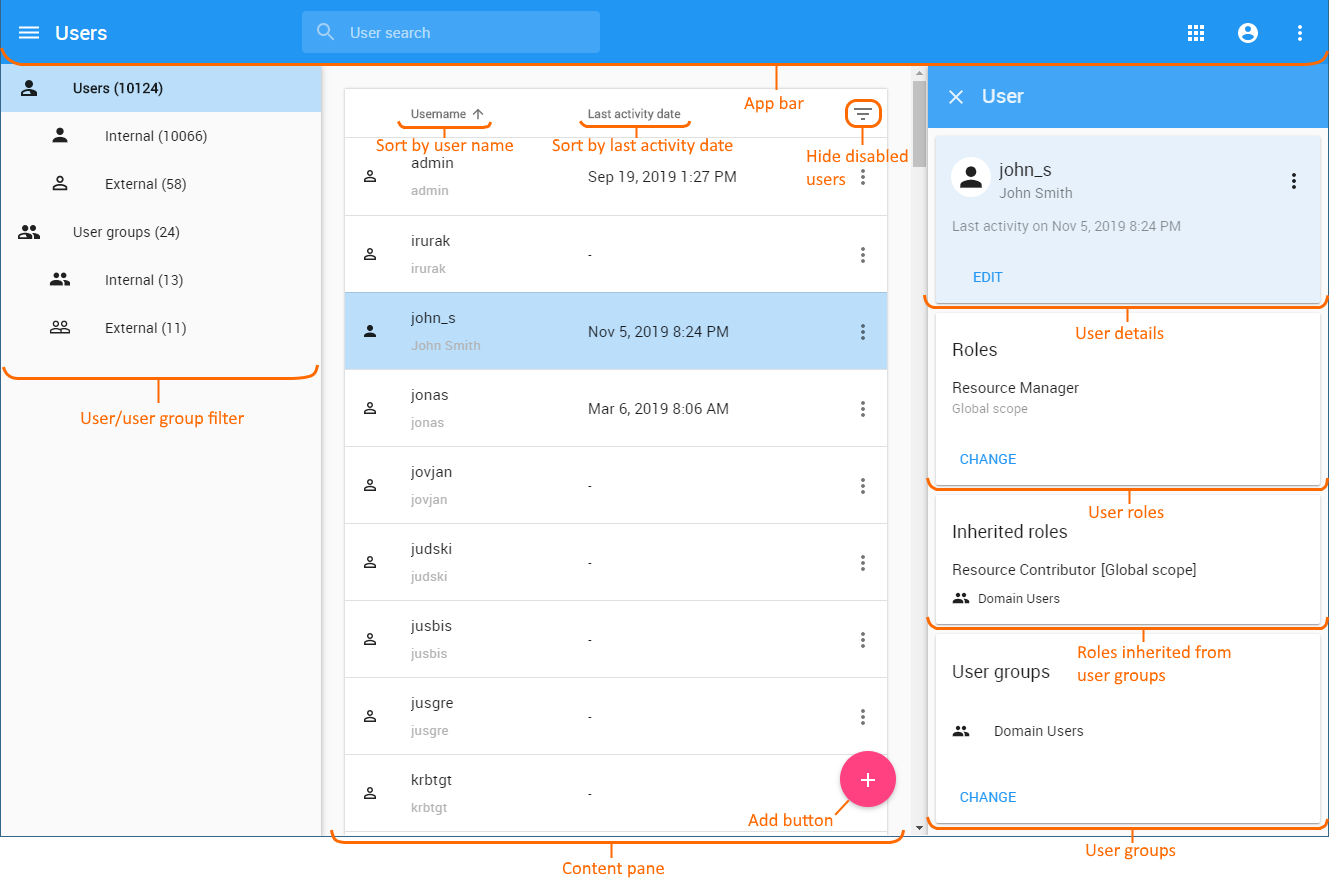
Users application structure.
The table below describes the UI components in the User application.
| UI Components | Description |
|---|---|
| App bar | Using the app bar |
| User/User group search bar | The textbox allows you to search for a user/user group by username or keyword. You can type any alphabetic character, numeric value, or symbol (such as @, &, or #), or a combination of them in the search box. The search is not case-sensitive. By default, the search result will return all usernames that match the keyword or letter(s) entered and display them on the page. |
User/User group filter | The left side menu filters internal and external users/groups. Numbers next to each filter name show how many internal/external users/user groups there are. Internal users/groups can be distinguished from external users/groups by different icons:
|
| Name column | This column shows a username or group name. You can sort internal and external users by clicking this column name ( |
| Full Name or Description column | This column shows the full name of a user. When creating a new user, you may type the full name or leave it blank (optional). If it is a group, you can add a short group description. |
| Last Activity Date column | This column shows the time and date of the user's last activity on TWCloud. The time-date format is DD/MM/YYYY HH:MM. This data appears only for users and will not be shown when viewing group information. Internal and external users can be sorted by clicking this column name ( |
Content pane
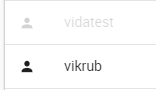
| Different user colors show the user status in TWCloud Admin:
|
Hide disabled users filter
| By clicking the filter you can select to hide/show disabled users. Filtering out disabled users |
User/User group activity button
| The drop-down menu allows you to edit user information and change user login access (enable or disable).
|
Add button
| The Add button opens the Create User/Group pane, which allows you to create a new user/group. See Managing user groups for more information. |





User group
A user group gathers multiple users and gives the same role assignments to the users in the same group. When you create a user group and assign role assignments (including the scope), you assign them to all of the members in the user group. You can update information and delete a user group. You can also Importing users and groups a user group from an LDAP server as an external user group. All members of the user group will be imported to Teamwork Cloud (TWCloud) as external users as well. To update the information for an external user group in TWCloud, you must resynchronize it with that of the LDAP server.