

On this page
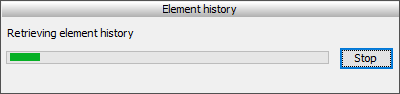
To display the history of an element, do one of the following Stopping collecting changes If retrieving the element history takes too much time, you can click the Stop button to complete reviewing changes through different versions of the selected element. The History panel of the selected element then opens at the bottom of the client application window, such as MagicDraw or a Cameo Suite product (i.e., Cameo Systems Modeler). If you select an element in a used project, the corresponding panel title is Usage History. The highlighted row indicates current changes that are not yet committed. To refresh the list of versions, click the By default, the list of versions is stripped to a a small number of the latest versions. To see more versions, click the Show more results button under the list. You can compare any two versions of an element to see the differences between them. To display the history of an element in a used project To compare project versions in the Teamwork Cloud environment, you are required to have a Read Resources Permissions for every used project in compared versions. To compare element versions Hold down Ctrl and select the versions you want to compare. You can only compare two versions. Please note that if you select more than two items, only two (the latest and the earliest versions) will be compared. If you want to compare subsequent versions, you only need to select the later one. You can also choose the same commands from the toolbar of the History panel. After you select the Quick Diff command, a dialog opens that shows changes in element property values (see the following figure). Different colors help identify new, modified, and deleted values. You can analyze exact changes in the textual value of the selected property in the Text Diff box. If you want to see the original texts of both versions, click the Compare property values button After you select the Full Diff command for an element, the Difference Viewer dialog opens, showing changes in element property values, as well as detailed information for directly related elements and new relationships (see the figure below). For more information about using this dialog, see Analyzing comparison results. After you select the Full Diff command for a diagram, the Difference Viewer dialog opens, showing all changes in the diagram (see the figure below). For more information about using this dialog, see Viewing and analyzing differences of modified diagrams. Be aware that Quick Diff is not available for displaying diagram changes. Diagram changes (as diagram layout changes) can be displayed only in the Full Diff mode. To see these changes you must initiate the comparison of entire project versions. For this, select a couple of project versions in the History panel and on the shortcut menu click Compare Projects. For more information, see Analyzing comparison results. To generate an element history reportDisplaying element history
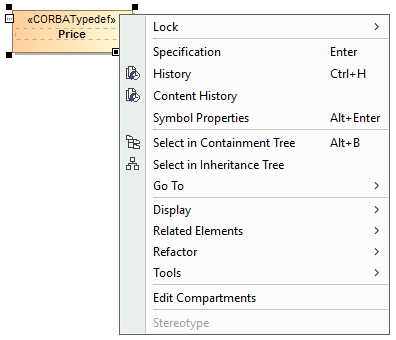
 .
.
 button in the panel's toolbar or perform the same actions as for opening the panel.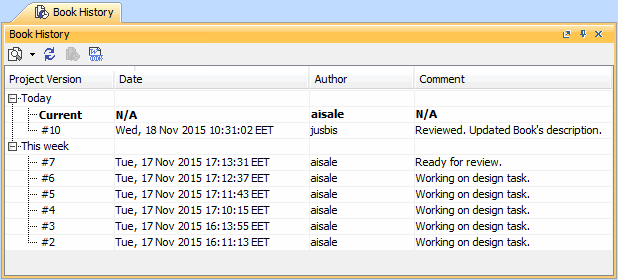
A list of project versions in the History panel.
 button or right-click the selected version and select the Show History in Used Project command.
Comparing element versions
 button or right-click the selection and choose either:
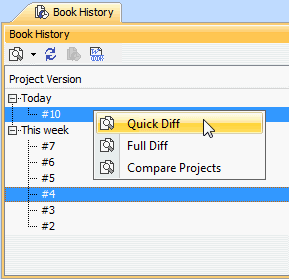
 on the toolbar of the dialog to open the Compare property dialog and then click Original Texts.
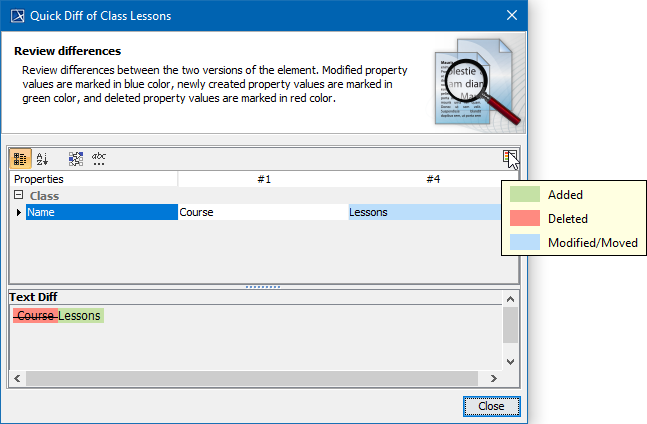
An example of the Quick Diff dialog of an element (class).
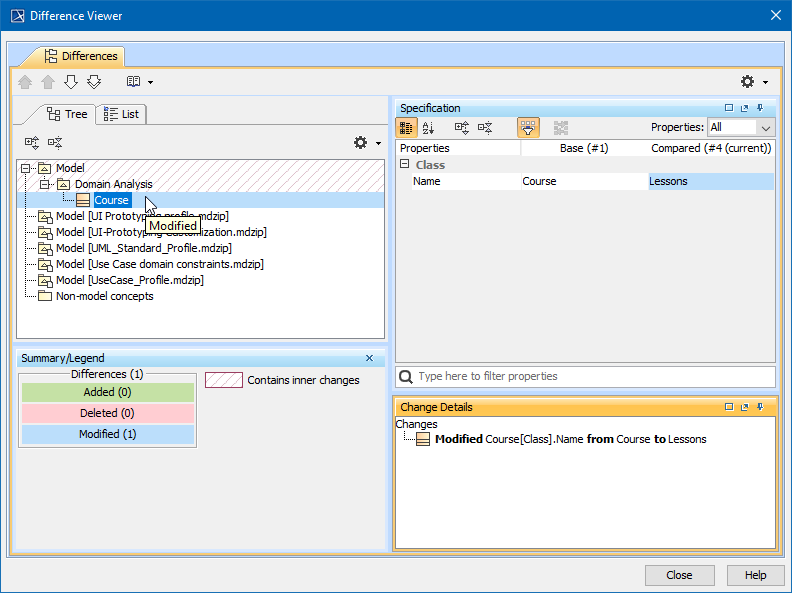
An example of the Difference Viewer dialog of an element.
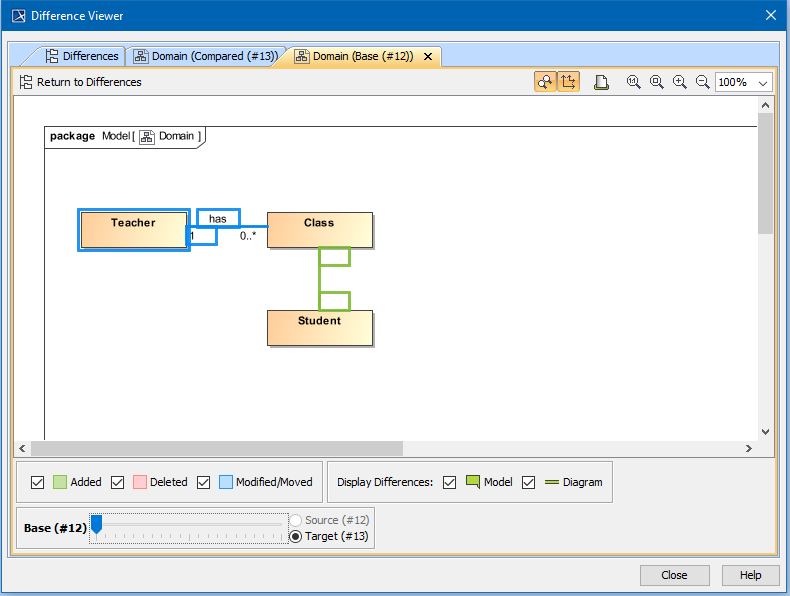
An example of the Difference Viewer dialog of a diagram.
Generating reports
Related pages