

An Alf expression can be used as the guard for a Transition in a State Machine. However, in this case, it is generally easier to enter the Expression directly into the Specification window for the Transition, rather than to use the Alf editor window. It can then subsequently be edited using the Alf editor.
To create an Alf guard Expression
- Open the Specification window for the Transition (from the Model Browser or as represented on a State Machine diagram).
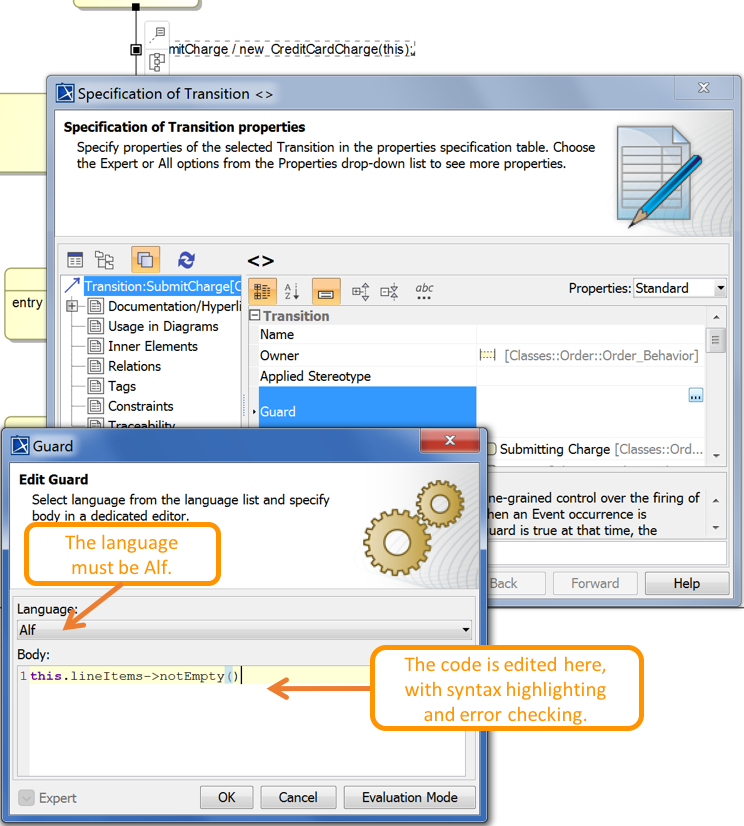
In the Transition section, click on the Guard property and then click on the
button at the right of the field.
In the Edit Guard window, select Alf for Language (you may need to scroll up in the menu) and enter the Alf code for the expression into the Body field.
Note that the text entered must be for an expression, not a statement. Therefore, it must not have a semicolon at the end. The expression can access attribute values of the context Classifier of the State Machine containing its Transition (using Alf this expressions). It can also access the data in the event occurrence that triggered its execution (e.g., the attribute data of a received Signal).
To make Alf the default language for guard Expressions
- Select Options > Environment.
- From the General options, select Editing.
- For the Opaque Expression Default Language option, type Alf (with exactly that spelling and capitalization).
- Click OK.
- Click OK to close the Edit Guard window.
- Close the Specification window.
To edit an Alf guard Expression in the Alf editor
- Open the Alf editor window (select Window > Alf), if it is not already open.
On the State Machine diagram, click on the text of the Transition trigger with the guard to be edited.
If a Transition has a guard Expression in Alf, but no effect Behavior, than selecting the Transition on a diagram results in the Alf code for the guard being displayed in the Alf editor window. However, if the Transition also has an effect Behavior in Alf, then selecting the Transition line on a diagram results in the Alf code for the Behavior being displayed in the Alf Editor. In order to edit the guard, select the text for the trigger of Transition.
- Enter the Alf code for the guard Expression and press Save to compile and save it.

You can also edit the Alf code in the Edit Guard window just as in the Alf editor window. However, instead of Save and Revert buttons, this window has OK and Cancel buttons, either of which will close it. If you press OK, then the Alf text is saved, and, if it has no errors, compiled. If you press Cancel, the Alf text is not saved.
To edit an Alf guard Expression in the Edit Guard window
- Open the Specification window for the Transition (from the Model Browser or as represented on a State Machine diagram).
In the Transition section, click on the Guard property and then click on the
 button at the right of the field.
Edit the Alf expression as above.