

Date and time are set in the Date and Time Settings dialog. This dialog is always used when specifying the properties that have a date type value. It allows you to select a date, time, and a time zone using a visual calendar and/or the Date, Time, and Time zone boxes.
Date/time format information
The Date and Time Settings dialog uses your computer's locale to set the date and time format. You can still enter date and time values of another format manually in the Set date and time box, but the dialog will not recognize them; i.e., you won't be able to use a calendar or the Date and Time boxes. Using them would automatically change the date and time format to the one that is specified in your computer's locale.
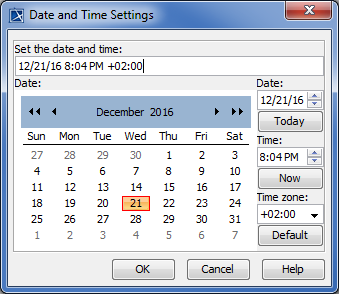
The figure displays the Date and Time Settings dialog with specified date, time and time zone values.
The Date and Time Settings dialog can be opened from:
- The Specification window of an element that has a property with a date type value
- A Generic Table that has a column of date type values.
The Date and Time Settings dialog elements
| Dialog element | Element type | Description |
|---|---|---|
| Set the date and time | Text box | Allows you to enter date and time values in the following order:
Values should be separated by spaces. |
| Date | Visual calendar | To select a date, click a day on a calendar. To switch between months, use the arrows on the left and on the right side of the title section of the calendar. To switch between years, use the double-arrows on the left and on the right side of the title section of the calendar. The selected date is automatically entered in the Set the date and time box using the format that is specified in your computer's locale. |
| Date | Spin box | Allows you to select a date value in the format specified in your computer's locale. The default value is the current date. To change a date value, use the up or down arrow to increase or decrease the current value. The selected value is automatically entered in the Set the date and time box. |
| Time | Spin box | Allows you to select a time value in the format specified in your computer's locale. The default value is the current time. To change a time value, use the up or down arrow to increase or decrease the current value. The selected value is automatically entered in the Set the date and time box. |
| Time zone | Drop-down list | Click the arrow on the right side of the box to select the desired time zone. |
| Today | Button | Click the button to set the Date box value to the current date of your computer. |
| Now | Button | Click the button to set the Time box value to the current time of your computer. |
| Default | Button | Click the button to set the Time zone box value to the value set in your computer. |