On this page
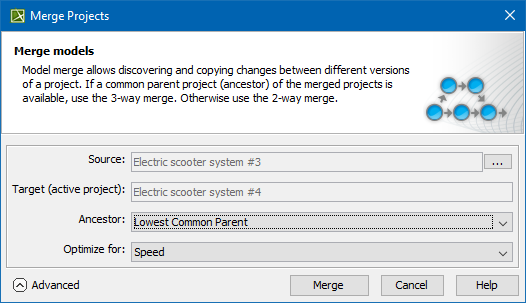
Start the merge using either of the following: You can apply this method of starting a merge exclusively to Teamwork Cloud projects. For Teamwork Cloud projects, you do not need to specify the ancestor; it will be instantly identified after the source is selected. By default, the lowest common parent of two branches is considered a common ancestor. You can apply this method of starting a merge to both local and Teamwork Cloud projects, although used projects can be included in a merge only for server projects. You must specify both the source and the ancestor, and manually choose the 3-way or 2-way merge. Conflicting changes detected during merge are automatically resolved by accepting changes either from the Source or the Target version. To specify a contributor, go to Options > Environment > General > Merge and Compare and then next to Automatically Resolve Conflicts by Choosing, select either Target or Source. To start merge from Tools > Project Merge Select the type of merge. Learn about 3-way and 2-way merge inUnderstanding merge types. Memory, to decrease memory usage while merging the projects if your computer does not have enough memory. This will use less memory but at the same time will slow down the merge procedure when the project has many changes in diagrams. It will not include the differing diagrams/elements count. If you need that information, select optimize for Speed. You can also specify the Optimize for option in the Environment Options dialog. Find this option under the Merge and Compare category in the General options group. If the Low memory notification keeps popping up during merge, we recommend that you do one of the following: Click the Merge button. The project merge will start. If changes are found, the Merge window will open. Proceed to Analyzing and managing merge results. To start a merge of the from Collaborate > Merge From Do one of the following: Click Continue to lock the server project. Other users will not be able to commit changes. Click Show Merge Results to proceed directly to the Merge Results, without locking the server project. In this case, Understanding merge types in Teamwork Cloud is considered a common ancestor by default. To start merge from Tools > Project Merge Select a project that will be the Model Merge#Source. Memory, to decrease memory usage while merging the projects if your computer does not have enough memory. This will use less memory but at the same time will slow down the merge procedure when the project has many changes in diagrams. It will not include the differing diagrams/elements count. If you need that information, select optimize for Speed. You can also specify the Optimize for option in the Environment Options dialog. Find this option under the Merge and Compare category in the General options group. If the Low memory notification keeps popping up during merge, we recommend that you do one of the following: Do one of the following: Click Continue to lock the server project and continue the merge process. Other users will not be able to commit changes. Click Show Merge Results to proceed directly to the Merge Results. The project merge will start. If changes are found, the Merge window will open. Proceed to Analyzing and managing merge results.Local model merge
 Advanced button to see more merge options. Otherwise, go to step8.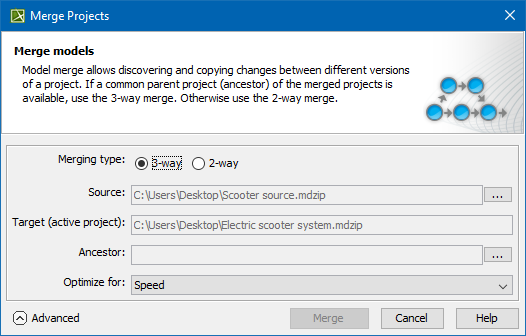
Model merge for Teamwork Cloud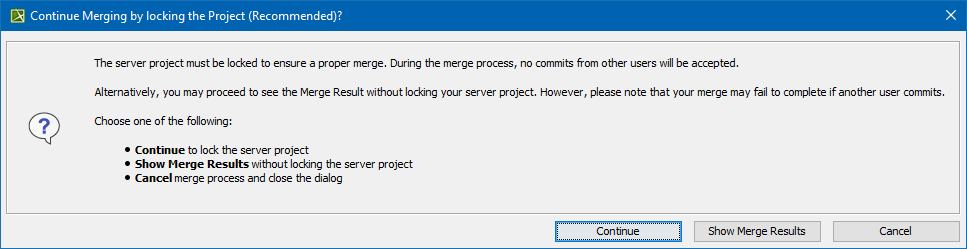
 Advanced button to see more merge options. Otherwise, go to step7 .