

You may need to manage several projects at the same time, and the modeling tool allows you to do that easily. All open projects are held in separate workspaces. Different active projects may exchange data. Entities from one project can be copied or moved to another. Choose the way your projects will be closed: Yes The project you are currently closing will be saved (its name appears in the question). The dialog is displayed again when the next project closes. Yes To All Save all projects without prompting. The Save dialog will not appear for each open project. No Project you are currently closing will not be saved. No To All All the projects will be closed without saving or further prompting. Cancel Cancel saving projects.
To switch between open projects, do one of the following and then select the name of the project you want to switch to.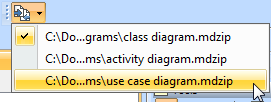
To close all open projects
The dialog is displayed again when the next project closes.
To exchange model elements between open projects