subsumes representation attribute
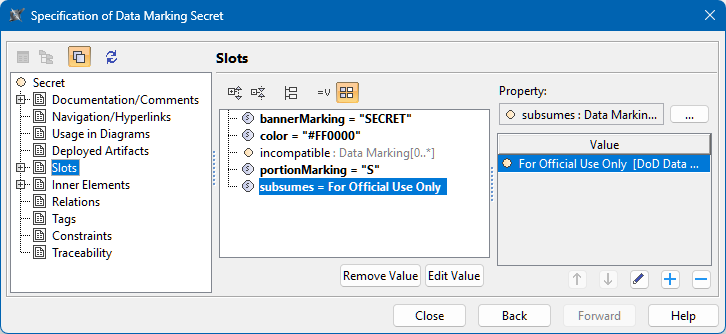
The subsumes representation attribute lets you specify which Data Marking overrules another, even if they belong to different categories. For example, if you specify that the Data Marking Secret subsumes the Data Marking For Official Use Only, and then perform Sensitive Element Redaction, removing elements marked as For Official Use Only will also remove those marked as Secret, but not vice versa.

During (2026x Refresh1) Sensitive Element Redaction or its preview, if the Data Markings' Category is ranked, higher-ranked Data Markings are treated as subsuming lower-ranked Data Markings.
Specifying the subsumes representation attribute
To specify the subsumes representation attribute
- Through the Data Marking element:
- Right-click the Data Marking element and open its Specification window.
- In the property group list, select Slots > subsumes > and click the Create Value button. Select Instance Specification dialog opens.
Select the Data Marking(s) that you want the current Data Marking to subsume. Click OK.
- You can use the Multiple Selection option to select multiple Data Markings at once.
- The Data Markings available for selection do not include extending submarkings, i.e., Data Markings that belong to Categories with the «permissiveSubDataMarkingCategory» stereotype.
- (Optional) Click the
 button to add another Data Marking that you want the current Data Marking to subsume.
 - Click Close.
- Through the Data Marking Category element:
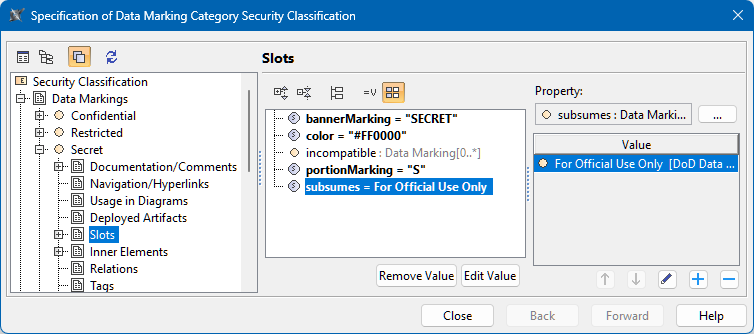
- Right-click the Data Marking Category element and open its Specification window.
- In the property group list, expand Data Markings. Data Marking elements that belong to the category appear.
- Expand the Data Markings element you want to edit and select Slots.
- Select subsumes and click the Create Value button. The Select Instance Specification dialog opens.
- Select the Data Marking(s) that you want the current Data Marking to subsume. Click OK.
- (Optional) Click button to add another Data Marking that you want the current Data Marking to subsume.
- Click Close.
Removing a Data Marking from the subsumes list
To remove a Data Marking from the subsumes list
- Through the Data Marking element:
- Right-click the Data Marking element and open its Specification window.
- In the property group list, select Slots > subsumes.
- In the Value box on the right side of the dialog, select the Data Marking you want to remove.
- Click the
 button to remove the Data Marking.
 - Click Close.
- Through the Data Marking Category element:
- Right-click the Data Marking Category element and open its Specification window.
- In the property group list, select Data Markings. Data Marking elements that belong to the category appear.
- Expand the Data Markings element you want to edit and select Slots.
- Click subsumes slot and select the Data Marking you want to remove.
- Click the button to remove the selected Data Marking.
- Click Close.