Applying style sheets
Whether you're using predefined style sheets provided by the modeling tool or custom ones you've created, you can manage which style sheets are applied to the entire project and which for specific views. This flexibility allows you to combine multiple style sheets based on your modeling needs, for example, applying a global style sheet to the entire project while applying distinct style sheets to individual views. Additionally, style sheets applied at both the project and view levels can be prioritized by setting their order of application. You can also disable project-level style sheets for a specific view.
Style sheets can be applied to:
Style sheets application priority order
The order of priority in which the style sheets are applied to views:
- The configurations for applying style sheets to individual views are of the highest priority and thus higher than applying them to the entire project.
- The ordering of style sheets for both individual views and the entire project is taken into account. If you specify multiple style sheets, order them based on your preferred priority, as the style sheets higher on the list take precedence over those lower on the list. Applying multiple style sheets is useful if the prioritized style sheet does not cover all available symbols. In that case, the secondary style sheet will cover those not covered by the first (if it contains the necessary rules).
- The configuration for applying style sheets to the entire project is considered last.
Applying style sheets to the project

There must always be at least one style sheet applied to the project. If no style sheet is applied by the user, the default applied project style sheet is DefaultStyleSheet.
Applying style sheets to the project
To apply style sheets to the project
- Click the Style Sheets button in the view toolbar. In the dropdown menu, click Project Style Sheets command. The Project Style Sheets dialog opens.
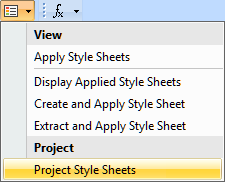
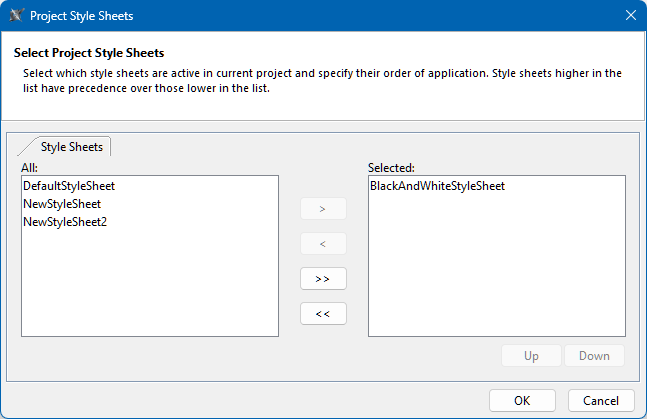
- On the left side panel of the Project Style Sheets dialog, select the style sheet(s) you want to use and click the Add
 button.
 - Select a style sheet on the right side of the panel and click the Up or Down buttons to change the selected style sheet's priority.
- Click the OK button. The selected style sheets are applied, and element symbols are updated in project views.

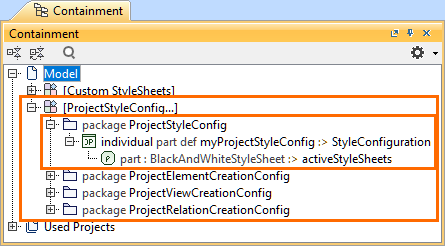
Applying style sheets to the project via the Style Sheets button automatically creates a new package ProjectStyleConfig with the applied project style sheets configuration. The package is created in a root namespace dedicated to configurations that activate style sheets, creation dialogs, and validation suites. If no such namespace exists in the model, it is automatically created with the ProjectStyleConfig package. The root namespace's name depends on the name of the package first created in the namespace.
Applying style sheets to a specific view
To apply style sheets to a specific view, the view must be defined by a symbolic view definition. Symbolic views containing Views::asInterconnectionDiagram or Views::asTreeDiagram renderers, but not defined by symbolic view definitions, are automatically defined by DS_Views::SymbolicViews::gv once you apply a style sheet to the view.
Applying style sheets to a specific view
To apply style sheets to a specific view
- Open the specific view whose style sheets you want to modify.
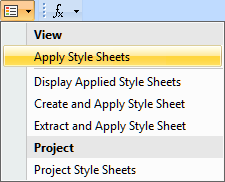
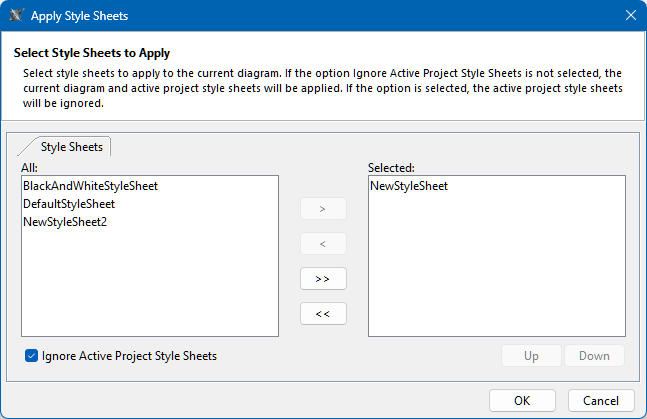
- Click the Style Sheets button in the view toolbar. In the dropdown menu, click Apply Style Sheets command. The Apply Style Sheets dialog opens.
- On the left side panel of the Apply Style Sheets dialog, select the style sheet(s) you want to use and click the Add button.
- Select a style sheet on the right side of the panel and click the Up or Down buttons to change the selected style sheet's priority.
- (Optional) Select the check box for the Ignore Active Project Style Sheets option. Selecting the option ignores the specification of applied project style sheets specified in the Project Style Sheets dialog for the selected view, only taking into account the style sheets specified for this exact view in the Apply Style Sheets dialog.
- Click the OK button. The selected style sheets are applied, and element symbols are updated in the view.
Displaying style sheets applied to a specific view
To display style sheets applied to a specific view
- Open the specific view.
- Click the Style Sheets button in the view toolbar. In the dropdown menu, click Display Applied Style Sheets command.
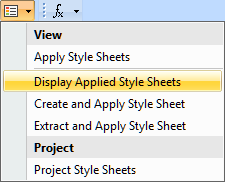
Part definition element symbols of the style sheets applied to the view are displayed in the view.
If style sheets are applied to the entire project, but none for the specific view, the command will not display the style sheet symbols.