Perform action
A perform action usage specifies that an action is performed by the owner of the performed action usage. A perform action usage is referential, which allows the performed action behavior to be defined in a different context than that of the performer.
A perform action usage can be a feature of:
- a part definition or usage, specifying that the referenced action is performed by the containing part.
- an action definition or usage, whereby the perform action usage represents a referential "call" from the containing action to the performed action.
There are two ways an action can be performed:
- by referencing the action usage defined elsewhere in the model.
- The element symbol is displayed with the perform keyword (unnamed element) or the perform action keyword (named element).
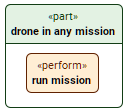
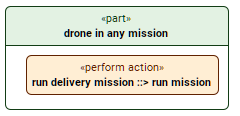
- See the procedures:
- The element symbol is displayed with the perform keyword (unnamed element) or the perform action keyword (named element).
- by containing an owned perform action usage, i.e., the performed action is the perform action usage itself.
- The element symbol is displayed with the perform action keyword.
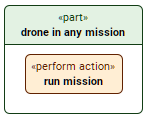
- See the procedures:
- The element symbol is displayed with the perform action keyword.
Performing an action by referencing an action usage defined elsewhere in the model
Performing actions via the Textual Editor
To perform actions via the Textual Editor
- In the Textual Editor, within the body of the element that you want to perform an action, do one of the following:
- For an unnamed perform action, declare the perform keyword followed by the name of the performed action.
- For a named one, declare the perform action keyword, specify the element name, then reference subset the performed action.
- Click the Synchronize button.
action 'run mission'; // referenced action
part 'drone in any mission' {
// unnamed perform action referencing an action defined elsewhere in the model
perform 'run mission';
// named perform action referencing an action defined elsewhere in the model
perform action 'run delivery mission' references 'run mission';
perform action 'run delivery mission' ::> 'run mission';
}
Performing actions via the Drag and Drop handler in a view
To perform actions via the Drag and Drop handler in a view
- Drag an action element from the Containment tree or use its symbol's Drag and Drop handler and drop it on:
- the target element symbol that you want to perform the action by referencing it using the Create Perform Action command.
- the perform action usage symbol that you want to perform the action by referencing it using the Set Performed Action command.
Performing actions via the view palette
To perform actions via the view palette
- In the view palette, under the Actions group, click perform.

If the needed button is not displayed, click the down-facing arrow next to the perform action button and select the needed button in the dropdown menu.
- Do one of the following:
- To perform an existing action, in the view pane, click on the part element symbol, then on the action element symbol.
- To create a new perform action, in the view pane, click on the part element symbol, then elsewhere in the view pane to create an action element symbol.
The perform path is drawn between the element symbols.
Performing actions via the smart manipulator in a view
To perform actions via the smart manipulator in a view
- In a view, do one of the following:
- To perform an existing action, select the part element symbol, and in its smart manipulator, click the perform command. Click on the action element symbol.
- To perform a new action, select the part element symbol, and in its smart manipulator, click the perform command. Click elsewhere in the view pane to create an action element symbol.
The perform path is drawn between the element symbols.
Performing actions via the Create Relation command
To perform actions via the Create Relation command
- Right-click on the client (source) element.
- In the shortcut menu, click Create Relation, then in the submenu, under Outgoing, click perform. The Create... dialog opens.
- In the Create... dialog, do one of the following:
- In a view, click the element symbol you want to be the supplier (target). Hold Shift to select multiple elements.
- Click the Add
 button. The element selection dialog opens. In the element selection dialog, select the element you want to be the supplier (target) and click OK.
 - Drag and drop the needed element you want to be the supplier (target) from the Containment tree onto the Create... dialog.
- In the Create... dialog, click OK.
Performing actions via the Specification panel
To perform actions via the Specification panel
- Drag and drop an action element from the Containment tree or use its symbol's Drag and Drop handler and drop it on the Performed Action field in the Properties section of the Specification panel for the perform action element.
The appropriate action is specified for the element.
Performing an action via the owned perform action usage itself as the performed action
Performing actions via the Textual Editor
To perform actions via the Textual Editor
- In the Textual Editor, within the body of the element that you want to perform an action, declare the perform action keyword followed by its name.
- Click the Synchronize button.
part 'drone in any mission' {
// performed action is the defined perform action usage itself contained by the parent
perform action 'run mission';
}
Performing actions via the Create Element command
To perform actions via the Create Element command
In the Containment tree, right-click an element, and in the shortcut menu, click Create Element.
- In the Create Element dialog, select the perform action element.
- Name the element.
- Specify the perform action's features.
Performing actions via the view palette
To perform actions via the view palette
- In the view palette, under the Actions group, click the perform action button.
- Click in the view pane where you want to create the perform action symbol.
- Name the element.
- Specify the perform action's features.