Specifying a condition for a rule
Once you have created a style sheet and a rule for it, see the procedures on this page for specifying the condition for the rule.
Specifying a condition for a style sheet rule
To specify a condition for a style sheet rule via the Specification panel
- Create a style sheet and a rule for it.
- Open the Specification panel for the style sheet's rule part usage element.
- Specify the condition in the Specification panel's condition compartment:
- Specify the needed condition in the Match by field. Click the field to view the dropdown menu with available conditions, then click the needed condition to specify it for the rule.
- Specify the condition values in the value field. The value field name and its applicable values depend on the specified condition:

To specify multiple elements in drag and drop value fields, hold the Ctrl key while dragging and dropping each additional element.
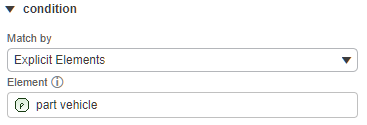
Condition Value Field Name Description Explicit Elements Element Drag and drop model elements from the Containment tree or a view to match these specific elements.
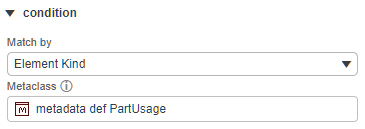
Element Kind Metaclass Drag and drop a metaclass (e.g., a metaclass from the KerML library or a metadata definition from the SysML library) from the Containment tree to match elements of this type.
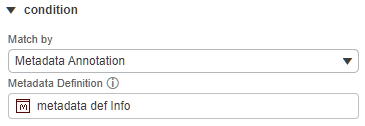
Metadata Annotation Metadata Definition Drag and drop a metadata definition from the Containment tree or a view to match elements annotated with this metadata.
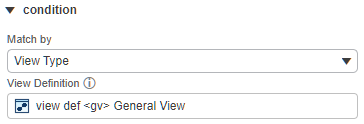
View Type View Definition Drag and drop a view definition from the Containment tree to match the views of this type. The styles will apply to the symbols displayed in views defined by the specified view definition.
Custom Expression Expression Click the Open in Textual Editor button and specify the expression in the Textual Editor.
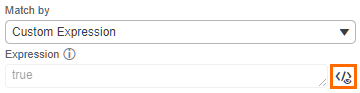
The default expression is true. Replace it with an expression targeting the needed element. Use element to refer to the evaluated item.
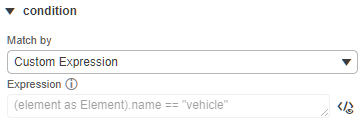 Example in Textual Editor
part :> rule {
part :>> condition : DS_Styles::CoreStylesComponents::Predicates::FreeFormCondition {
calc :>> test {
(element as KerML::Element).name == "vehicle" // targets element symbols named vehicle in all views (to which the style sheet is applied)
}
}
}
- You can now specify styles for the rule and/or assess layout-sensitive changes.